Transcribe a screen recording in Spanish, Hindi or Filipino
You record in Spanish, Hindi or Filipino, and you want the transcript and captions in that language too, not a garbled English guess. You can transcribe a screen recording in Spanish, or in any of 25 languages, while you record it, with nothing to upload afterwards. The one rule that matters: the language is chosen before you press Start, and it stays fixed for that recording. This guide shows where the setting is, what to do when your talk mixes two languages, and how to get an .srt caption file for YouTube or Vimeo.
How the transcript language works
Cheap Recorder's live transcript uses Chrome's own speech recognition. It writes down what Chrome hears on your microphone while you record, shows it as captions on the Preview, and saves the text next to your recording.
Chrome listens for one language per recording. You pick it in a menu, and it is set when the recording begins. Three things follow from that:
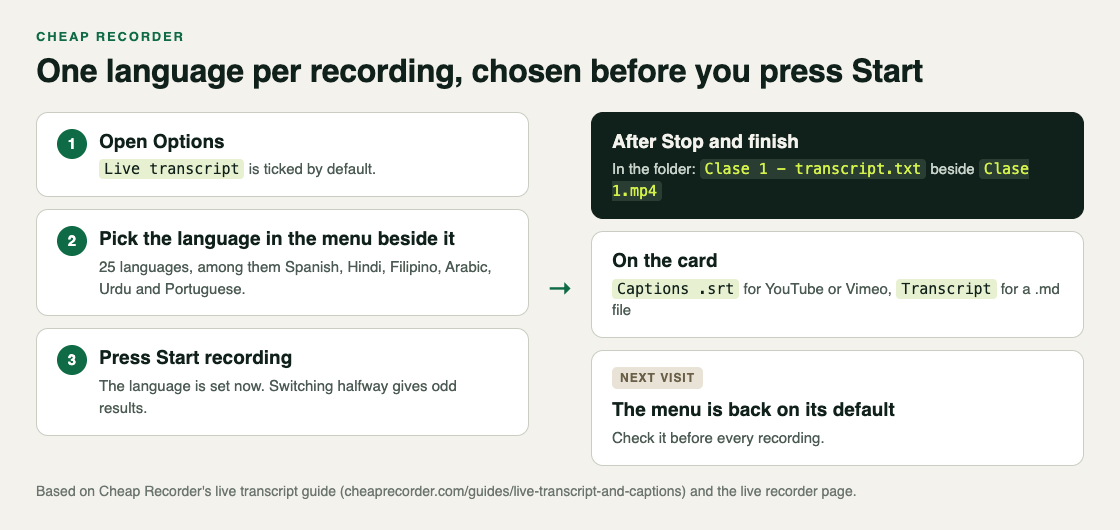
- Pick before you start. The language is set when the recording begins, and switching it halfway through gives odd results.
- Check it every time. The menu goes back to its default each time you open the recorder page. Your last choice is not remembered.
- It cannot be added later. The transcript is only made live. If it was off, or set to the wrong language, you record again.
How to transcribe a screen recording in Spanish, step by step
The steps are the same for every language. Spanish is the example here.
- Open the recorder in Google Chrome and choose your folder under Where to save.
- Open Options, the folding card below What to capture. Make sure Live transcript is ticked. It is ticked by default.
- In the menu beside it, choose Spanish.
- Pick what to capture as usual: a whole screen, a window or a browser tab.
- Press Start recording and talk normally. Your Spanish words appear as captions at the bottom of the Preview, and settle into a finished line when you pause.
- Press Stop and finish. The transcript is saved in the recording's folder, next to the MP4, as a plain text file with the time of each line.
- On the card for your recording, press Captions .srt for the caption file, or Transcript for a formatted .md file. Caption files are not saved in the folder, so download them here.
The live transcript is on the Free plan and every plan above it. While it is on, Chrome sends your microphone audio to Google to turn it into text, so you need to be online. If a recording must not leave your computer in any form, untick Live transcript before you start.
Which languages you can choose
The menu has 25 languages. The transcript guide names these among them:
- English (UK) and English (US)
- Spanish, Portuguese, French and German
- Hindi, Urdu and Arabic
- Filipino
- Chinese (Mandarin), Cantonese, Japanese and Korean
Open the menu beside Live transcript to see the full list before you plan a recording in another language.
The recording's name can be in your language too. Names keep spaces, accents and any alphabet, so a Spanish title with accents or a Hindi title in its own script stays as you typed it. Only a few characters a file name cannot hold, such as a colon or a question mark, are left out.
One recording, one language
Many people mix languages when they talk, such as Spanish with English product names, or Filipino with English. Chrome still listens for one language. Switching language halfway through gives odd results, so choose the language most of the talk is in, and expect words in the other language to come out less well. Check those lines in the transcript afterwards.
If you need the same content in two languages, make two recordings. Name each one with its language, choose the matching language in the menu before each take, and you get two clean transcripts instead of one muddled one.
For a better transcript in any language, use a headset or a desk microphone close to your mouth. The transcript is made from what Chrome hears on your microphone, and a laptop's built-in one in a noisy room hears less clearly. The post on captions and a transcript while you record has more on getting clean text.
Captions for your viewers: the .srt file
The captions you see on the Preview are not drawn into the video. Your MP4 stays clean, and you add the caption file wherever you publish it.
- YouTube or Vimeo: upload the .srt from Captions .srt next to your video.
- A video editor: most editors can import an .srt.
- Fix words first: because the captions live in their own file, you can correct a misheard name or term in it before anyone sees it.
Chrome gives a time for each line, not for each word, so a caption can appear a moment early or late. That is fine for most videos; check the timings if you need frame-accurate subtitles.
If more than one sound source speaks, such as you and the other side of a call, the Speaker boxes above the transcript let you replace each label with a real name, on plans that include speaker detection. The post on speaker names shows how.
A worked example: one onboarding video in Spanish and Filipino
Say your support team records a five-minute onboarding walkthrough for customers in Spain and in the Philippines. Two people on the team present it, one in each language, on the same computer.
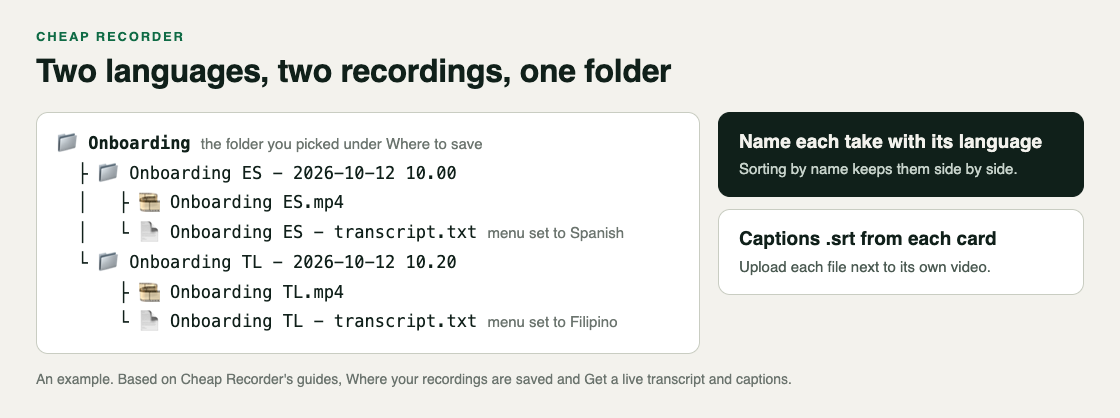
- Set up once. You choose a folder called Onboarding and pick the browser window with the product under What to capture.
- Spanish take. You type Onboarding ES in Name this recording, open Options and choose Spanish beside Live transcript.
- Test. The presenter records 30 seconds, stops and plays it back. The captions on the Preview were in Spanish, and the sound is clear.
- Record. The presenter records the walkthrough and presses Stop and finish. The folder now holds Onboarding ES.mp4 and its transcript.
- Filipino take. You change the name to Onboarding TL and switch the menu to Filipino before pressing Start. The second presenter records the same walkthrough.
- Captions. From each card you press Captions .srt. Before uploading, you open each file and fix the product's name where Chrome misheard it.
- Publish. You upload each video to YouTube with its own .srt.
Because the folders sort by name, the two takes sit side by side. The live transcript guide covers every option, and the guide to where recordings are saved explains the folder names.
Frequently asked questions
Can I change the transcript language after recording?
No. The transcript is made live in the language chosen before you started, and it cannot be added or redone afterwards. Record again with the right language chosen.
Why did the language menu change back?
The menu returns to its default each time you open the recorder page. Check it before every recording.
Is the transcript in another language free?
Yes. The live transcript and captions are on the Free plan and every plan above it, and the language is a choice in the same menu.
Why do no captions appear while I record?
Check that Chrome may use your microphone, that you are online, and that the right language is chosen beside Live transcript. The option is greyed out in browsers other than Google Chrome.
Get started
The free plan needs no card and includes the live transcript. Try Cheap Recorder in Chrome, and your recordings stay on your own disk.
Comments
No comments yet.
Sign in or make an account to comment.