Transcribe User Interviews: A Simple Workflow for Researchers
If you want to transcribe user interviews without typing for hours, let the transcript build itself while you record. You finish the call with a recording and a text file, not an hour of replaying audio. This guide covers the workflow for researchers: choosing a method, setting up the session, capturing both voices, naming speakers and filing the result. Our post on how to record a user research interview and keep the transcript shows the recording steps in Chrome, for anyone who runs interviews over a call. The thing worth knowing from it is that every session ends up as ordinary files on your own computer.
Cheap Recorder runs in Google Chrome and records your screen, voice, webcam and the other side of a call into one MP4 on your own disk, with a transcript alongside it. That makes it a simple fit for interview work, because the recording and the text come out of the same button press.
Why transcribing user interviews pays off
Memory edits. Two days after an interview you remember the vivid complaint and lose the hesitant half sentence that mattered more. A transcript keeps both.
Text is also searchable. When you wonder whether anyone else mentioned the export button, you search a folder instead of scrubbing through audio. And a transcript with times lets you jump to the exact moment, so you can quote a participant accurately and play the clip for a teammate who doubts it.
Manual, automatic or live: how to transcribe user interviews
You have three broad options.
- Manual. You listen and type. It is accurate and slow, so keep it for the few minutes you will quote in a report.
- Automatic, after the fact. You send a finished recording to a transcription service and wait. This works, but it adds a step and means the file goes somewhere else.
- Live. The text appears while the interview happens, so it is ready when you stop.
Cheap Recorder uses the live route. Live transcript is ticked by default under Options, it works on the Free plan, and you pick one of 25 languages before you start. The menu goes back to its default each time the recorder page opens, so check it before every session. A transcript cannot be added to a recording afterwards, so if you forget to leave it on, that session has no text.
Know where the audio goes. The transcript is made by Chrome's own speech recognition, which Google may process on its servers. If that is not acceptable for a study, untick Live transcript before you press Start recording. Always tell your participants they are being recorded, and how, and get their agreement first.
A sensible approach: use live transcription for everything, then listen again and correct by hand only the passages you plan to quote.
Set up the interview so the transcript comes out clean
The transcript is made from what Chrome hears on your microphone. A headset or a desk microphone close to your mouth beats a laptop's built-in one in a noisy room. If Chrome cannot see your microphone, work through this fix-it checklist for a Chrome microphone that is not working before the participant joins.
A short routine before every session:
- Type a name in Name this recording, such as
P04 onboarding. The name becomes the file and folder name. - Press Choose folder... and pick where sessions live. Start recording stays greyed out until you do, and the note next to it tells you why.
- Check the language beside Live transcript.
- Record a 30-second test and play it back. A wrong microphone or a muted tab shows up straight away.
For calls, leave Record the microphone untouched unticked, so Chrome keeps cleaning up echo and noise. Wear headphones so the participant's voice does not come out of your speakers and back into your microphone.
If you are running a usability test with a screen share, share one window or one browser tab instead of the whole screen, so less private material ends up in the file.
Record both voices so every speaker is captured
For a remote interview on Google Meet or Teams, use the Call audio tile. Press Pick the call tab..., choose the call's tab in Chrome's sharing window, tick Share tab audio (some Chrome versions word it Also share tab audio) and press Share. Your microphone and the call are mixed into one recording. The Google Meet guide covers the details.
Two things go wrong here:
- If you also film that same tab with its tab audio ticked, the other person's voice goes into the file twice. Tick tab audio in one place only.
- If the tab share ends mid-interview, the other side goes silent from then on, and picking the tab again does not add it back to a running recording.
For an in-person interview, use one microphone per person, all plugged into the same computer, with headphones for everyone and microphones with clearly different names so the labels differ. The separate tracks guide explains this setup.
If your plan offers Also save every source separately under Options, tick it before recording to get each source in its own file next to the mix. Everyone on the far end of a call comes from one Chrome tab, so they share one label and one track.
If you only need audio, switch off Record my webcam and do not pick a screen. You then get an M4A file instead of an MP4.
Label speakers and fix errors in the transcript
Each transcript line is labelled with the sound source that was loudest while it was spoken: your microphone's name, Meeting for the other side of a call, or Screen for sound from the tab or window you are filming. Speaker labelling is on plans that include speaker detection, and What you can do on this plan, in the menu under your name, shows what yours has.
Above the transcript you get one Speaker box per label. Replace the microphone's model name with a real name, such as Priya for a participant and Moderator for you, then press Save captions. Every line then starts with the name, like Priya: I never found the export button.
To correct a wrong word, remember where each file lives:
- The plain-text transcript, for example
P04 onboarding - transcript.txt, sits in the recording's folder with times and speaker names. It opens in any text editor. - Captions .srt is not written to the folder. Download it from the recording card while the recorder page is open. It is plain text too, so you can fix a word in any editor, but keep the numbers and time lines as they are.
- After renaming speakers, press Save captions and download again so the file has the change.
Caption timings come per line, not per word. That is fine for finding a moment in an interview and not precise enough for frame-accurate subtitles. The live transcript and captions guide has the rest.
Turn the transcript into quotes, tags and themes
Here is a workflow that keeps analysis quick.
Mark topic changes while you talk. Press M or Add marker when you move to a new section, such as onboarding, then pricing. A short note confirms the time. Markers are saved to a list and a chapters file only when Also save every source separately is ticked. With the default single MP4 they show while recording but are not saved, so write the times down if you need them. Markers are not added while you are typing in a text box.
Read once, highlight twice. On the first pass, read the transcript start to finish without stopping. On the second, copy the lines that matter into your notes tool, keeping the speaker name and the time. A pasted quote then looks like this:
Priya (00:12:40): I never found the export button.
That time is your way back to the recording when a colleague asks how she said it.
Tag with a small set. Start with a handful of tags, such as confusion, workaround, pricing and delight. Add a tag only when two participants need it. After five or six sessions, group the tags into themes and count how many participants hit each one.
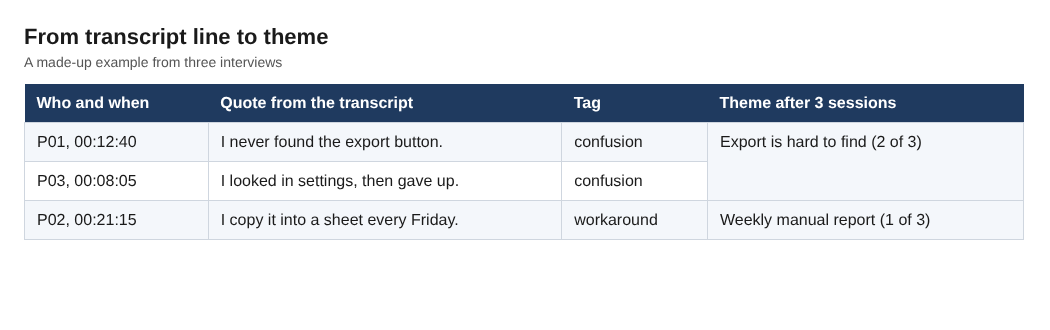
There is also an AI button on the recording card. It sends the transcript, with the speaker names, to Anthropic only when you press it. Nothing is sent otherwise. If your participants were promised their words stay local, do not press it.
Store each session so you can find it later
Cheap Recorder writes each recording into its own folder inside the one you chose, named with your recording name and the date and time it began. For example: P04 onboarding - 2026-10-24 14.30. Inside you get P04 onboarding.mp4 and, if the live transcript heard speech, P04 onboarding - transcript.txt.
A few habits help:
- Use a numbering scheme (
P01,P02, and so on) so sorting by name keeps participants in order. Sorting by date shows the order you ran them. - Keep names short. They are cut at 60 characters, and characters like
/,:and?are removed. - Pick the folder again each visit. The recorder does not remember it between visits.
- Back up the parent folder like any other work folder. Cheap Recorder keeps no copy of your recordings.
The files are ordinary files, so you can move or rename them. Finish any downloads from the recording card first, because the card lasts only while the recorder page is open. The guide to where recordings are saved explains the folder layout.
Mind your minutes. The Free plan includes 12 hours of recording a month, enough for twelve one-hour interviews. Open your name in the top right to see how many minutes are left. If they run out mid-recording, the recording stops.
Frequently asked questions
Can I transcribe user interviews for free?
Yes. The Free plan includes recording, live transcript and captions, 12 hours of recording a month and no card.
Does the transcript include the participant on a call?
Lines are labelled by the loudest source, and Meeting is the label for the other side of a call picked with Pick the call tab.... Run a one-minute test call first and read the result before a real session.
Can I add a transcript after the interview?
No. If Live transcript was off, a transcript cannot be added to that recording afterwards. Check it is ticked before you press Start recording.
Where does the transcript file go?
The plain-text transcript is saved in the recording's folder on your computer. Captions .srt is downloaded from the recording card and is not saved in the folder.
Get started
Run one practice interview with a colleague before your first real one. Record a few minutes, rename the speakers and open the folder to see what you have. Then follow the full walkthrough in our post on how to record a user research interview and keep the transcript.
The free plan needs no card. Try Cheap Recorder in Chrome, and your recordings stay on your own disk.
Screen recording that is cheap and easy.
Visit cheaprecorder.com↗
Comments
No comments yet.
Sign in or make an account to comment.