Two hosts, one room, one laptop: microphones that do not bleed
A podcast with two hosts, one room and a single laptop is simple to record until you play back one host's track and hear the other one in it. That is bleed: each microphone hears both of you. You cannot remove it in a shared room, but you can keep it faint. This post goes deeper than our post on separate tracks for every voice on the in-room case: the setup, the seating, a check you can run in two minutes, and what the transcript does with two microphones.
Two hosts, one room: why each track still holds the other host
When you tick Also save every source separately, Cheap Recorder saves one audio file for each microphone, next to the usual mixed recording. Each file holds what that microphone picked up. In one room, microphones hear each other, so a loud neighbour is faintly audible on your track.
That is normal and fine. Separate files still let you make a quiet host louder or cut a cough from one person. Bleed only becomes a problem when the other host is nearly as loud on your track as on their own, because then turning one track up or down changes both voices.
The setup: one microphone per host, one laptop
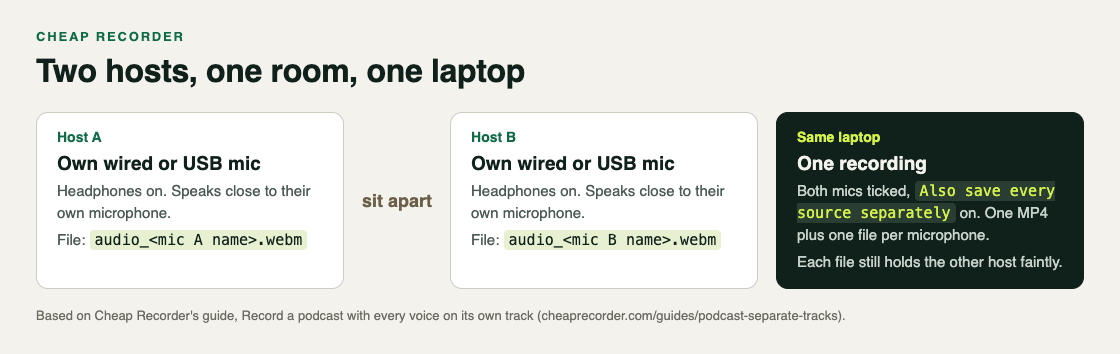
Each host has a microphone and headphones; one recording gives a file per microphone.
- One microphone per person, all plugged into the same laptop. Wired or USB microphones work best.
- No Bluetooth headsets as microphones. They drop to a low-quality mode when used that way.
- Headphones for both hosts, so no microphone picks up sound from a speaker.
- Two clearly different names. Each file is named after its microphone, so two microphones with different names are easier to tell apart later.
Some plans limit how many microphones you can record at once; if you tick too many, the start bar says so.
Seating and closeness: the two habits that keep bleed faint
The podcast guide's advice is short: sit a little apart, and speak close to your own microphone. Both work for the same reason. Your own voice should be much louder in your microphone than your co-host's voice is.
- Sit a little apart. Every bit of extra distance makes the other host quieter in your microphone.
- Stay close to your own microphone, and at the same distance for the whole episode. Leaning back halfway through a story makes you quieter on your own track, so the other host takes up more of it.
- Keep the speakers off. With headphones on both hosts, nothing plays into the room for the microphones to catch.
One setting to decide on. By default Chrome cleans up echo, noise and volume on each microphone. Record the microphone untouched, under Options, turns that off. The guide's advice: tick it for studio microphones in a quiet room, and leave it unticked for laptop microphones or a noisy room. If you are not sure, leave it unticked and listen to the test take below.
Worked example: setting up episode 14
Two hosts, a kitchen table, one laptop and two USB microphones named Desk mic A and Desk mic B.
- Open the recorder in Chrome, sign in, and choose a folder under Where to save.
- Open Change or add microphones. Plug in the second microphone and press Rescan if it is missing. Tick both. Each shows wired or bluetooth beside its name.
- Under Options, tick Also save every source separately. Separate files take more room than one MP4, so pick a folder with free space.
- For a sound-only show, switch off Record my webcam and do not pick a screen; the recording is then an M4A.
- Type
Episode 14in Name this recording. - Run the test in the next section, then record the episode.
Tell guests and co-hosts you are recording before you start.
The thirty-second test, plus a level-bar check
The guide's test: record thirty seconds with everyone saying their name, stop, and open the session folder to check there is one microphone file per person. Add one step for bleed:
- Press Start recording. While you record, each ticked microphone has a level bar that moves with its sound.
- Host A says their name and counts to five while host B stays silent. Watch both bars: A's should move a lot, B's only a little. Then swap.
- Press Stop and finish and open the recording's folder. The Separate sources folder should hold one
audio_file per microphone. - Play each file on its own. On host A's file, host B's count should be faint. If it is nearly as loud, sit further apart and closer to your own microphones, and test again.
If a level bar does not move at all, the no sound guide covers the checks.
Adding a third voice from a call
If a guest joins from Google Meet or Teams, the two of you stay on your own microphones and the guest comes in through the call's Chrome tab. Press Pick the call tab... in the Call audio tile, choose the call's tab in Chrome's window and tick Share tab audio. With Also save every source separately, the far end is saved as its own file, audio_meeting_far_end.webm. Everyone on the far end comes from that one tab, so two remote guests share one track. Headphones matter even more here: without them, the guest's voice comes out of the laptop and into both of your microphones. The post on a remote podcast guest has the full setup.
What the transcript does with two microphones
On plans that include speaker detection, each transcript line is labelled with the sound source that was loudest while it was spoken, here a microphone's name. Good separation helps each line land on the right host. Above the transcript, rename each Speaker box to a real name and press Save captions. The post on transcripts with speaker names walks through it.
Frequently asked questions
Can two USB microphones record on one laptop at once?
Yes. Tick both in Change or add microphones, and with Also save every source separately each gets its own file. Some plans limit how many microphones record at once, and the start bar says so.
Is a little bleed between the two tracks a problem?
No. Microphones in one room hear each other, so a faint trace of the other host is normal. It matters only when the other host is nearly as loud on your track as on their own.
Should we wear headphones?
Yes, both hosts, so no microphone picks up sound from a speaker.
Can we use Bluetooth headsets as microphones?
Avoid it. Bluetooth headsets drop to a low-quality mode when used as microphones; use wired or USB microphones.
Get started
Plug in two microphones, put headphones on both hosts, sit a little apart and run the thirty-second test. Start free with Cheap Recorder in Chrome; the Free plan needs no card, and your recordings stay on your own disk.
Comments
No comments yet.
Sign in or make an account to comment.