Typing sounds for a coding tutorial: pick, sync and mix
Typing sounds for a coding tutorial do a small but useful job. They tell the viewer that something is happening on screen, even when the code is too small to read on a phone. Done badly, they turn into a wall of clatter that fights your voice. This guide shows you how to pick a keyboard sound, decide whether to record it live or add it later, line it up with the code, and mix it so it supports your explanation instead of burying it.
Why typing sounds for a coding tutorial help
A screencast is mostly still frames. The cursor blinks, a line appears, the terminal prints something. Without sound, a viewer who glances away can miss that you typed anything at all. A short burst of keys pulls their eyes back to the editor.
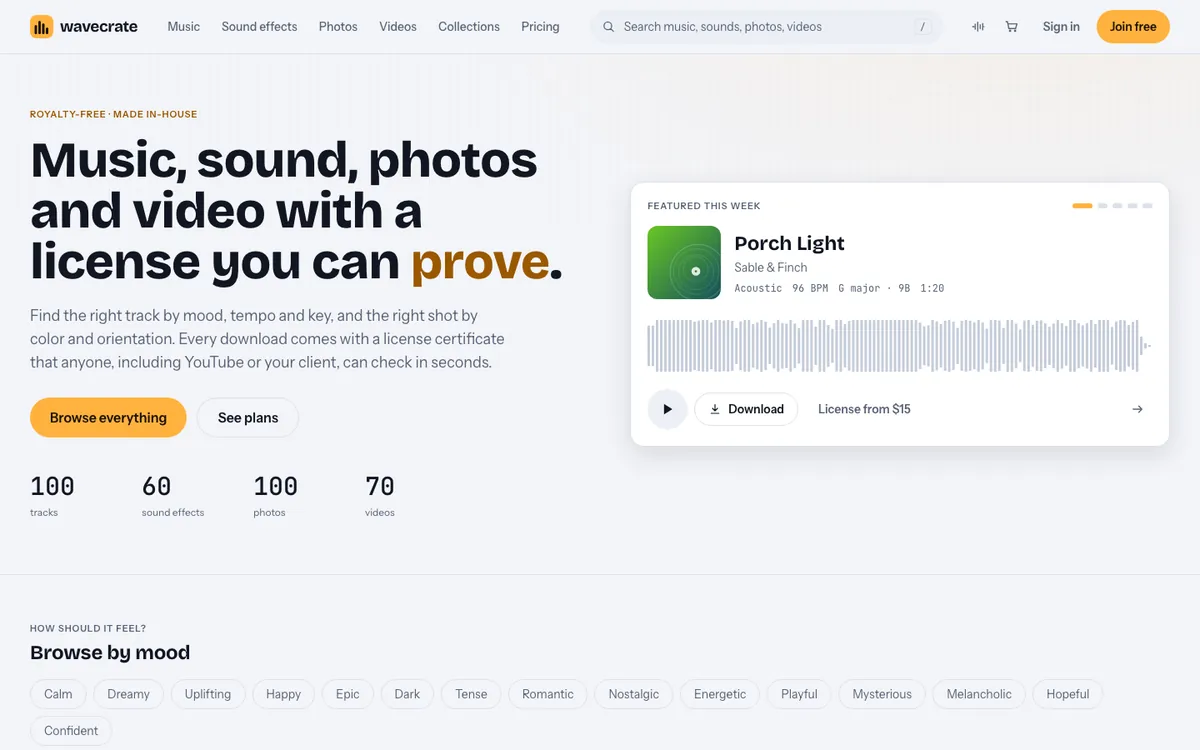
Typing sounds also mark structure. A quick run of keys followed by an enter key says "command sent." Silence says "now read the output." On Wavecrate, you can play keyboard sounds one after another and read each one's license before you add it to your edit.
Choosing the right keyboard sound: mechanical, laptop or soft membrane
Each keyboard type sends a different signal to your audience.
- Mechanical: sharp, clear and easy to hear under a voice. It reads as "developer at work." The risk is that it gets harsh fast if you leave it loud.
- Laptop or membrane: flatter and quieter. Less distracting, but it can disappear under music and stops working as a cue.
For most coding tutorials, a warm mechanical sound is the safest pick. It cuts through without the bright, clicky edge that tires the ear.
On Wavecrate, the Foley sound effects category on 11 October 2026 listed desk and computer sounds, including three mechanical keyboard clips and a typewriter. There was no laptop or membrane typing in that list, so plan around a mechanical sound if you use it. The ones that matter here:
- Mechanical Keyboard Typing, Long, Warm, Plasma (0:04, marked Free). Its page describes "typing on a mechanical keyboard, words, spaces and an enter key." It comes as a 24-bit WAV master and a 320 kbps MP3.
- Mechanical Keyboard Typing, Long, Warm (0:05) and Mechanical Keyboard Typing, Long, Warm, Babel (0:06), both Premium.
- Mouse Clicks, Medium, Bright (0:02, marked Free), useful when you switch between the editor and a browser.
- Typewriter Keys (0:03, Premium), if you want a stylized intro or title card rather than realism.
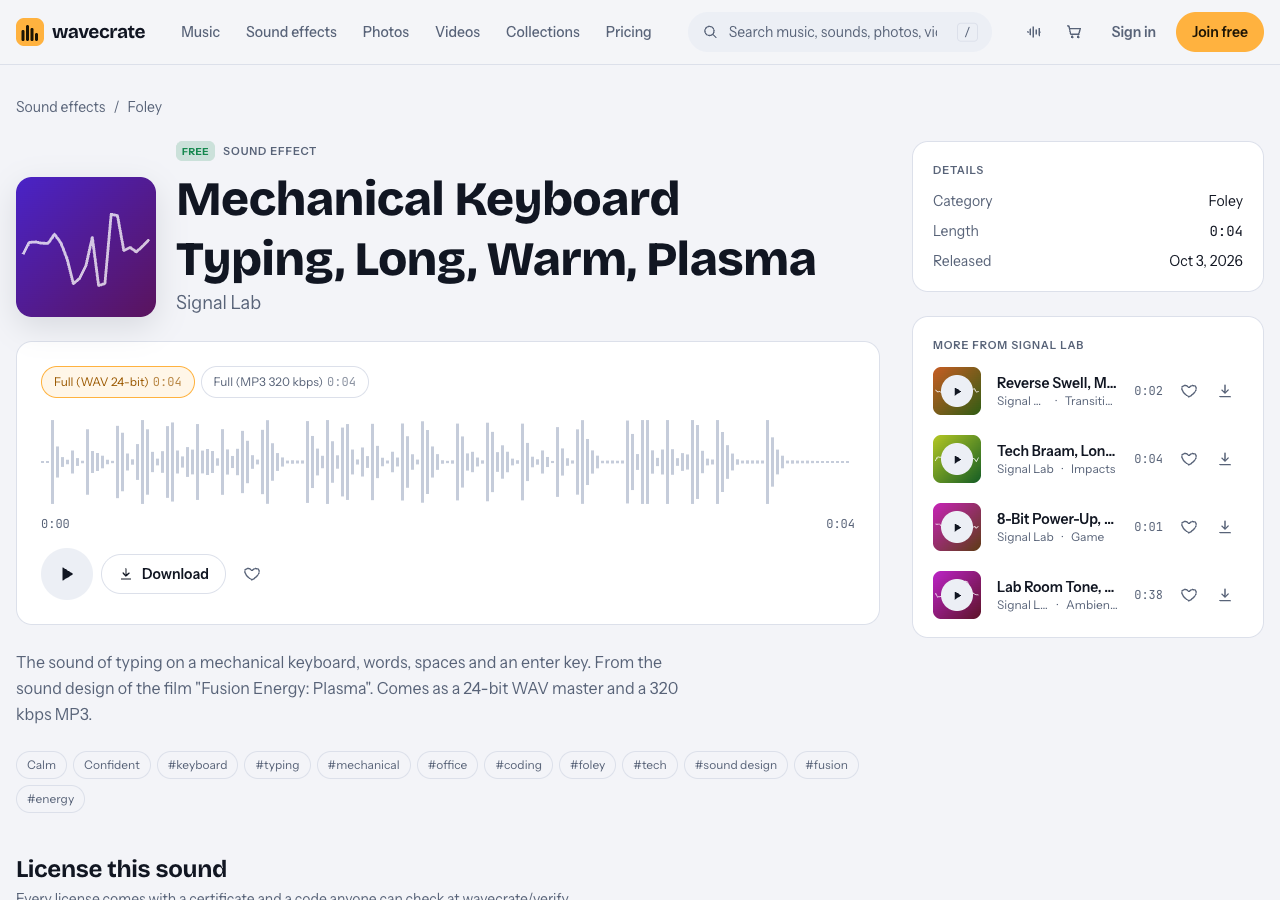
Mechanical Keyboard Typing, Long, Warm, Plasma, read on 11 October 2026.
You can audition quickly. On every Wavecrate page, Space plays or pauses, Shift with Left or Right jumps to the previous or next item, and / opens search. Play one clip, hit Shift and Right, and compare the next one in a few seconds.
Recorded live vs added in post: which works better for screencasts
Recording your real keyboard sounds honest, but it brings problems:
- Your microphone picks up every typo, backspace and pause while you think.
- Keys bleed into your voice track, so you cannot turn one down without the other.
- If you edit out a mistake, the typing jumps or cuts mid-key.
Adding typing in post fixes all three. You record voice clean, mute or remove the live keyboard, then place a sound effect only where it helps. You control the volume on its own track, and you can cut the screen recording freely.
A practical middle path: keep a quiet scratch recording of your real typing as a timing guide, then replace it. Line the effect up against the scratch, then delete the scratch track.
How to sync typing sounds to on-screen code
Here is a worked example. Say your tutorial has this moment: you type curl -I https://example.test into a terminal, press enter, and read the headers that come back.
- Find the first and last frame of typing. Scrub until the first character appears. Drop a marker. Scrub to the frame where the command runs. Drop a second marker. Suppose that span is 3 seconds.
- Pick a clip that ends on an enter key. The Plasma clip includes an enter key, which makes it a natural fit for "type a command, run it." At 0:04, it is a little longer than the span.
- Align the end, not the start. Put the enter key sound exactly on the frame where the command runs. Viewers notice a late enter far more than an early first keystroke.
- Trim the front. Cut the start of the clip so it begins at your first marker. Add a 5 to 10 millisecond fade in so the cut does not pop.
- Stop on silence. When the output prints, let the audio go quiet. That gap is where you talk.
For long blocks of code you paste or reveal line by line, do not type over all of it. Add one short burst on the first line, then let the rest appear in silence. The viewer gets the cue once and then reads.
Mixing typing sounds under your voiceover without distracting viewers
Your voice is the lesson. Typing sits underneath it. Some working rules:
- Start low. Try setting typing roughly 15 to 20 dB below your voice peaks, then raise it only where you are silent. Trust your ears over the number.
- Duck under speech. When you talk over typing, pull the typing down another few dB. When you stop talking, let it come back up.
- Cut the highs a little. A gentle high cut takes the sharp tick off mechanical keys and leaves the body of the sound. Warm clips need less of this.
- Work from the WAV. The 24-bit WAV master gives you more room to EQ and adjust levels than a compressed copy.
Then listen on phone speakers and cheap earbuds. That is where most people will hear your tutorial, and where harsh clicks hurt the most.
Common mistakes: looping clicks and wrong rhythm
Looping one short clip
The mechanical keyboard clips above run 4 to 6 seconds. Loop one over a 30 second typing scene and the repeat becomes obvious by the third pass. Instead, rotate between different clips, start each one at a different point, and break up long scenes with silence. Better still, do not cover 30 seconds of typing at all.
Rhythm that does not match the screen
Fast, steady typing over a cursor that moves one character at a time looks fake. So does a clatter while the screen shows a single paste. Match the density of keystrokes to what appears. If text pops in all at once, use one click, not a run.
Which license your tutorial needs: one sound, three uses
The trap here is a sound marked Free in a business video. Take the Plasma clip through three places the same tutorial could go, using its page and the table on the pricing page:
- Your own channel. The Free license covers YouTube, TikTok, Instagram, Twitch and podcasts, monetized channels included, with credit text required in your description. Paste the credit into your description template now so you do not forget it on upload day.
- Your company's own tutorial. A product walkthrough on your company's channel or docs site is "your own business and brand content." The Free license does not tick that row, so it needs Standard (listed at $5 on this page), even though the sound is marked Free.
- A client's course or a paid ad. A tutorial a client pays you to record is client work, and promoting it as an ad is paid advertising. Both need Extended (listed at $19 on this page).
Listed prices differ by sound: Typewriter Keys showed Standard $3 and Extended $9, so read each page. Paid licenses are not on sale yet: Wavecrate says purchases open soon, so these are the listed prices for when sales open, while sounds marked Free can already be downloaded with a free account.
Frequently asked questions
Where can I find free typing sounds for a coding tutorial?
On Wavecrate, Mechanical Keyboard Typing, Long, Warm, Plasma and Mouse Clicks, Medium, Bright were marked Free on 11 October 2026, and you can filter for free downloads. The Free license needs credit text in your description, and a free account gets 3 free downloads a month.
Should I keep typing sounds when I speed up a screen recording?
Not as sped-up audio, which turns into a buzz. Mute the fast section, then place one short typing burst at the start and an enter key at the end so the viewer still feels the action.
How loud should typing sounds be compared to my voice?
Well below it. Start around 15 to 20 dB under your voice peaks, duck further when you speak, and check on phone speakers.
Can I use typing sound effects in monetized YouTube videos?
Yes, per Wavecrate's pricing table, the Free, Standard and Extended licenses for sound effects all cover YouTube and monetized channels. Free needs a credit line; Standard drops the credit (the Plasma clip's page lists Standard at $5 and Extended at $19, for when sales open), and Extended is needed for client work or paid ads. If a question comes up, a reviewer can check your license code on the verify page without an account.
Get started
Open the Foley category, play the three mechanical keyboard clips back to back, and pick the one that sits best under your voice. Sync the enter key to the frame where your command runs, keep the rest short, and mix it low. Each download comes with a license certificate. Pro, listed at $99 a year or $12 month to month and not on sale yet, gives Standard licenses on the whole catalog, so no credit line is needed under it. Pro does not include Extended, so client work still needs an Extended license.
Browse Wavecrate: you can join free and download items marked Free now, paid licenses are not on sale yet (purchases open soon), and every download comes with a license certificate and a code anyone can check on its verify page.
Comments
No comments yet.
Sign in or make an account to comment.