Video SOP: Record One in Chrome With a Searchable Transcript
A video SOP is a standard operating procedure that someone watches instead of reads. You record yourself doing the task once, say what you are doing, and the team follows along later. If you only need a short how-to clip for a wiki page, our post on recording a how-to video for a team wiki in Chrome covers that. It helps wiki owners, and its most useful habit is writing the steps before you press record. This post goes one step further: it treats the recording as a procedure that has to stay correct and be easy to search.
Cheap Recorder records your screen and your voice in Chrome as one MP4 saved on your own computer, with a transcript alongside it, so a video SOP needs no editing software.
What a video SOP is and when it beats a written one
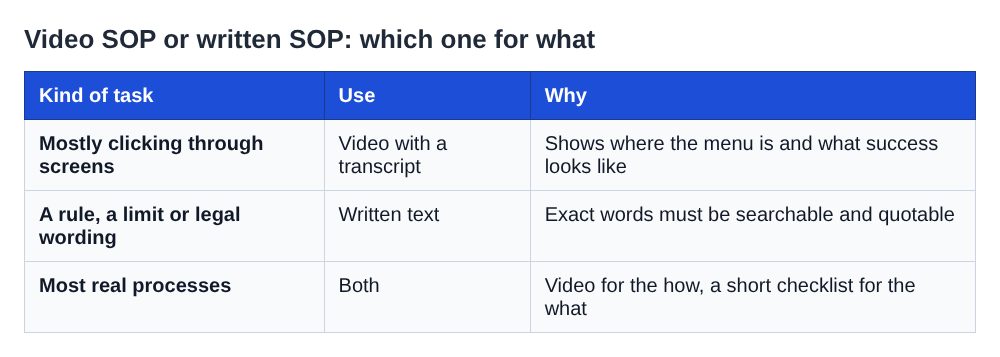
A written SOP is a numbered list. A video SOP is the same list with the screen attached. The video wins when the task is mostly clicking: where a menu sits, which field to fill first, what the screen looks like when it worked. Words struggle to describe a button. A recording just shows it.
A written SOP wins when the task is a rule, not a motion. Approval limits, legal wording and "never do X" lines belong in text. Most teams do best with both: the video for the how, a short checklist for the what. The rest of this post shows how to get both from one recording.
Pick one process and write the steps first
Choose one process with a clear start and end. "Approve a supplier invoice" is a good unit. "How finance works" is not. If you cannot say where it ends, it is two SOPs.
Before you record, write the steps in plain sentences. Here is a worked example:
- Open the invoice from the shared inbox.
- Find the matching purchase order.
- Check that the totals agree.
- Pick the cost code.
- Send it to the approver.
- Mark the email as done.
This list does two jobs. It keeps you from rambling on camera, and it becomes the spine of your spoken narration. You will say "Step three" out loud, and that makes the transcript easy to use later.
Set up Chrome: one window, a clean desktop and a mic check
Open the recorder in Chrome. Under Where to save, press Choose folder... and pick a folder for your SOPs. Chrome asks whether the page may edit files in that folder, and you allow it. The recorder does not remember the folder between visits, so you choose it again each time.
Type a clear name in Name this recording, for example Approve supplier invoice. The name is used for the file and its folder.
Under What to capture, choose A window rather than Whole screen. Sharing one window keeps your other tabs, apps and private things out of the file. Then close anything you do not need and silence notifications. Anything on the shared screen ends up in the recording.
Next, check your microphone. Tick the one you speak into and watch its level bar move when you talk. Under Options, Live transcript is ticked by default. Check the language menu beside it before every recording, because it goes back to its default each time the page opens. Chrome listens for one language per recording.
Finally, record a 30-second test and play it back. It catches a wrong microphone or a muted tab before you waste ten minutes on a take.
Record the SOP in a single take
Press Start recording and work through your list. Say each step number as you go: "Step three. I check that the purchase order total matches the invoice." Those spoken labels are what make the transcript useful afterwards.
You can press M (or Add marker) at the start of each step. There is a catch. Markers are only written to files when Also save every source separately is ticked under Options. With the default single MP4, the marker notes show while you record but are not saved. If you stay with the default, jot down the times you need.
Make a mistake? Keep going and say "Scratch that, back to step three," or stop and start again. Short SOPs are cheap to redo. When you finish, press Stop and finish. The recording then appears on the page with a player and is already saved in your folder.
Turn the transcript into a written checklist
If the live transcript heard speech, the recording's folder holds a plain-text file such as Approve supplier invoice - transcript.txt, with a time on each line. It opens in any text editor. See the guide to the live transcript and captions for how it is made.
Open it next to your original step list. Wherever you said "Step three", you will find the matching line and its time. Turn that into a checklist item with the timestamp, so a reader can jump straight to the moment in the player:
3. Open the purchase order and check that its total matches the invoice (1:12 in the video).
Paste the checklist above the video on your wiki page, and paste the transcript text below it. Now a search for "cost code" or "purchase order" can find the page, because the words are text, not pixels.
Two more things are worth knowing:
- The transcript comes from what Chrome hears on your microphone, so a headset or desk microphone close to your mouth beats a laptop microphone in a noisy room. Chrome sends that audio to Google to turn it into text.
- If the transcript was off when you recorded, it cannot be added to that recording afterwards.
To clean up um and uh, the recorder can mark filler words in the transcript so you can cut them. In a normal one-file recording, cuts change the transcript and captions, not the MP4. The filler words guide explains the details.
Captions .srt is a separate download from the card on the page. It is not written to the folder, so download it while the recorder page is still open.
Name, store and update the SOP so it stays correct
Each recording gets its own folder, named with the date, the time and the name you typed. That date is useful in an SOP. It tells you at a glance how old the procedure is. If you number related SOPs, such as Finance 03 Approve supplier invoice in Name this recording, the numbers keep your files in order. The full naming rules are in the guide to where recordings are saved.
Recordings are not uploaded. They sit in the folder you picked. Put your SOP folder somewhere your team already backs up, and link the MP4 from your wiki.
When the process changes, re-record it. Because cuts in a normal recording do not shorten the MP4, trimming a stale step out of the video is not an option. A fresh take with a new date in the folder name is cleaner. Replace the wiki link, then delete or archive the old folder so nobody follows outdated steps.
If you want to hand over a self-contained page instead of a bare file, there is the publish page, available on Creator and up. Tick Also save every source separately before recording, and the folder gets a publish.html with a player, one chapter per marker, and the transcript with times. Send the whole recording folder, zipped, not just the page. The publish page guide walks through it. It cannot be added afterwards if the option was not ticked.
Frequently asked questions
How long should a video SOP be?
Cover one process and stop when it ends. If your step list runs long, split it into two numbered recordings instead of making one long one.
Should I use a video SOP or a written one?
Use video when the task is clicking through a screen, and text when it is a rule or a limit. Most teams do best with the video plus a short written checklist built from its transcript.
How do I make a video SOP searchable?
Keep Live transcript ticked under Options before you record, then paste the transcript text onto the same wiki page as the video. Search finds words in text, so the transcript is what makes the page findable.
What do I do when the process changes?
Record it again under the same name. The new folder carries a new date, and you can replace the link on your wiki page and remove the old folder.
Get started
Pick one process, write the steps, and record your first video SOP in one window. The Free plan includes recording and the live transcript, with 12 hours of recording a month and no card needed. Start on the Free plan, or read more at cheaprecorder.com. For the wiki side of the job, see the post on recording a how-to video for a team wiki in Chrome. Your recordings stay on your own disk.
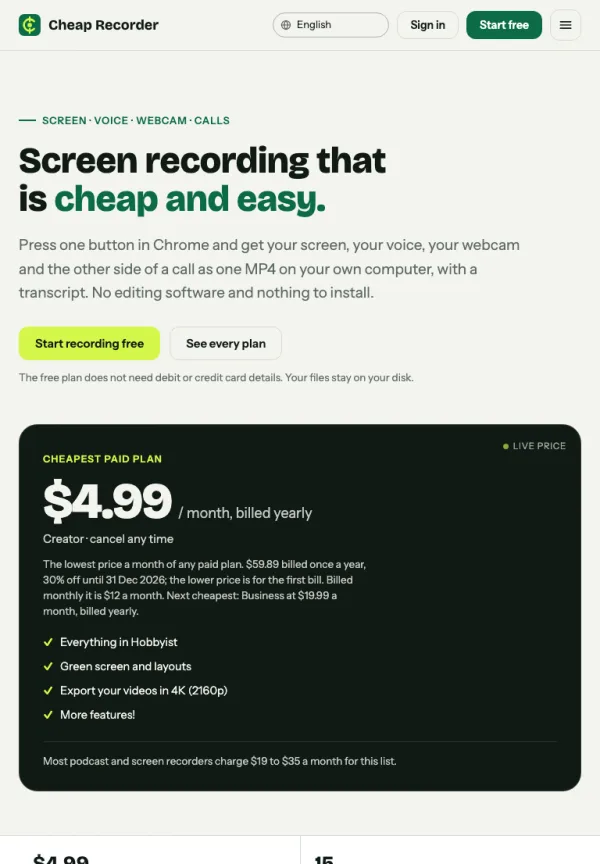
Screen recording that is cheap and easy.
Visit cheaprecorder.com↗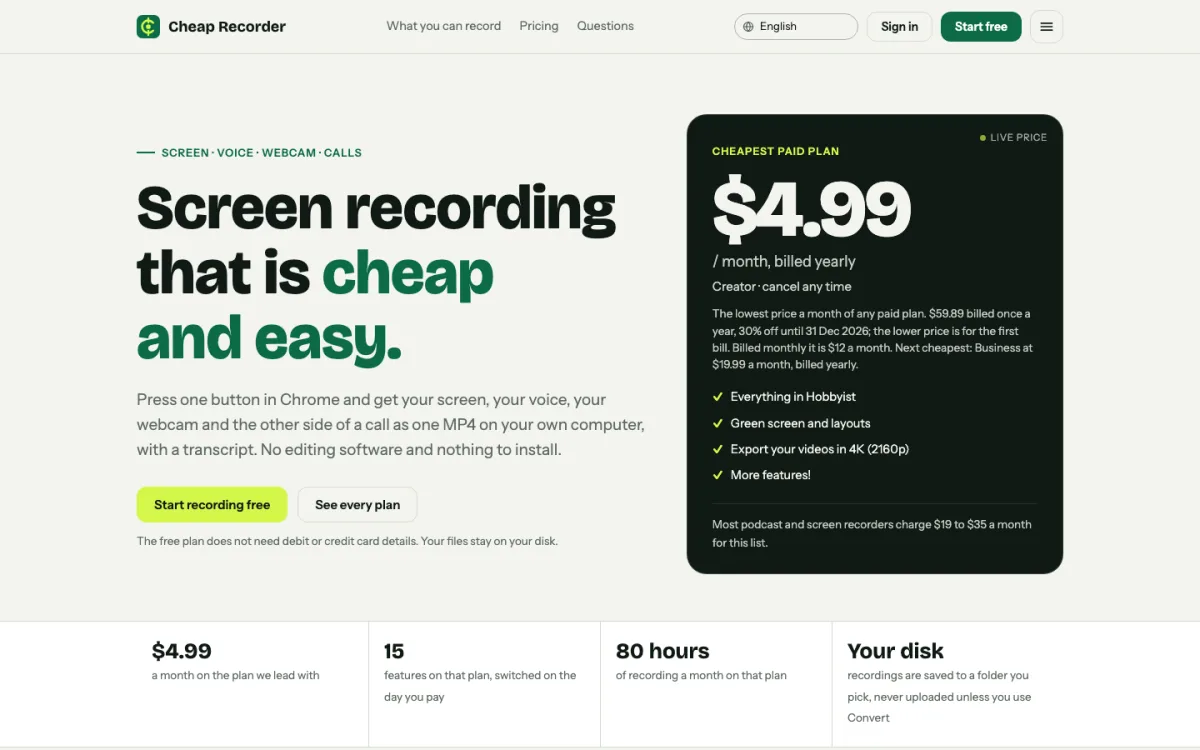
Comments
No comments yet.
Sign in or make an account to comment.