Volunteer group problems: keep one shared list
Most volunteer groups run on goodwill and a group chat. That works until the same problem comes up for the third time and nobody remembers who looked into it or what they tried. If you coordinate a food bank shift, a community garden, a youth league, or a neighborhood cleanup, the fix for volunteer group problems is one shared list that everyone can see. It should say what is wrong, who is on it, and what already failed. This post shows you how to set one up and keep it alive.
Why volunteer group problems get lost in chats and email
A chat is a stream. A problem posted on Tuesday is buried under forty messages about who is bringing chairs by Thursday. Email threads split the same way.
Volunteer groups have three habits that make this worse:
- People rotate. The person who knew the storage unit code moved away last spring.
- Nobody is paid to follow up. A problem without a name next to it stays open.
- Failures are not written down. Someone tried calling the city about the broken gate. It went nowhere. The next volunteer calls the city again.
A record of what did not work is just as useful as a record of what did.
What one shared problem list fixes for a volunteer team
One list replaces a lot of "does anyone know..." messages. The Lean Enterprise Institute calls this visual management: putting things in plain view so the status can be understood at a glance by everyone involved.
A shared list gives your group three things a chat cannot:
- One place to look. Open problems stay visible until someone closes them.
- History that survives turnover. When a volunteer leaves, their attempts stay on the record.
- Patterns. Five separate complaints about Saturday shifts might share one cause: the reminder goes out too late.
This is the same idea as tracking work problems without a ticket system. It also works for sorting out roommate problems with a shared list. A volunteer group just has more people and less time.
What to record for each problem: owner, status, what was tried
Keep each entry short, under a minute to write. You need four things:
- The problem, in one line. "Saturday shift is short two people most weeks." Not a paragraph.
- The owner. One name. Not "the committee."
- What was tried. Each attempt gets its own line.
- The outcome of each attempt. Did it work, partly work, or fail?
In Problem Graph, a problem is a single line, and the solutions you try hang off it. You can add a solution as an idea, mark it as one you are trying, and then record the outcome as worked, partly, or failed. Failed attempts stay on the map. The app's home page puts it plainly: a solution that failed three times stays on the map as a failed solution, "and that is exactly what the next person needs to know."
There is no separate owner field, so put the name at the start of the solution line. Here is a worked example for a community garden:
- Problem: Water barrels run dry by Wednesday in July.
- Solution: Priya: ask neighbor for hose access, marked failed (neighbor said no).
- Solution: Sam: add a third barrel, marked partly (lasts until Thursday).
- Solution: Sam: rain chain from shed gutter, marked trying.
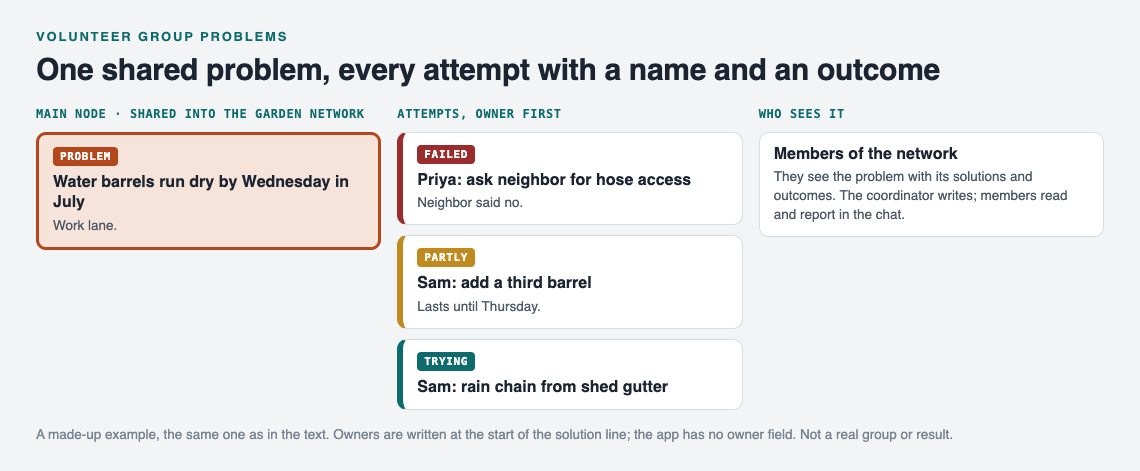
The made-up garden example as a map.
How to set up the list in under 15 minutes
Problem Graph runs in the web browser and works on your phone. It is free, and you can look around the public network without an account. To add problems you need an account with a username and a password.
Minutes 1 to 3: create your account. Go to the app and sign up. If the empty graph looks confusing, press "Load example set" to see how problems and solutions connect, then clear it out in your head and start your own.
Minutes 3 to 8: write down the open problems. Type each one in a line and press Enter. It lands on the graph right away. Put each in a lane. For most volunteer groups, the "work" lane fits group business, and you keep "personal" for your own stuff. Aim for five to ten real problems. Do not try to be complete.
Minutes 8 to 11: link what belongs together. If "Saturday shift short" and "Reminder texts go out Friday night" look related, link them. Patterns show up on a map that you would miss in a list.
Minutes 11 to 15: make a private network and share. Create a network for your group and send the invite code to the people who should see it. Then mark each problem you want shared as a main node and share it into the network. Only a main node can be shared. When you share it, its solutions, their outcomes and any requirements go with it. A problem you only linked to it stays private, like the rest of your graph.
One warning: the app says anyone with the invite code can join. Send the code to people directly, not in a public post.
Volunteers who open the app can filter by "Network" to see only the group's shared problems. They can also switch to List view if they prefer reading over looking at a map.
Getting volunteers to actually use it (without nagging)
The list will not send reminders, and it does not have comments or chat. That is fine. Your group chat already does the talking. The list holds the record. Here is how to get people to look at it:
- Answer questions with a link. When someone asks "did anyone ever fix the gate?", reply with the app link and "it's on the list."
- Let one person do the typing. Volunteers with little time will not log in to write things down. Have them tell the coordinator in the chat, and the coordinator adds it. Reading is the habit you want from everyone. Writing can stay with one or two people.
- Celebrate a "worked." When a solution gets marked worked, say so in the chat. It shows the list does something.
- Do not shame a "failed." The failed ones are the most useful entries you have, so thank people for recording them.
Weekly review: closing problems and passing them on when people leave
Set aside ten minutes a week, ideally right before your regular meeting or shift. Go through the shared problems and ask three questions about each:
- Is anything marked "trying" actually being tried? If not, ask the person named on it what happened, and record the outcome so far as worked, partly, or failed.
- Did anything work? Mark it, and decide whether the problem is done.
- Is anything new? Add it in one line.
Volunteers leave. That is normal, and it is when a group can lose what it knows. Before someone steps away, sit down with them for fifteen minutes. Go through every problem with their name on it and make sure each attempt has an outcome recorded. A "trying" with no result tells the next person nothing. Then put a new name on anything still open.
It helps if the long-running group problems live in the coordinator's graph rather than spread across many personal accounts. Your problems are saved to your account. So if a key problem sits only in one volunteer's graph, think about who holds it before that volunteer goes quiet. For a fuller checklist, see handover notes: pass on open problems and what was tried. If your group also wants to keep its fixes as a reference, a small team knowledge base for problems and fixes covers that side.
One more option: a common problem, like low volunteer turnout, can be shared as a public main node, so others can link their own problems to it and borrow the solutions that worked. A borrowed solution keeps a link back to where it came from, and the app's AI suggestions are proposals to test, not answers.
Frequently asked questions
What is the best tool for a volunteer group to track problems?
Use one that volunteers can open on a phone with no setup, and that records what failed as well as what worked. Problem Graph runs in the browser and is free. It lets you share chosen problems with a private network through an invite code.
How do you assign problems when volunteers have limited time?
Give each problem one name, and keep the job small: "try one thing and report back" rather than "fix this." Put the person's name at the start of the solution line so everyone can see who is on what.
Should a shared problem list be public to all members?
Share group problems with the whole group, but keep personal or sensitive matters private. In Problem Graph, private is the default and only you see it. You share a problem only when you mark it as a main node and put it into a network or out in public.
How is a problem list different from a to-do list or ticket system?
A to-do list tracks tasks and forgets them once they are checked off. A problem list keeps every attempt and its outcome, including failures, and links related problems. That way the next volunteer starts from what is already known.
Get started
Pick the three problems your group complains about most. Write each as one line, attach the last thing someone tried and how it went, and share them with your volunteers through a private network. That is your list. It grows from there.
Try Problem Graph: it is free, and you can look around the public network without an account. Write one problem down in a line and attach the first thing you will try.
Comments
No comments yet.
Sign in or make an account to comment.