Website punch list: track every fix before your site launches
A website punch list is the short, numbered list of fixes a site needs before it goes live: a typo here, a dead link there, a form that sends nothing. You write it near the end of a build, when the design is set and only the small things are left. The hard part is writing each item so your designer can find it and fix it without asking you what you meant. Our post on recording a website feedback video in one tab helps clients who would rather talk through a site than type about it. It shows how to say the page, what you see and what you want, then send the MP4 with a timed list of changes. The useful part: that timed list is a punch list, and this post shows how to build it, sort it and close it out.
If you want to talk through the site instead of typing, Cheap Recorder records one Chrome tab with your voice and saves it as an MP4 with a transcript in a folder on your own computer, with nothing to install.
What a website punch list is, and when you need one
The term comes from building work. Near the end of a job, someone walks the site and lists every small thing left to finish. A website works the same way. The pages exist and the layout is agreed. Now you need a final pass for the small things.
You need one when:
- The designer says the site is "ready for review".
- You are a week or two from launch and changes need to stop growing.
- More than one person is giving feedback and you need one list, not five emails.
A punch list is not a place for new ideas. "Add a blog section" is a new project. "The blog link in the footer goes to a 404 page" is a punch list item.
What to check on every page: text, links, images, forms and mobile
Go page by page, in the same order each time. That way you do not skip anything. On each page, check five things.
- Text. Spelling, names, prices, phone numbers, opening hours, dates. Read the headings out loud. Errors hide in places you skim.
- Links. Click every button and every link in the menu and footer. Note where each one goes and whether it should open in a new tab.
- Images. Look for blurry, stretched or cropped pictures, and for placeholder images left in. Scroll slowly. Some sites load pictures only as you reach them, which can make a page look broken for a second.
- Forms. Fill in every form and send it. Check that the thank-you message appears and that the email actually arrives where it should.
- Mobile. Open the site on your phone. Check the menu, buttons you have to tap, and any text that runs off the edge.
How to write a punch list item your designer can fix the first time
Most back-and-forth comes from vague items. "The contact page looks off" tells your designer nothing. Every item needs four parts: where, what you see, what you want, and how urgent it is.
Here is a weak item and a strong one:
Weak: Fix the button on mobile. Strong: 7. Pricing page, on a phone. The Book a call button sits on top of the footer text. Move it above the footer with some space. Must fix. Video at 03:12.
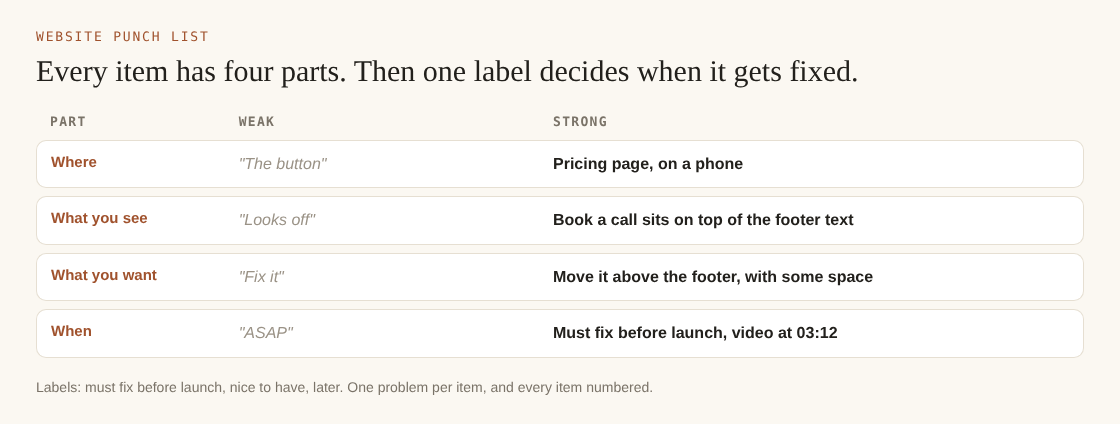
The four parts of one punch list item, weak and strong.
A few rules keep items clear:
- One problem per item. If you write "and" twice, split it.
- Number every item, so you can say "item 7" in a reply.
- Paste the exact text you want, not "reword this".
- Say what device you used when the problem only shows on one.
Sorting the list: must fix before launch, nice to have, and later
Not every item blocks launch. Give each one of three labels.
- Must fix before launch. Anything wrong, broken or embarrassing. Wrong prices, dead links, forms that fail, a menu you cannot open on a phone.
- Nice to have. Small polish. A bit more space under a heading, a slightly better photo. Do these if time allows.
- Later. Real ideas that are not fixes. Park them in a separate list for after launch.
Keep the "must fix" group short and honest. If everything is urgent, nothing is. When several people add to the list, one person should own the labels.
Why a short feedback video beats a long email of screenshots
Screenshots show a frozen moment. They do not show that a menu jumps when you tap it, or that a form clears itself after you press send. A short video does. You click, you scroll, you say what you expected, and the designer sees it happen.
Talking is also faster than typing. You can cover a ten-page site in a few minutes, and the designer hears your tone. "This is a small thing" and "this is wrong" sound different.
A few things make the video easier to use:
- Record one browser tab, not the whole screen. In Cheap Recorder you pick A browser tab under What to capture. Sharing one tab keeps your other tabs, apps and private things out of the file.
- Say the page name out loud each time you move to a new page. That line shows up in the transcript, which you will use in the next step.
- Close what you do not need and silence notifications first. Anything on the shared tab ends up in the recording.
- Finish with Stop and finish, not Chrome's own Stop sharing bar. Pressing Chrome's bar ends the recording too, maybe sooner than you meant.
If you want your face in the corner while you talk, the screen and webcam guide covers layouts. For a punch list, the tab and your voice are usually enough.
Turning a recorded walkthrough into a timed punch list
This is the step that turns a ramble into a list your designer can work through. The website feedback video guide covers the recording itself. Here is how to get from that file to numbered items with times.
Before you record
Type a name in Name this recording, such as Punch list round 1. The name is used for the file and its folder, and each folder also carries the date and time, so round 2 is easy to find next to round 1.
Check that Live transcript is ticked under Options and that the language menu shows the language you will speak. The menu goes back to its default each time the recorder page opens, so check it every time. If the transcript is off, you cannot add one to that recording later. While it runs, Chrome sends your microphone audio to Google to turn it into text.
While you record
Use a simple spoken pattern for each problem: page, what you see, what you want. For example: "Pricing page. On the phone view the Book a call button covers the footer. I want it above the footer."
You can press M or Add marker when you reach each problem, and a short note confirms the time. Know one thing: with the default single MP4, those marker notes show while you record but are not saved to a file. Markers are saved only when Also save every source separately is ticked. For a simple punch list, the transcript times are easier.
After you stop
Your recording's folder holds the MP4 and, if the transcript heard speech, a plain-text file such as Punch list round 1 - transcript.txt. Each line has the time it was said. Open it in any text editor. Every line where you named a problem becomes a punch list item, and its time becomes the "Video at" note. That is your timed list, without scrubbing through the video.
The where recordings are saved guide explains the folder in detail, and the live transcript guide covers languages and accuracy. A headset or desk microphone close to your mouth gives a cleaner transcript than a laptop microphone in a noisy room.
Send the designer two things: the MP4 and the numbered list. They read the item, jump to the time, and watch you show the problem.
Frequently asked questions
How long should a website punch list be?
As long as the real problems, and no longer. If it runs past a few dozen items, check that new ideas have not crept in, and move those to the "later" list.
Who should write the punch list, the client or the designer?
The client usually writes it, because they are checking the site against what they asked for. One person should collect everyone's notes into a single list so the designer gets one set of instructions.
Should I send a spreadsheet, a document or a video?
Send a numbered list with a short video beside it. The list is what the designer works through and ticks off; the video shows the problems that are hard to describe in words.
How do I mark items as done without losing track?
Keep the item numbers fixed and add a status next to each, such as done, needs another look, or won't fix. For the next round, record a new walkthrough named Punch list round 2 and check only the open items.
Get started: record your first walkthrough with Cheap Recorder
Open the site in a Chrome tab. In the recorder, choose a folder, name the recording, pick A browser tab, and check that Live transcript is on. Walk through every page with the five checks above, saying page, what you see and what you want. Press Stop and finish, open the transcript file, and turn each line into a numbered item with its time.
For more on the recording side, read our guide to recording website feedback for your web designer in one tab. The Free plan includes 12 hours of recording a month and the live transcript.
The free plan needs no card. Try Cheap Recorder in Chrome, and your recordings stay on your own disk.
Screen recording that is cheap and easy.
Visit cheaprecorder.com↗
Comments
No comments yet.