Blur background in webcam recordings, on every plan
You want to record a lesson or a video update, but the room behind you is a kitchen, a bedroom or a shared office. The quick answer is to blur background in webcam recording, so you stay sharp and the room turns soft. In Cheap Recorder this runs in Chrome, it is on every plan including Free, and it needs no extra app. This guide covers the steps, how the blur decides what is you, and how to get clean edges on the first take.
Why blur instead of tidying the room
Tidying works until it does not. A pile of laundry, a whiteboard with last week's notes or a family photo can slip into a frame you send to a client. Blur keeps the shape of a real room, so the video still feels like you talking from your desk, without the details.
It is also the one background choice everyone has. In Cheap Recorder, None and Blur are always there. The built-in colour backgrounds, Your image and the green screen tick appear only on plans that include green screen, which is Creator and up on the standard plans. To see what your plan has, open your name in the top right and look under What you can do on this plan.
If you would rather put a picture behind you, or you own a green cloth, read the post on green screen in Chrome instead. This one stays with blur.
How to blur background in webcam recording, step by step
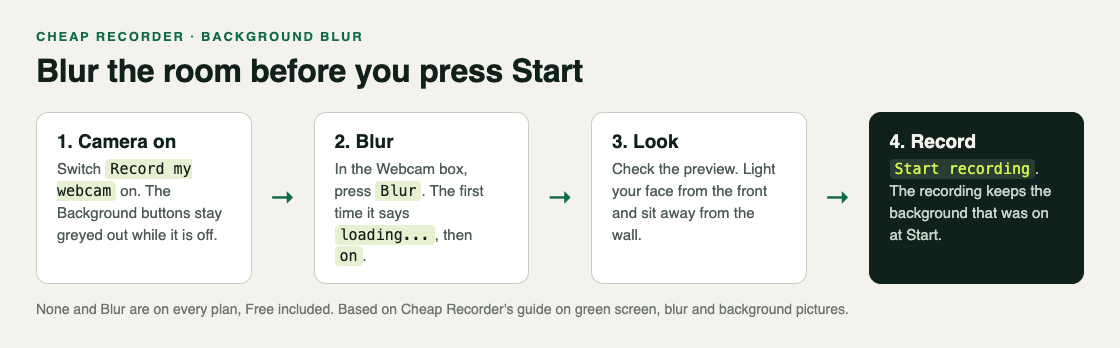
- Turn the camera on. Open the recorder in Chrome and make sure the Record my webcam switch is on. The Background buttons are greyed out while the webcam is off.
- Find Background. It sits in the Webcam box, under What to capture.
- Press Blur. The first time, a small word beside Background says loading... while the part that finds you in the picture downloads. Chrome keeps it after that, so later visits are quicker. When the word says on, look at the preview.
- Pick what to capture. Choose Webcam only for a talking video, or a screen, window or browser tab if you want your camera over it.
- Record. Press Start recording, and Stop and finish when you are done.
One rule matters more than the rest: set the background before you start. The recording keeps whichever background was on when you pressed Start recording, so switching to Blur halfway through does not change the file. If you forget, stop, press Blur and record again.
How the blur finds you
Blur uses a person finder that runs in Chrome on your own computer. For each frame it marks which parts are a person. Everything else becomes the soft room. Your camera picture is not sent anywhere for this, and the recording itself goes to a folder you pick on your own disk.
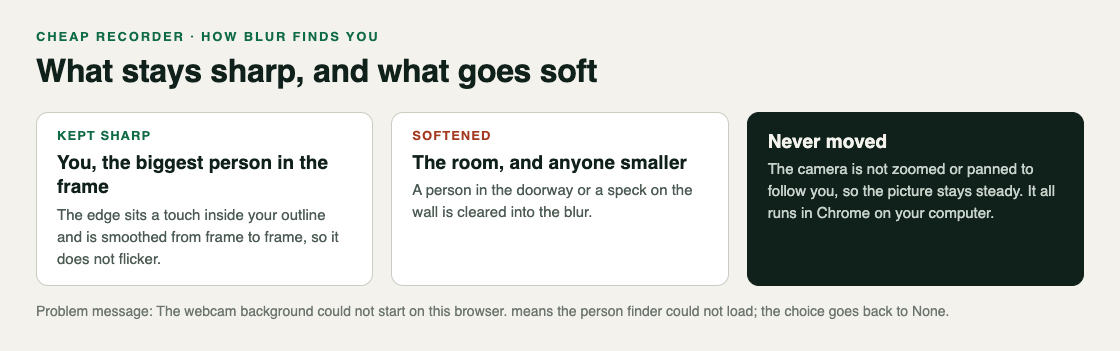
A few details explain what you will see in the preview:
- The edge sits a touch inside your outline. That stops a dark sliver of the room creeping in around your hair and shoulders.
- The edge is smoothed from frame to frame, so it does not flicker when you move.
- Only the biggest person is kept. If someone walks past in the doorway, they are blurred with the room. Normally the biggest person is you, at the camera.
- The camera never moves. It is not zoomed or panned to follow you, so the picture stays steady while you talk.
Get clean edges on the first take
The person finder works best when it can tell you apart from the room. Two habits make the biggest difference.
Light your face from the front. A window behind you makes you darker than the room. That looks gloomy on its own, and it makes any cutout struggle to find your edges. Turn your desk so the window is in front of you or to one side, or put a lamp behind the screen.
Keep some distance from the wall. Space between you and what is behind you makes the edge easier to find. If your chair is pushed against a bookshelf, pull it forward a little.
Then watch the preview for ten seconds before you press Start. Wave a hand, turn your head, lean back. If the edge holds in the preview, it holds in the file: in Cheap Recorder the preview is the recording.
A worked example: a lesson from the kitchen table
Say you teach a short online course and record from the kitchen table. Behind you are the fridge, the door to the hall and a shelf of mugs. You want your face over a slide deck in one browser tab, with the room softened.
- You turn the table so the kitchen window is beside you, not behind you, and move the chair a step away from the shelf.
- In Cheap Recorder you switch Record my webcam on and press Blur. The word beside Background says loading... once, then on. In the preview, the fridge and mugs go soft.
- Under What to capture you choose A browser tab and pick the tab with your slides. Sharing one tab keeps the rest of your computer out of the file. The camera sits in the bottom right by default; you drag it to the corner the slides leave empty and use the Size slider to make it smaller.
- You name the recording Test and record 30 seconds, waving once and leaning back. You play it back. The edge holds, and the blur covers the shelf.
- Halfway through the real lesson, someone walks through the hall door. Because only the biggest person in the frame is kept, they are blurred with the room, and you carry on.
- You press Stop and finish. The MP4 is already in its own folder on your disk.
For more on placing your camera over a screen, see the post on recording a tutorial with webcam and screen.
When the blur will not start, and other problems
The webcam background could not start on this browser. The person finder could not load, so the choice goes back to None. Check your connection, reload the page and try again in an up-to-date Chrome.
The Background buttons are greyed out. The webcam is off. Switch Record my webcam on. If the webcam box says no camera found, check that no other app, such as a video call, is using the camera, then turn the switch off and on again.
You want the plain camera too. Under Options, tick Also save every source separately before you record. You then also get the plain webcam file and a copy with the background applied, alongside the main recording, for editing in another app.
The green screen, blur and background pictures guide lists every background choice, and the post on recording your webcam without sharing your screen covers face-only videos.
Frequently asked questions
Is background blur on the Free plan?
Yes. None and Blur are always there, on every plan. The colour backgrounds, Your image and the green screen tick need a plan that includes green screen.
Can I turn blur on in the middle of a recording?
No. The recording keeps the background that was on when you pressed Start recording, so set it first.
Is my camera sent to a server for the blur?
No. The person finder runs in Chrome on your computer, and the recording is saved to a folder you pick. A file leaves your computer only if you use Convert.
Why is someone behind me blurred too?
Only the biggest person in the frame is kept sharp, which is normally you at the camera. Smaller shapes, such as a person in the doorway, are cleared into the blur.
Get started
The free plan needs no card and includes 12 hours of recording a month, with blur included. Try Cheap Recorder in Chrome, press Blur before you start, and your recording lands in a folder on your own disk.
Comments
No comments yet.
Sign in or make an account to comment.