Convert a screen recording to MP4, MOV, GIF or MP3 in Chrome
You finish a recording and then find that where it is going wants a different file. Your editor prefers MOV, your podcast host wants MP3, and the help page you are writing needs a short GIF. This guide shows how to convert a screen recording made in Cheap Recorder into the format you need, right from the page in Chrome, and how to pick that format from where the file is going instead of guessing.
First, check whether you need to convert at all
Cheap Recorder saves an MP4 by default, with an H.264 picture and AAC sound. That plays almost anywhere: email, chat apps and most websites take it as it is.
So the first button on the card, Download MP4, is not a conversion. It hands you the original file straight from your computer, with no upload. Its name follows your recording's own format, so for a sound-only recording it reads Download M4A instead. If MP4 is what you need, stop here.
You need Convert only when the place the file is going asks for something else.
Pick the format from where the file is going
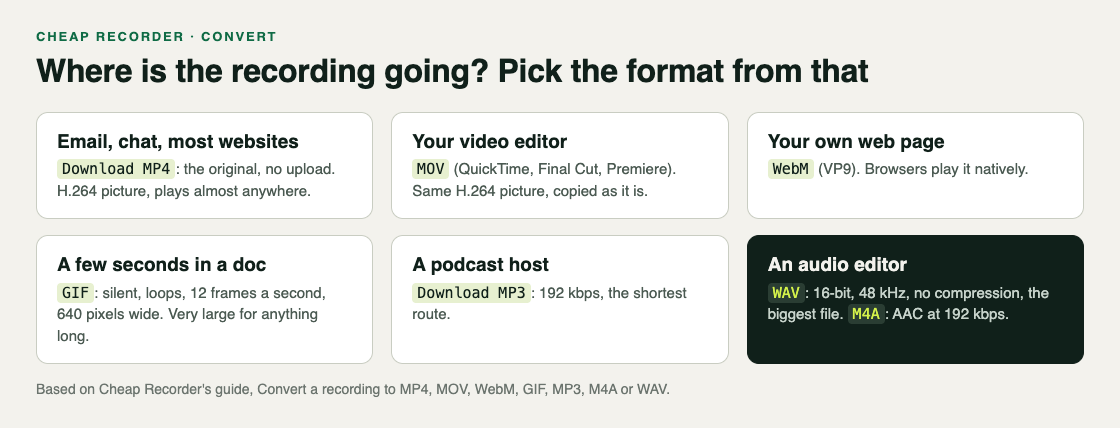
- A video editor: MOV, Apple's QuickTime format, which the menu marks for QuickTime, Final Cut and Premiere. When the picture is already H.264, it is copied as it is, so it is quick and loses no quality.
- Your own web page: WebM (VP9), a web video format browsers play natively.
- A few seconds in a document or chat: GIF. It is silent, loops, runs at 12 frames a second and is 640 pixels wide. For anything long, GIF files become very large.
- A podcast host: MP3 at 192 kbps.
- An audio editor: WAV, 16-bit at 48 kHz with no compression. It is the biggest file and the best starting point for editing. M4A gives AAC sound at 192 kbps in a smaller file.
MP4, MOV, WebM and GIF need a picture. If you recorded sound only, choose MP3, M4A or WAV. The post on recording audio only in Chrome covers that case.
How to convert a screen recording, step by step
- Finish the recording. Press Stop and finish. The card for your recording appears, with a player and a row of buttons.
- For an MP3, press Download MP3. That is the shortest route.
- For anything else, open More formats... and pick one, for example MOV. The Convert button becomes active once a format is picked.
- Press Convert. A progress row appears. It reads Sending the recording with a percentage, then Converting to MOV..., then Receiving the MOV, and finally MOV ready - downloading. A timer shows how long it has taken.
- Find the new file. It downloads, and it is also saved in the recording's own folder, next to the original, with the same name and the new ending. Weekly demo.mp4 gets a Weekly demo.mov beside it.
Changed your mind? Press Cancel on the progress row. It says Stopped. Nothing was downloaded.
What happens to your file on the way
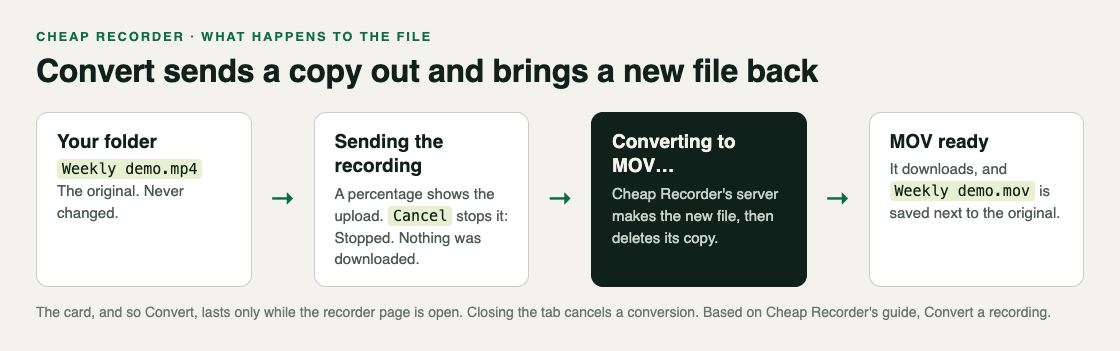
Your recordings live on your own computer. Converting is the one time a recording leaves it. When you press Convert or Download MP3, the file is sent to the Cheap Recorder server, converted, and sent back. The server deletes its copy as soon as that finishes, and the original in your folder is never changed.
A few rules follow from that:
- Convert before you close the page. The card, and so Convert, lasts only while the recorder page is open. Your original is still in its folder after a reload, but the buttons are gone.
- Keep the tab open for long recordings. A long recording is a big upload. Keep the recorder tab open and the computer awake until the row says the file is downloading. Closing the tab cancels the conversion.
- One at a time. You can run one conversion at a time. Converting to the same format twice while the page is open hands you the copy already made, with no second upload.
- Transcript cuts are not applied. Converting uses the recording exactly as it was made. Words you crossed out in the transcript change the transcript and captions, not the converted file.
The post on where recordings are saved shows where the converted copy sits among the other files in the folder.
A worked example: one walkthrough, two formats
Say you record a four-minute walkthrough of a new export screen. A colleague will trim it in Premiere for a launch video, and you want a few seconds of the export button for the help page.
- You name the recording Export walkthrough, record it, and press Stop and finish.
- On the card you open More formats..., pick MOV, and press Convert. The row moves from Sending the recording to MOV ready, and Export walkthrough.mov lands next to the MP4. You send the MOV to your colleague.
- For the help page, a GIF of all four minutes would be very large. So you record a separate clip instead: you name it Export button, record six seconds of the one click, and press Stop and finish.
- On that clip's card you pick GIF and press Convert. The silent, looping GIF downloads, and you drop it into the help page.
Both originals stay untouched in their folders, so if the colleague later asks for the MP4, you already have it. Recording the short clip on its own is the trick: a GIF is for a few seconds, not a whole walkthrough.
If Convert is missing or fails
If there is no More formats menu or Download MP3 button, the server cannot convert files, and the recorder hides them. Your original is still there with the first download button. If a conversion stops partway, check your connection, wait a minute, and press the button again.
If you ticked Also save every source separately before recording, the card does not offer Download MP4 or Convert, because every source is its own file. In that case, run bash finalise.sh in the Separate sources folder on a computer with ffmpeg installed to make a finished demo.mp4. The same script turns each microphone's file into a WAV, which is a good start for editing a conversation voice by voice. The post on recording a podcast with separate tracks shows that setup from the start, and the convert guide covers every error message in detail.
Frequently asked questions
Does converting change my original recording?
No. The original in your folder is never changed. The converted file is saved next to it with a new ending.
Is my recording uploaded when I convert it?
Yes, only then. Convert and Download MP3 send the file to the Cheap Recorder server, which deletes its copy as soon as the conversion finishes.
Can I convert a recording after I close the page?
No. The card lasts only while the recorder page is open, so convert before you close it. The original stays in your folder either way.
Why is my GIF so big?
A GIF suits a few seconds. For anything long, GIF files become very large, so record a short separate clip for it.
Get started
The free plan needs no card. Try Cheap Recorder in Chrome, record once, and take the file in the format the next place needs.
Comments
No comments yet.
Sign in or make an account to comment.