Follow-Up Video for a Prospect After a Sales Call
A good follow-up video for a prospect after a sales call is short, personal and ends with one clear next step. The post Follow-Up Video for a Prospect After a Sales Call shows how to record one in Chrome with a recap, one answer, one next step, a single browser tab and a 30-second test. It helps anyone in sales, account management or consulting who wants to send more than a plain email. One thing worth knowing from it: the 30-second test is what saves you from a muted tab or the wrong microphone. This article goes further into the script and the sending.
Cheap Recorder runs in Google Chrome, records your screen, your voice and your webcam, and saves one MP4 on your own computer with a transcript, so a recap video takes one take and no editing software.
Why a follow-up video works after a sales call
After a call, your prospect has a head full of half-remembered points. An email asks them to read. A video lets them watch you, hear your tone and see the exact thing you talked about.
A video also shows effort in a way a template cannot. It is clearly about their situation, because you can point at their pricing page, their question or your proposal while you speak.
Keep it under a few minutes. The goal is not to repeat the whole call. The goal is to make the next step easy.
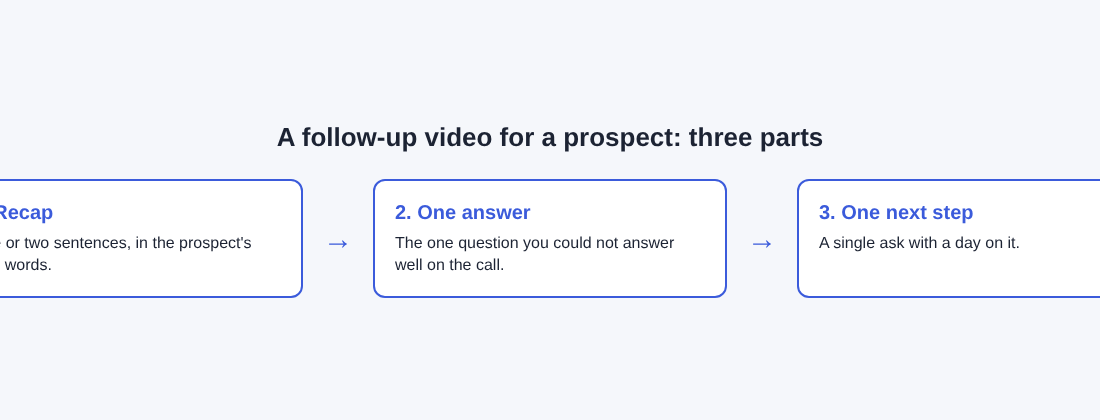
What to include: recap, one answer, one next step
Use three parts and nothing else.
- Recap. One or two sentences on what they told you matters. Use their words, not yours.
- One answer. Pick the single question from the call that you could not answer well in the moment. Answer it, and show it on screen if that helps.
- One next step. Ask for one thing, with a date. For example, a 20-minute call on Thursday to review the proposal together.
If you have three answers to give, record three short videos or put the rest in writing. One video, one point keeps people watching.
A short script
You do not need to read word for word. You do need a skeleton. Write five or six lines you can glance at. Here is an example for a prospect called Dana:
Hi Dana, thanks for the time today. You said the slow part is getting new hires set up in the first week. Here is how the setup page handles that. [Show the page.] Next step: can we do 20 minutes on Thursday with your IT lead? Reply with a time that suits you.
Read it aloud once. Cut anything you stumble on. Spoken sentences should be short, and you should be able to say each one in a single breath.
Set up one browser tab and clean your screen
Decide what you will show and open only that. Under What to capture, Cheap Recorder lets you share a whole screen, a window or a browser tab. For a follow-up, a single tab is the safest choice. Sharing one tab or window instead of the whole screen keeps your other tabs, apps and private things out of the recording.
Anything on a shared screen ends up in the file, so close what you do not need and silence notifications. A stray message from a colleague is the classic mistake.
If you share a tab, note that sound from that tab only comes through when you tick the tab-audio option in Chrome's sharing window. For a follow-up where you are just talking over a page, you usually do not need it. Your voice comes from the microphone.
Run a 30-second test recording
Before the real take, record 30 seconds and play it back. Check three things:
- You can hear your voice at a good level.
- The screen shows the right tab and nothing private.
- Your camera, if you use it, sits where you want it.
This catches a wrong microphone or a muted tab while it costs you nothing. In the Microphone tile, each ticked microphone has a level bar that moves while you speak. If the bar stays still, check the microphone's own mute switch and your computer's sound settings.
If you plan to use a headset, a wired or USB one is the better pick. A Bluetooth headset used as a microphone can drop into a low quality mode and sound thin.
Record the follow-up video for a prospect after a sales call in Chrome
Here is the flow from start to finish.
- Open the recorder in Chrome and allow the microphone and camera when Chrome asks.
- Under Where to save, press Choose folder... and pick a folder. Until you do, the start bar says to choose a folder first, and Chrome asks whether the page may edit files in that folder, which you allow.
- Type a name in Name this recording, such as
Dana follow-up. The name is used for the file and its folder, and the folder also gets the date and time. - Under What to capture, choose A browser tab, then pick your tab in Chrome's sharing box and press Share.
- Decide on the camera. With Record my webcam on, the default layout is picture in picture, bottom right. You can drag the camera anywhere and use the Size slider to set it from 12% to 50% of the picture's width. The preview is the recording, so what you see is what the file holds.
- Press Start recording, say your script, then press Stop and finish.
Use Stop and finish, not Chrome's own Stop sharing bar, to end the recording. The camera shape and layouts available to you are listed under What you can do on this plan, in the menu under your name. The guide on screen and webcam recording covers layouts in more detail.
If you want the voice only with no screen, switch off the webcam and pick no screen. You get an M4A audio file instead of an MP4, which is not what you want here, so keep a screen or the camera on.
How to send the MP4 to your prospect
When you stop, the recording shows up on the page with a player, and it is already saved in your folder. The file is an MP4 with H.264 video and AAC sound, which plays almost anywhere. The guide on where recordings are saved shows exactly what lands in the folder.
Your options for sending it:
- Attach or upload the MP4 with the tool you already use for email or file sharing. Cheap Recorder keeps no copy of your recording, so the sending is up to you.
- Paste the transcript into your email. If the live transcript was on, the folder holds a plain text file such as
Dana follow-up - transcript.txt. A short written recap next to the video helps people who skim. - Send a publish page. On Creator and up, tick Also save every source separately before recording. The folder then includes a
publish.htmlpage with a player, the transcript and a Files list. It opens from the folder with nothing to host, but you must send the whole recording folder, zipped, not just the page. The client demo guide explains it.
Put the ask in the first line of your message, not at the bottom: "Here is the recap video, and I would like 20 minutes Thursday." Then attach the file.
Common mistakes to avoid
- Sharing the whole screen. One tab keeps the rest of your desktop out of the file.
- Skipping the test. A silent video sent to a prospect is worse than no video.
- Too many asks. One next step gets a reply. Three get none.
- Leaving the live transcript on when you should not. While it is on, Chrome sends your microphone audio to Google to turn it into text. If a recording must not leave your computer in any form, untick Live transcript before you press Start recording.
- Closing the recorder tab too soon. The recording card, with Download MP4 and the transcript tools, lasts only while the recorder page is open. The original file stays in your folder either way.
- Recording a long monologue. If it runs past a few minutes, split it or cut the script.
If you also record onboarding or walkthrough videos for customers who sign, the post on a customer onboarding walkthrough video uses the same Chrome setup.
Frequently asked questions
How long should a follow-up video for a prospect be?
Aim for one to three minutes. That is enough for a recap, one answer and one next step without repeating the call.
Do I need to show my face?
No. You can share just a browser tab with your voice. If you want a face, turn on Record my webcam and the camera sits in a corner in the default picture in picture layout.
Where does the video go after I record it?
It is saved as an MP4 in the folder you chose on your own computer. Cheap Recorder does not upload it, except when you use Convert or Download MP3, which send the file to its server to be converted and then delete it there.
Can I fix a mistake without recording again?
In a normal one-file recording, cutting words in the transcript changes the transcript and captions, not the MP4. For a short follow-up, it is usually faster to record again.
Is the free plan enough?
The Free plan includes recording, live transcript and captions, 12 hours of recording a month and 1 device, with no card needed. That covers many short follow-up videos.
Get started with Cheap Recorder
Write your three lines, open one tab, record a 30-second test, then record the real take. For a full walkthrough of the approach, read Follow-Up Video for a Prospect After a Sales Call.
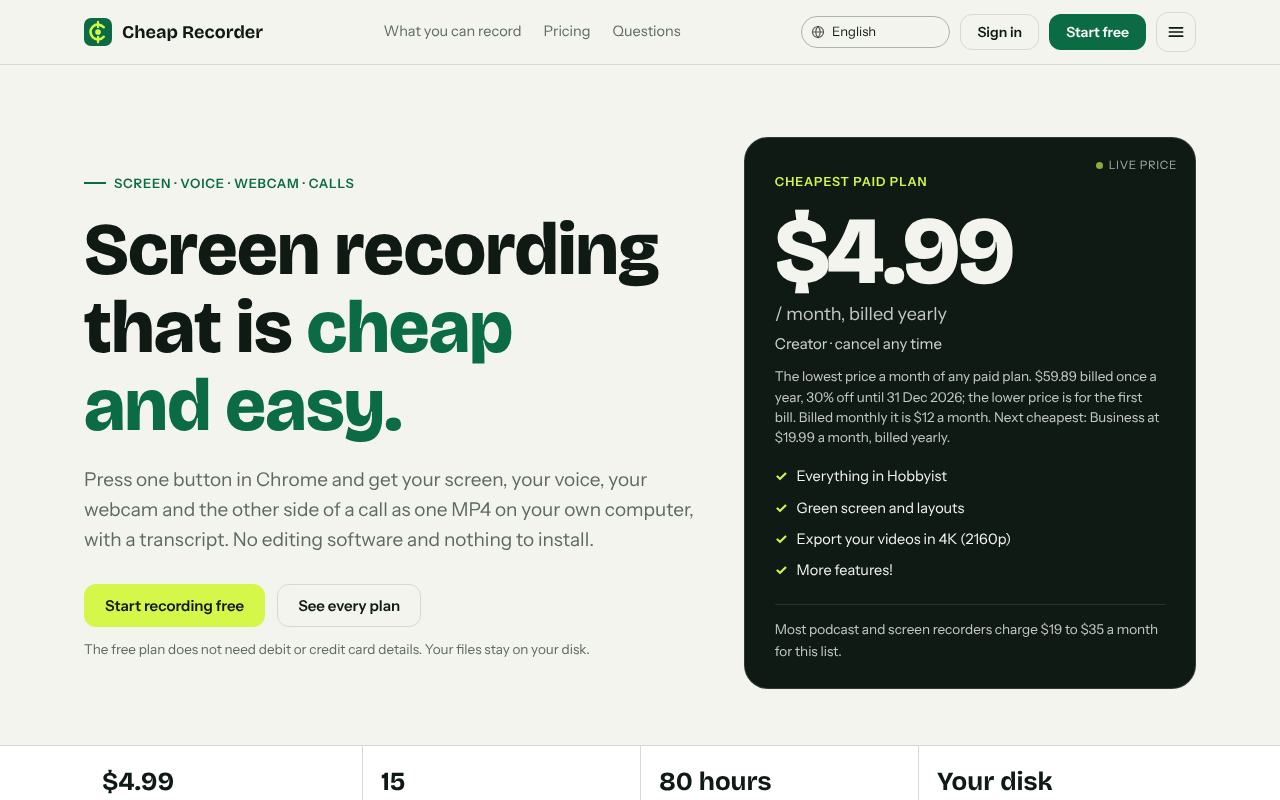
The free plan needs no card. Try Cheap Recorder free in Chrome, and your recordings stay on your own disk.
Comments
No comments yet.
Sign in or make an account to comment.