Help Parents With Tech Remotely Without Another Long Phone Call
The quickest way to help parents with tech remotely is often not a call at all. Record a short video of yourself doing the one task they are stuck on, talk through each step as you do it, and send them a file they can watch as many times as they need. Our post on how to record a how-to video for a family member who is stuck covers that method. Its most useful rule is to keep each video to one task. This post covers the wider job: when a recording beats a phone call, how to match the device your parent uses, and when you should still pick up the phone.
Cheap Recorder runs in Google Chrome on macOS, Windows and Linux. It saves your screen, your voice and your webcam as one MP4 on your own computer, with a transcript, so you can make that video without installing anything or learning an editor.
Why phone calls fail when you help parents with tech remotely
On a phone call, neither of you can see the other's screen. Your parent describes "the blue thing at the top." You describe a menu from memory, often on a different device. Both of you guess.
The call also leaves nothing behind. They follow along while you are on the line, get it working, and then forget the steps a week later. The next call starts from zero.
There is pressure, too. Someone waiting on the line makes people rush, and rushing leads to wrong clicks. A recording takes that pressure away. They can pause it, rewind it and try again with nobody waiting.
Pick one task and match the device they actually use
Choose one task that ends in a clear result. "Attach a photo to an email" is one task. "Learn email" is not. Write the task as a single sentence, then note the screen they will start on and the screen that shows they are done.
Next, match their setup as closely as you can. If your parent uses Gmail in Chrome on a Windows laptop, record Gmail in Chrome, ideally on Windows. Buttons and menus sit in different places on different systems, and a parent who sees a screen that looks different from theirs may stop following. If you cannot match their device, say so at the start: "Your screen will look a little different. Look for the paperclip."
A plan helps you avoid rambling. The tutorial video script template for a five-minute lesson gives a simple order: what you will do, the steps, and how to check it worked.
Record your own screen and voice, one step at a time
Here is a worked example for a parent who cannot attach photos in Gmail.
- Choose a folder. In the recorder, press Choose folder... under Where to save. Chrome asks whether the page may edit files in that folder. Allow it. The recorder does not remember the folder between visits, so you pick it again each time.
- Name it. Type something your parent will recognise in Name this recording, such as
Gmail attach a photo. The name is used for the file and its folder. - Share only the Gmail tab. Under What to capture, choose A browser tab and pick Gmail in Chrome's sharing box. Your other tabs stay out of the recording. Close anything you do not need and silence notifications anyway, because anything on the shared screen ends up in the file.
- Decide on your face. With Record my webcam on, your camera sits in a corner. A familiar face can make a parent more relaxed. The preview is the recording, so drag the camera away from the paperclip button and use the Size slider (12% to 50% of the picture's width) to keep it small. The screen and webcam guide covers layouts.
- Do a 30-second test. Record a few lines, stop, and play them back. This catches a wrong microphone before you record the full video.
- Record slowly. Say what you are about to click before you click it: "Now I press the paperclip, at the bottom next to Send." Pause after each step. Say the result out loud: "The photo is attached. You can see its name here."
- Finish properly. Press Stop and finish. Chrome's own Stop sharing bar also ends the recording, but Stop and finish is the intended button. The video then appears with a player and is already saved in your folder.
Sound matters more than picture. A headset or desk microphone close to your mouth beats a laptop's built-in one. On a Mac, a Bluetooth headset used as a microphone switches to a low-quality mode that makes your voice sound thin, so speak into a wired or USB microphone.
Add a transcript they can read at their own pace
Some parents prefer reading to watching. Others want both: the video once, then the words to follow on their own screen. Live transcript is ticked by default under Options, and the Free plan includes it.
Check the language menu before every recording. It offers 25 languages and resets to the default each time the recorder page opens. If your parent is more comfortable in another language, record in that language and pick it before you press Start recording. Chrome listens for one language per recording.
Know where the words go. While the live transcript is on, Chrome sends your microphone audio to Google to turn it into text. If you would rather not do that, untick Live transcript before you start.
When you finish, the recording's folder holds a plain-text transcript with the time of each line, next to the MP4. Paste it into an email, or print it and post it to them. The times help a lot: "If you get lost at the paperclip, skip to 1:20." You can also cut it down into a short numbered checklist.
If you want captions, press Captions .srt on the recording card while the recorder page is still open. The .srt is not saved in the folder. It is plain text, so you can fix a misheard word in any text editor. Keep the numbers and time lines as they are. More detail is in the live transcript and captions guide.
Send a file they can replay, not a link that expires
The recording is an ordinary MP4 file with H.264 video and AAC sound, and it plays in almost any player. It lives in a folder on your computer named after the recording, with the date and time it began. Cheap Recorder does not upload it. You decide how it reaches your parent.
Use the route they already know. If they open email attachments, use email. If they use a family messaging group, send it there. If you visit soon, copy it to a USB stick and put it on their desktop yourself. On their computer, a file with a clear name like Gmail attach a photo is easy to find again next month. A link depends on them finding the right message first.
You can rename or move the file on your side. Finish any downloads from the recording card first, because the card reads the file from where it was saved.
When live screen sharing is the better choice
A recording works best for tasks you can repeat on your own device. It does not work well when something is broken on theirs. Examples include an error message you have never seen, a setting you cannot find without looking at their screen, being locked out of an account, or a warning they are unsure about. In those cases, get on a video call and have them share their screen.
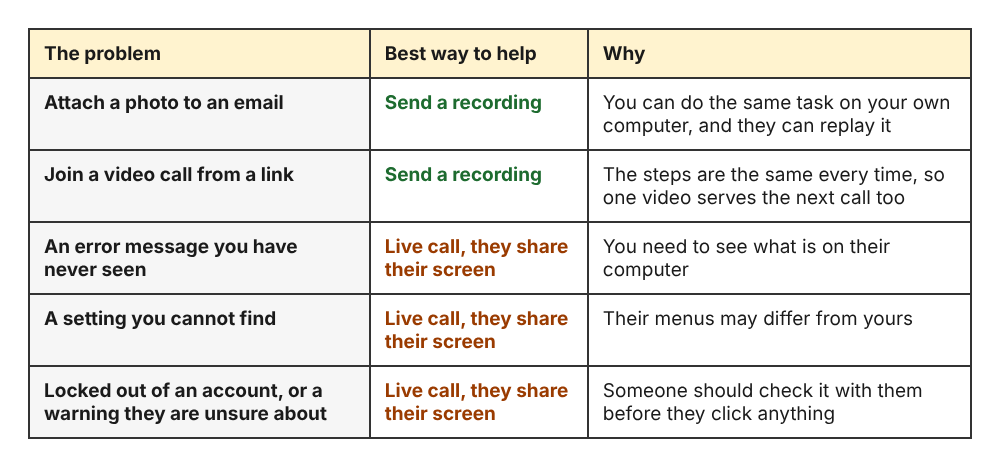
Record when you can repeat the task on your own computer; call when the problem is on theirs.
You can still keep a replay. If the call runs in Google Meet or Microsoft Teams in a Chrome tab, press Pick the call tab... in the Call audio tile, choose that tab, tick Share tab audio, and press Share. Your microphone and the call go into one recording. Tell your parent you are recording before you start. Wear headphones so their voice does not echo back into your microphone. The Google Meet recording guide has the full steps.
Frequently asked questions
How long should a how-to video for a parent be?
Aim for one task and a few minutes. If the video runs much longer, it probably covers more than one task. Split it into numbered videos instead.
What if my parent uses a phone and I use a computer?
Cheap Recorder runs in Chrome on a computer, so it records your computer's screen, not a phone's. One workaround is to choose Webcam only and hold your own phone up to the camera while you tap through the steps and explain each one.
How do I send a video file to someone who struggles with email?
Use whatever they already open without help, such as a family chat, or copy the file onto their desktop yourself the next time you visit. Send the transcript as plain text alongside it so they have the steps even if the video will not play.
Can I reuse the same video for other relatives?
Yes. It is an ordinary MP4 on your disk, so you can send it to anyone with the same setup. Number your recordings in Name this recording, for example Email 01 attach a photo, so the files stay in order.
Get started
Pick the task your parent asked about most recently. Open the recorder in Chrome, choose a folder, share only the tab you need, do a 30-second test, and record it slowly. Then send the MP4 and the transcript the way they already receive things. For a fuller walk-through of the method, read record a how-to video for a family member who is stuck.
The Free plan includes recording, the live transcript and captions, and 12 hours of recording a month on one device, with no card needed. That is plenty for a library of short family how-tos. Start recording with the Free plan, and your recordings stay on your own disk.
Screen recording that is cheap and easy.
Visit cheaprecorder.com↗
Comments
No comments yet.