Tutorial Video Script Template for a Five-Minute Lesson
A tutorial video script template is a fill-in-the-blanks outline that fixes your goal, your steps and your timing before you record. For a five-minute lesson you need three parts: a short hook, three to five numbered steps, and a recap. Fill the blanks, rehearse once, and you will not ramble.
Below you get the timing split, a template you can copy, and a finished example. When the script is ready, Cheap Recorder records your screen, voice and optional webcam in Chrome as one MP4 saved in a folder on your own computer, with a transcript. The record a course or tutorial guide covers the recording side: naming lessons, markers, and the checks to run before a long session.
What a tutorial video script needs (and what it doesn't)
A screen lesson is not a speech. The viewer is watching your cursor, so the script has to say what you are about to do and why. A useful script has four things:
- One goal stated in a sentence.
- Numbered steps, each with one action and one reason.
- Exact words for the hook and the recap, because those are where people drift.
- A note of what is on screen at each step, so you know what to open before you start.
Start with one goal: what the viewer can do at the end
Write this sentence first: "After this video, you can ___." Use a verb you could check. "Understand pivot tables" is vague. "Build a pivot table that totals sales by month" is something a viewer can try.
If you cannot finish the sentence, the lesson is too big. Split it into two lessons. Also decide who the viewer is in one line, such as "Someone who has used a spreadsheet but never made a summary table." That line tells you which words to explain and which to skip.
The five-minute timing split: hook, steps, recap
A rough guide is 650 to 750 spoken words for five minutes, and fewer if you stay quiet while you click. Time yourself reading the script aloud to be sure. Here is a split that works for most lessons:
- Hook, 0:00 to 0:30. Show the finished result, say the goal, and name what the viewer needs before starting.
- Steps, 0:30 to 4:15. Three to five steps, about 45 to 60 seconds each. Say what you will do, do it, then say what happened.
- Recap, 4:15 to 5:00. Repeat the steps in one sentence each, then tell the viewer what to try next.
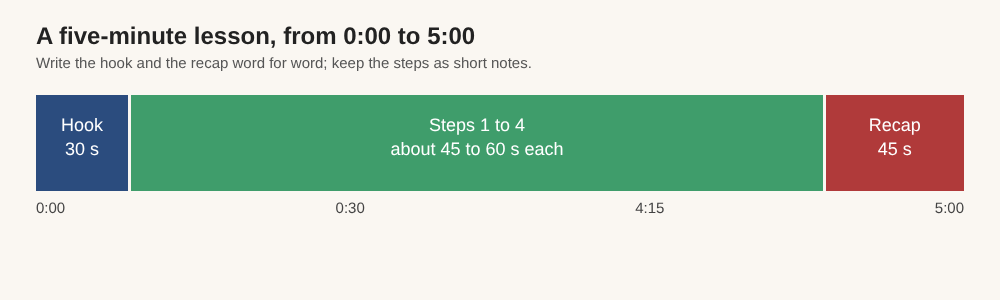
The timing split for a five-minute lesson.
Six or more steps usually means two lessons. Group small clicks into one step, such as "choose your data".
Copy-and-paste tutorial video script template with blanks to fill in
Copy this into a document and fill in every blank. Write the hook and recap word for word. For the steps, write short notes you can say in your own words.
- Lesson name: Lesson ___ : ___ (this becomes your recording's name, so keep the number).
- Goal: After this video, you can ___.
- Viewer: This is for someone who already ___ but has not ___.
- Before you start, open: ___ (one window or browser tab only).
- Hook (about 30 seconds): "Here is ___ [show the finished result]. In the next five minutes you will ___. You need ___ open. Let's start."
- Step 1: ___. Do: ___. Say why: ___. Check: the viewer should now see ___.
- Step 2: ___. Do: ___. Say why: ___. Check: ___.
- Step 3: ___. Do: ___. Say why: ___. Check: ___.
- Step 4 (optional): ___. Do: ___. Say why: ___. Check: ___.
- Common mistake: "If you see ___, it usually means ___. Fix it by ___."
- Recap (about 45 seconds): "You now know how to ___. First ___, then ___, then ___. Next, try ___."
The "Check" line is the one most people skip. It stops you racing ahead and tells the viewer they are still on track.
A filled-in example for a short screen lesson
Here is the template completed for a spreadsheet lesson.
- Lesson name: Lesson 03 : Total sales by month.
- Goal: After this video, you can build a pivot table that totals sales by month.
- Viewer: Someone who has typed data into a spreadsheet but never summarised it.
- Open: The sales spreadsheet, in one browser tab.
- Hook: "Here is a table that shows total sales for each month, built in under a minute. In the next five minutes you will make one yourself. You need a sheet with a date column and a sales column. Let's start."
- Step 1: Select your data. Do: click inside the data and select all of it. Why: the pivot table can only summarise what you select. Check: the whole table is highlighted, headers included.
- Step 2: Insert the pivot table. Do: open the Insert menu and choose the pivot table option. Why: this makes a blank summary area. Check: a new empty sheet appears.
- Step 3: Choose rows and values. Do: add the date column as rows and the sales column as values. Why: rows decide the groups, values decide what gets added up. Check: you see one line per date.
- Step 4: Group the dates by month. Do: group the date rows by month. Why: one line per day is too detailed. Check: twelve lines at most.
- Common mistake: "If the totals show a count instead of a sum, change how the value is summarised."
- Recap: "You now know how to total sales by month. First select the data, then insert a pivot table, then choose rows and values, then group by month. Next, try adding a second column of data."
Rehearse once and set up your screen before you press record
Read the script out loud once while doing the steps. You will find the step that takes three minutes, the click you forgot, and the sentence you cannot say without tripping. Fix those on paper, not in the recording.
Then set up the recorder:
- Choose a folder under Where to save. Start recording stays greyed out until you do, and the words next to the button tell you why.
- Type the lesson name in Name this recording, for example
Lesson 03. The name is used for the file and its folder, so numbering keeps a course in order. - Share one window or one browser tab instead of the whole screen. Other tabs, apps and private things stay out of the file. Anything that is on the shared screen ends up in the recording, so close what you do not need and silence notifications.
- Decide on the webcam. Turn Record my webcam off for a screen-only lesson. If you leave it on, the Layout menu in the Preview lets you place the camera; the screen and webcam guide explains the layouts.
- Check the transcript language. Live transcript is ticked by default under Options, and the language menu returns to its default each time the page opens.
- Record a 30-second test and play it back. It catches a wrong microphone or a muted tab before you lose a full take.
While you record, press M or Add marker at the start of each new step. A short note confirms the time. Markers are saved to a list and a chapters file only when Also save every source separately is ticked under Options. With the default single MP4 the notes show on screen but are not saved, so jot down times you need. When you finish, press Stop and finish rather than Chrome's own Stop sharing bar.
For a similar recording workflow, see the post on recording a video SOP in Chrome.
Fix common script problems: rambling, skipped steps, too long
You ramble
Rambling usually means the step has no "Check" line, so you keep talking until you feel done. Add the Check, say it, and move on. Writing the hook and recap word for word also removes the two most common rambling spots.
You skip a step
Viewers get stuck when an action happens off screen or too fast. Read the steps back and ask, "Could someone follow this with the sound off?" If not, add the click you skipped. Reading the live transcript of a test recording also shows where the explanation jumps.
The lesson is too long
Cut in this order: the long intro, the second example, the step only some viewers need. If it is still over, split it into Lesson 03 and Lesson 04. Also remember your plan has a number of recorded minutes a month. Open your name in the top right of the recorder to see how many are left, because a recording stops if they run out. The Free plan includes 12 hours of recording a month.
Frequently asked questions
How many words should a five-minute tutorial script be?
A rough guide is 650 to 750 spoken words, and fewer if you stay quiet while you click. Time yourself reading it aloud, and trim steps before you try to speak faster.
Should I read the script word for word?
Read the hook and the recap exactly. For the steps, use short notes and say them in your own words.
Do I need a webcam for a tutorial video?
No. Record my webcam is a switch, and you can leave it off for a screen-only lesson. Add the camera when seeing your face helps, such as in the hook.
Can I get a transcript of my lesson?
Yes. With Live transcript ticked under Options, a transcript is made while you record. The transcript and captions guide explains the files and languages.
Is the free plan enough for a course?
The Free plan includes recording, live transcript and captions, and 12 hours of recording a month on one device, with no card needed. Green screen, layouts and 4K export are on Creator.
Get started
Write your goal sentence, fill in the template, and rehearse once. Then record a 30-second test and your first lesson. The free plan needs no card. Try Cheap Recorder in Chrome, and your recordings stay on your own disk.
Screen recording that is cheap and easy.
Visit cheaprecorder.com↗
Comments
No comments yet.
Sign in or make an account to comment.