Interface click sounds for a product demo video: a guide
A click sound in a demo tells the viewer that something just happened on screen. The cursor lands, a button changes, and a short tap confirms it. Good interface click sounds for a product demo video go unnoticed; bad ones are all anyone hears. This guide covers which clicks deserve a sound, how to pick one, how to sync and mix it, and which license a demo of your own product needs.
Why click sounds make a demo easier to follow
A demo asks the viewer to track a small cursor across a big screen while listening to you. A click sound gives the ear a cue that matches what the eye should look at: hear a tap, look for the change.
Clicks also set the rhythm of a task. Three taps in a row say "this takes three steps" before you do. A softer chime at the end says the task is done. That gives structure to a recording that would otherwise feel like one long scroll. On Wavecrate, you can play interface sounds one after another and read each one's license before it goes into your edit.
Which clicks get a sound
Give a sound to a click that changes something the viewer needs to see:
- A button that opens a new screen or dialog
- A setting switched on or off
- An item picked from a menu
- A form sent, followed by a confirmation
Leave out the navigation noise: clicking into a text box before typing, clicking empty space to close a menu, a fast run of clicks while you scroll. Sound every one of those and the track turns into a typewriter, and the clicks that matter lose their meaning.
A simple rule: if you would point at it in a live demo, it gets a sound. If you would skip past it, it stays silent.
Picking interface click sounds for a product demo video
Three kinds of sound cover most demos.
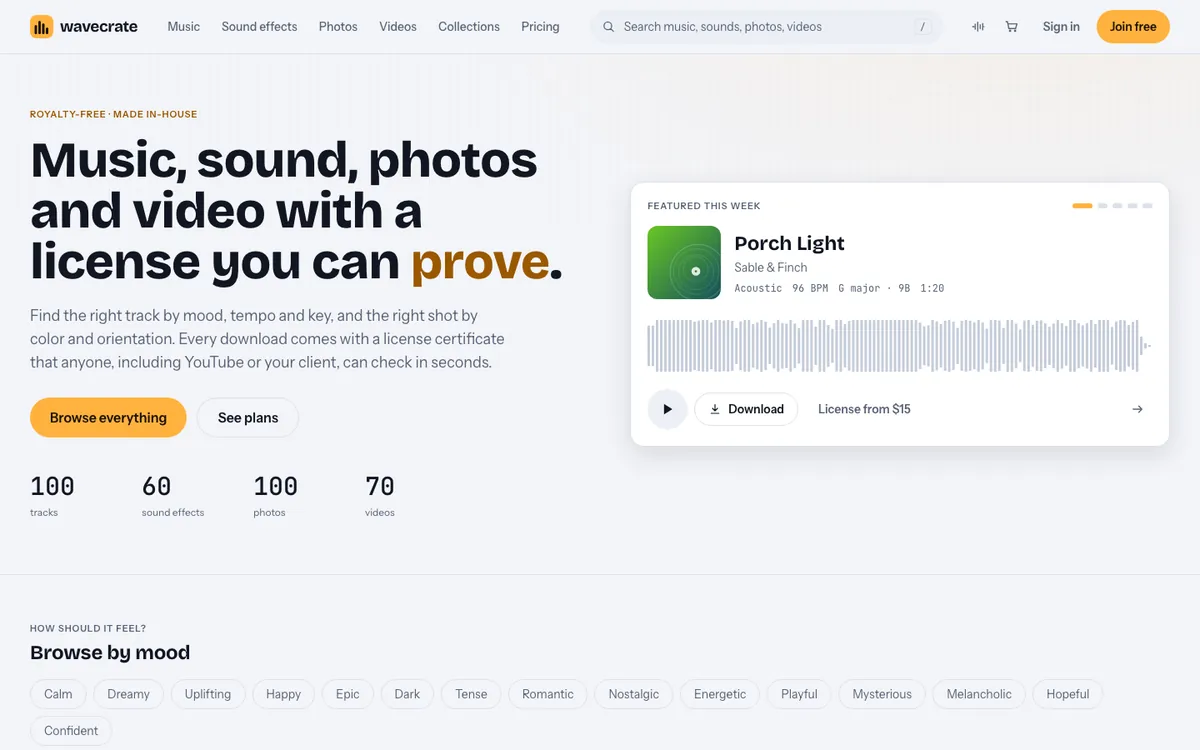
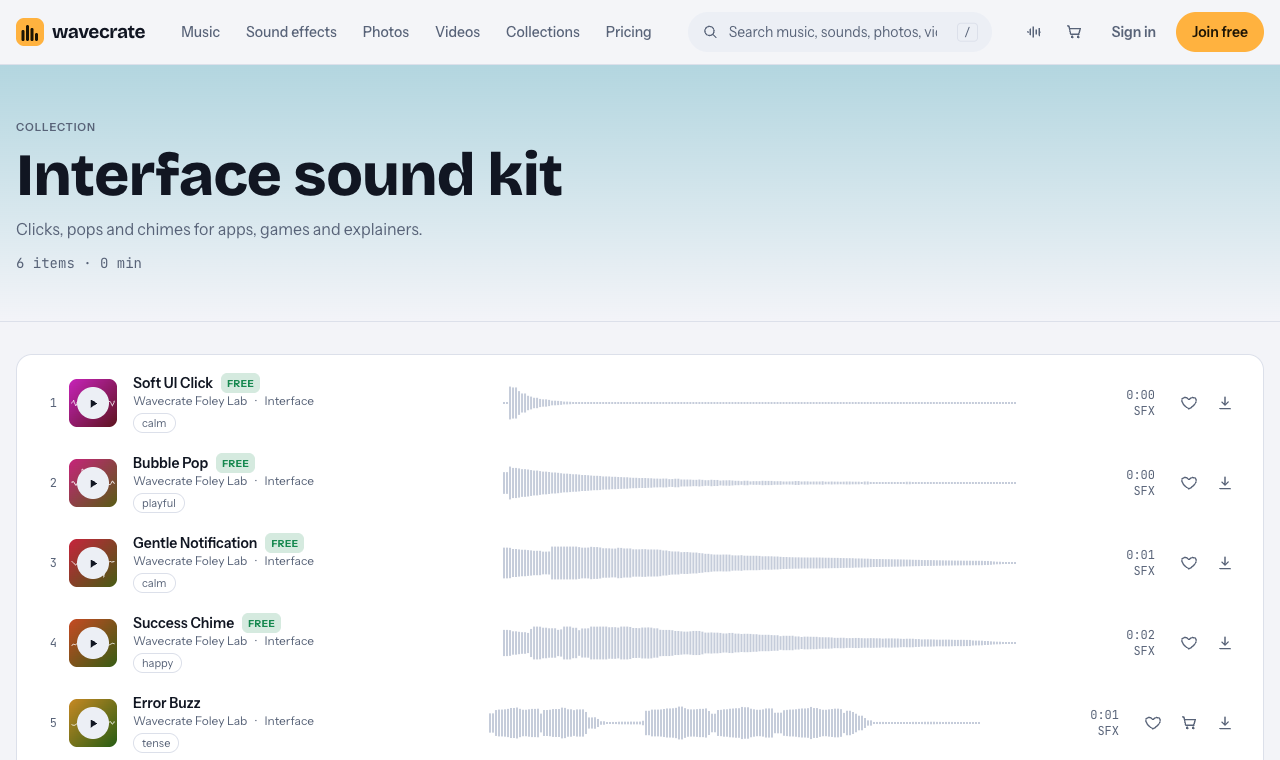
- Soft taps suit mobile apps and calm consumer products. Wavecrate's Interface sound kit has Soft UI Click, "for button and tap moments".
- Real mouse clicks suit desktop software and developer tools. The Foley sounds include Mouse Clicks, Medium, Bright ("computer mouse clicks, double clicks, scrolling and dragging") and Mouse Clicks, Medium, Crisp. The Bright one comes as a 24-bit WAV and a 320 kbps MP3, so you can cut a single click out of the longer file.
- Result sounds mark what happened, not the click itself: a pop when a card appears, a chime when a task completes, a buzz when something fails. The same kit has Bubble Pop, Gentle Notification, Success Chime and Error Buzz.
Pick one click and one confirmation sound for the whole video. Your product makes one kind of click, so your demo should too.
Auditioning is faster with the keyboard. On Wavecrate, Space plays or pauses, Shift with Right moves to the next item, and / opens search, so you can compare a dozen clicks in a minute with headphones on.
Syncing clicks without a frame-by-frame edit
- Record with a visible click effect. Many screen recorders can draw a ring when you click. That ring is your sync mark.
- Mark while you watch. Play the recording and tap your editor's marker key at each ring you decided to keep.
- Prepare one click clip. Trim it so the sound starts at the very first frame, with no silence in front. Silence at the start is the usual reason clicks feel late.
- Snap and paste. Turn on snapping and paste the clip on each marker.
- Nudge the key moments. The sound should land when the button changes, not when the cursor arrives. Check your three or four important clicks and move them a frame or two if needed.
Put the confirmation chime on the frame where the success message appears, not on the click that caused it. That small gap reads as "the app did the work".
Mixing clicks under voice and music
The voice is the main event, music is the floor, and clicks are punctuation. Mix in that order.
- Set the voice first, clear and steady.
- Bring clicks up from silence until you can just hear them over the voice, then stop. Check on laptop speakers.
- Take a little top off the click so it does not poke out on phone speakers.
- Keep music under both, and lower it while you speak.
- Do not land a click on a key word. Move the line or drop the click.
Which license a demo needs
This is where demos trip. The license cards on Wavecrate's sound pages say:
- Free, only on items marked Free: online videos and podcasts (YouTube, TikTok, Instagram, Twitch, podcasts, monetized channels), with credit text in the description. A free account gets 3 free downloads a month.
- Standard: no credit, and it adds "your own business and brand videos". Soft UI Click is listed at $3; Mouse Clicks, Medium, Bright at $5. Listed prices differ by item, so read the page.
- Extended: paid ads, broadcast, apps, games and client work. Soft UI Click showed $9; the mouse clicks showed $19.
Pro (listed at $99 a year, or $12 month to month) gives Standard on the whole catalog, never Extended. Paid licenses and Pro are not on sale yet: Wavecrate says purchases open soon, so these are the listed prices for when sales open, while items marked Free can already be downloaded with a free account.
Worked example: one click, three videos
Say you are recording a two-minute demo of an invoicing app. You pick Soft UI Click for buttons and Success Chime for "Invoice sent". Both were marked Free on the day this was written; items can change, so read the page on the day you download. Now follow the click through three videos:
- A how-to on your personal channel about a tool you use, with the credit line in the description: the Free license covers online videos with credit.
- The demo of your own app, on your site or your company channel: that is your own business content, which starts at Standard. So it needs Standard (listed at $3 on Soft UI Click) or Pro, even though the sound is marked Free.
- The same demo run as a paid ad, or a demo you make for a client: Extended (listed at $9 on Soft UI Click). Pro does not cover it.
Every download comes with a certificate and a code. Paste the code in the video description; anyone can enter it on the verify page to see who holds the license, for which item and what it covers, with no account. Before you send the demo, a one-minute practice run catches the click that is too loud or the chime that fires early.
Frequently asked questions
Should every click in a demo have a sound?
No. Sound only the clicks that change what the viewer needs to see. Silent navigation keeps the important clicks meaningful.
How loud should click sounds be?
Quieter than the voice, always. Raise them from silence until you can just hear them over speech, check on small speakers, and stop.
Is a click marked Free enough for my product demo?
Usually not. The Free license covers online videos with credit, but your own business and brand videos start at Standard, and paid ads and client work need Extended.
Do click sounds help in muted autoplay?
Not while the video is muted, so use a visible click ring and captions to carry the meaning. The clicks then add to a video that already works without them.
Get started
Pick one click and one confirmation sound, record with a click ring, mark the clicks that matter, paste one trimmed click on each mark, mix it under your voice, and match the license to whose video it is.
Browse Wavecrate: you can join free and download items marked Free now, paid licenses are not on sale yet (purchases open soon), and every download comes with a license certificate and a code anyone can check on its verify page.
Comments
No comments yet.
Sign in or make an account to comment.