Sprint retrospective action items: write ones that get done
Most sprint retrospective action items fail because they are written as wishes, not tasks. "Improve communication" has no owner, no date and no first step, so nobody picks it up. The fix is to give every item a named owner, a due date and one concrete next step, and to keep only the few your team can finish in a sprint. If you run retros on video calls, our post on recording a team retrospective call and keeping the action items shows scrum masters and team leads how to capture a retro in Chrome, mark its three parts and turn the transcript into items with owners. This post covers the step after that: how to write the items so they actually get done.
Cheap Recorder records your retro call in Chrome as one MP4 on your own computer. It captures your voice and the other side of the call and adds a transcript, so your action items can come from what people said, not from what someone remembered later.
Why most sprint retrospective action items never get done
The same few problems show up in almost every team:
- Nobody owns it. "The team will..." means no one will.
- It is too big. "Fix our deployment process" is a project, not an action, so it sits on the board until it is quietly dropped.
- There is no date. Without a due date, the item competes with sprint work and loses every time.
- The wording is lost. Someone said something precise, like "the staging database resets every night and wipes our test data." By the time it reached the notes, it had become "staging issues."
- Nobody checks. The next retro starts fresh, so last sprint's items fade without anyone deciding to drop them.
What a good action item has: an owner, a due date and one clear next step
Use one sentence with four parts:
[Owner] will [specific action] by [date]. We will know it worked when [check].
Owner. One person's name. They make sure it happens and report back.
Due date. A real date, usually before the next retro.
One clear next step. A verb you can picture someone doing on a Tuesday afternoon: book, write, add, remove, ask, try. If the item needs several steps, write only the first one down.
The check. One line on what done looks like. It stops an item from being "sort of done" forever.
Five sprint retrospective action item examples, rewritten from vague to specific
- Vague: Improve communication. Specific: Dana will move blocker updates out of DMs and into the team channel, starting tomorrow, and pin a short note explaining why. Check: at the next retro, ask whether anyone was surprised by a blocker.
- Vague: Fewer meetings. Specific: Priya will cancel the Thursday sync for one sprint as a trial and send a written update instead. Check: the team votes keep or bring back at the next retro.
- Vague: Fix flaky tests. Specific: Lee will list the five tests that failed most often this sprint and open a ticket for each by Wednesday.
- Vague: Faster code reviews. Specific: Omar will propose a same-day first look rule for reviews in the team channel by Monday, and the team will try it for one sprint.
- Vague: Fix staging. Specific: Jo will ask the platform team whether the nightly staging reset can skip our test data and report their answer at standup on Tuesday.
None of these solves the whole problem. Each moves it one step.
How many action items to keep from one retro, and how to pick them
Keep one to three. More than that and the sprint's real work crowds them out.
To pick them:
- Vote. Give everyone two or three dots and let them place them on the themes that matter most.
- Prefer what the team controls. If another team must act, make the item "ask them," not "they fix it."
- Size it to one sprint. If it cannot be done by the next retro, cut it to its first step.
- Park the rest on purpose. Write the other ideas in a short "not now" list. People stop raising the same point when they can see it was heard.
Capture the exact words: record the retro call and pull items from the transcript
Good items often come from one specific sentence someone said. A recording keeps that sentence. Here is a workflow for a retro on Google Meet or Teams in Chrome:
- Open the recorder in Chrome. Under Where to save, press Choose folder... and allow Chrome to edit files there. The recorder doesn't remember the folder between visits, so you pick it each time.
- Type a name in Name this recording, for example
Retro Sprint 42. The name is used for the file and its folder, so numbered retros sort in order. - Under Options, make sure Live transcript is ticked and check the language. The language menu resets each time the page opens.
- In the Call audio tile, press Pick the call tab..., choose the meeting tab, tick Share tab audio and press Share. Your microphone and the call are mixed into one recording. The call must be open in a Chrome tab, and keep that tab shared until the end: if the share stops mid call, picking the tab again does not add it back to a recording already running. The Google Meet guide covers the details.
- Press M at the start of each part of the retro. A short note confirms the time. With the default single MP4, these notes show while you record but are not saved, so jot down the times. If you tick Also save every source separately before recording, the markers are written to a markers list and a chapters file.
- Press Stop and finish, not Chrome's own Stop sharing bar.
The folder now holds the MP4 and a plain-text transcript, such as Retro Sprint 42 - transcript.txt, with a time for each line. Open it in any text editor and search for phrases like "I'll", "we should", "next sprint" and "can someone." Each hit is a candidate item, already in the speaker's own words. Paste the line into your action item and add the owner and date.
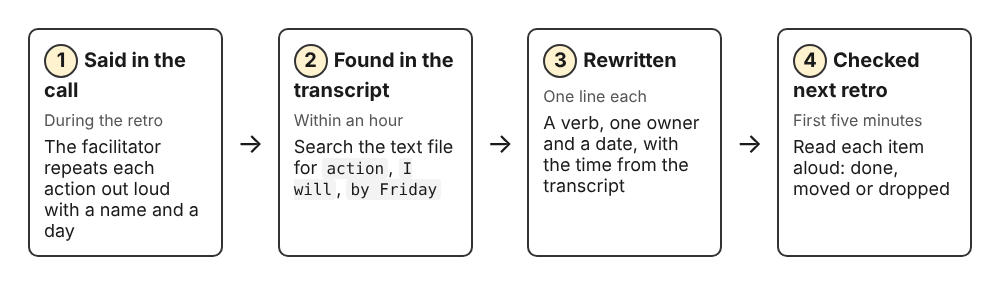
Say each action aloud with a name, find it in the transcript, rewrite it, then check it at the next retro.
About speaker names: on plans that include speaker detection, each line is labelled with its loudest source, and you can rename the Speaker boxes and press Save captions. Everyone on the far end comes from one Chrome tab, though, so they all share one label, Meeting. That is why the facilitator should say a name with each action. The live transcript guide explains the labels.
Be clear with your team about what leaves the computer. The recording is written to your folder and not uploaded, unless you use Convert or Download MP3, which send the file to the Cheap Recorder server and delete it when done. While the live transcript is on, Chrome sends your microphone audio to Google to turn it into text. The recorder keeps an activity log with the folder and file names you chose. An AI button sends the transcript with speaker names to Anthropic, and only when you press it. If a retro must stay entirely on your machine, untick Live transcript before you start. The guide to where recordings are saved lists everything in the folder.
Follow up at the next retro so open items are checked before new ones are added
Make the first five minutes of every retro a review of the last one. Open last sprint's transcript file or your action list and go through each item:
- Done: the owner says what changed. Ask whether the check passed.
- Not done: the owner says what got in the way. Either shrink the item to a smaller first step or set a new date.
- No longer useful: drop it out loud, so nobody wonders later.
One simple rule helps: an item that misses its date twice gets cut down or dropped. It doesn't roll over a third time. Only after this review do you start gathering new ideas.
Frequently asked questions
Who should own a retrospective action item?
One person who volunteers and has the time this sprint. It doesn't have to be the scrum master or the person who raised the problem. They make sure it happens and report back.
Should action items go in the sprint backlog?
Yes, if they take real time, because work outside the backlog tends to get skipped. Small items, like changing a meeting format, can live on a short list you review at the start of each retro.
What if the team keeps raising the same problem?
That usually means the action items were too big or depended on someone outside the team. Pick the smallest step the team fully controls and give it a date. If it truly can't be fixed, say so and stop spending retro time on it.
Is it okay to record a retrospective, and how do I ask the team?
Depending on where people are, recording may need everyone's agreement, so always ask first and say why: to keep exact wording for action items. This guide on how to ask to record a meeting suggests what to say and when. Retros depend on honesty, so tell people they can ask for any remark to be left out of the written action list.
Get started: record your next retro in Chrome with Cheap Recorder and turn the transcript into action items
Before your next retro, do a 30-second test recording and play it back to catch a wrong microphone or a muted tab. Then record the real call, open the transcript, and write one to three items with an owner, a date and a next step. The full recording walkthrough is in record a team retrospective call and keep the action items. The Free plan includes recording, the live transcript and captions, and 12 hours of recording a month on one device. You can create a free account without a card.
Screen recording that is cheap and easy.
Visit cheaprecorder.com↗
Comments
No comments yet.