Stock video backgrounds for a product demo: how to choose
A product demo is mostly a screen recording: flat panels, a browser window, a cursor. Stock video backgrounds for a product demo fill the space around that recording and sit behind your title cards. Chosen well, nobody notices them and the product looks finished. Chosen badly, viewers watch the background instead of your feature. This guide covers how to pick a clip, layer it, and license it for the place the demo will run.
What a background does in a demo
Your recording is often smaller than the frame, so something has to fill the edges. A background frames the recording, gives title cards something to sit on besides a flat color, and marks the break between one feature and the next. The product stays the subject; the background supports it and nothing more. On Wavecrate, you can preview motion backgrounds and read each clip's license before it goes into your demo.
What to look for in stock video backgrounds for a product demo
Judge every candidate on four things.
- Slow motion. Your interface already moves: menus open, pages load, the cursor travels. A fast background gives the eye two things to follow. Drifting gradients and soft out-of-focus lights work better than quick particles or sharp shapes.
- Quiet color. Pick colors near your brand but not the same as your buttons. A bright blue background hides a bright blue button.
- Low contrast. Your text has to read on top. Avoid bright spots and hard edges, or plan to darken and blur them.
- A clean loop. Background clips are short, so you will repeat them. Watch how the last frame meets the first.
Then match the shape. A demo on your landing page is landscape; a short cut for Stories or Shorts is portrait. Pick the orientation first and look for clips second.
Where to find them
On Wavecrate, the videos browse page has a Motion backgrounds category, plus Abstract and Vertical for social. You can filter by orientation, color, resolution (HD 720p+, Full HD 1080p+, 4K), mood, length and access (Free or Premium), and hover a clip to preview it.
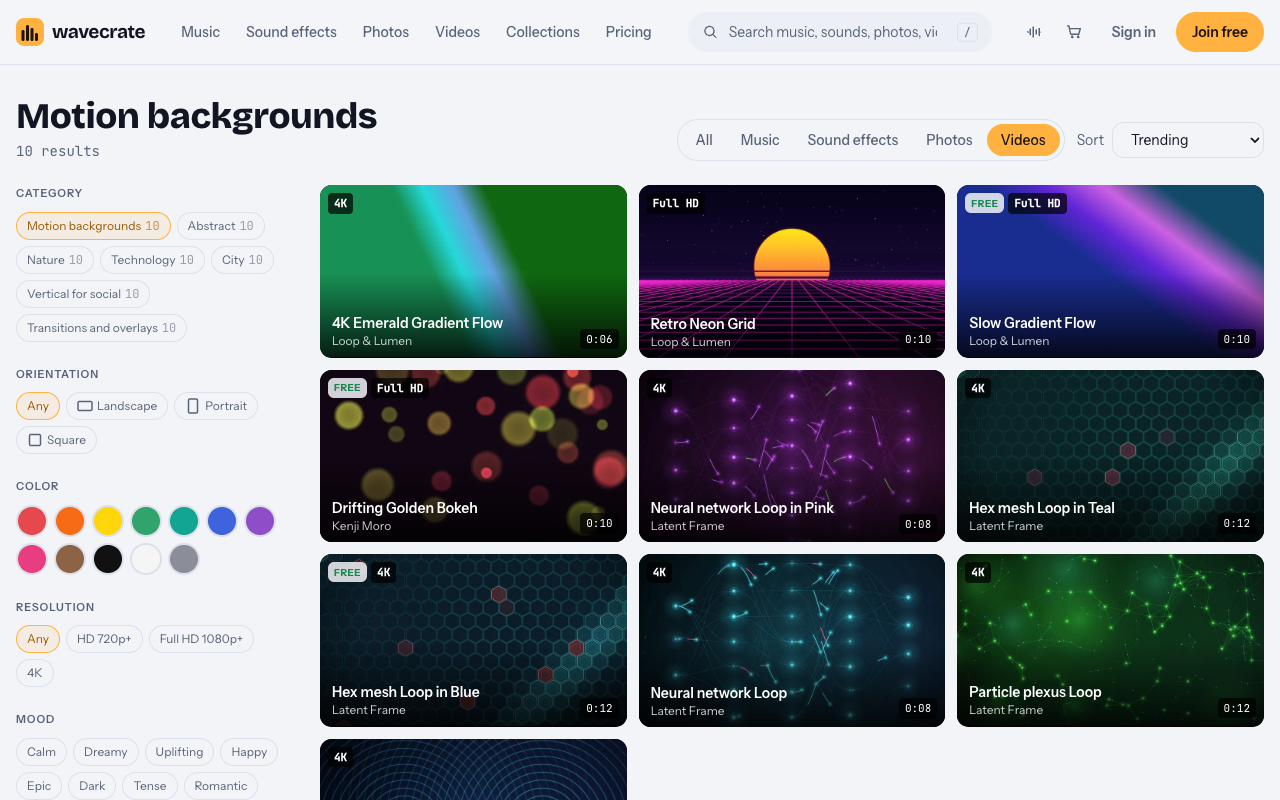
On 10 October 2026 the category held 10 clips, from Retro Neon Grid to several 4K loops, with Slow Gradient Flow, Drifting Golden Bokeh and Hex mesh Loop in Blue marked Free. Previews show one small watermark that moves around, with no sound. Licensed files are clean.
Matching the clip to your project
Match the clip to your export, not the other way round. If your recording is 1920 x 1080 at 30 frames a second, a clip at the same size and rate drops in with no scaling. Putting a 720p file under a 1080p export softens the whole frame, so filter by Full HD 1080p+ or 4K.
Match the mood to the product, too. A calm note-taking tool suits cool gradients that barely move. A consumer product can take warmer light. A retro or playful brand can use bolder shapes, but only behind title cards, never behind dense screens.
How to layer the background under your recording
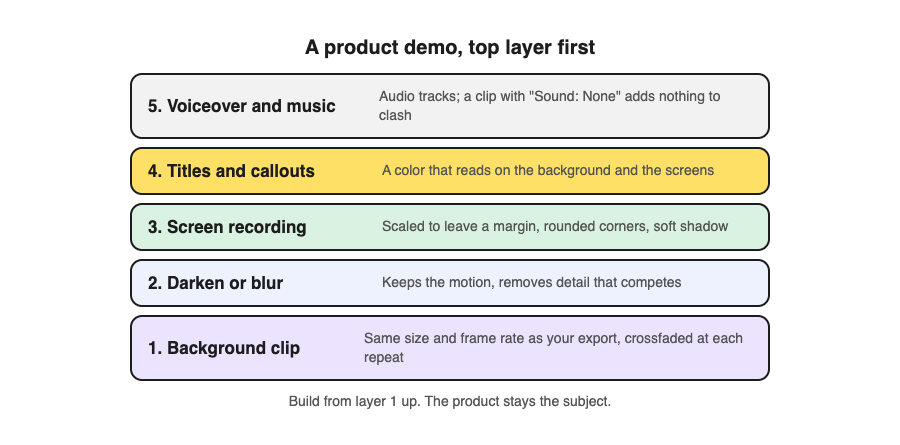
Build the demo from the bottom up.
- Background clip on the lowest track, repeated to the full length, with a short crossfade at each repeat so the loop point does not jump.
- A darken or blur layer over it. A slight blur keeps the motion but removes detail that competes with your screens.
- The screen recording, scaled to leave a margin, with rounded corners and a soft shadow so it lifts off the background.
- Titles and callouts on top, in a color that reads on both the background and the interface.
- Voiceover and music on the audio tracks. A clip with "Sound: None" on its page adds nothing to clash with your narration; any music is a separate item with its own license.
At a section break, shrink the recording away for a beat so the background fills the frame under a title card, then bring the next screen in. It gives the viewer a short rest and makes the structure clear.
Worked example: one clip, three demos
Say you are making a 90 second demo of a scheduling app for your home page. Your recording is 1920 x 1080 at 30 frames a second, and your brand color is blue.
- Open Motion backgrounds and set orientation to Landscape and resolution to Full HD 1080p+.
- Set the color to blue and the mood to calm, and hover the results.
- Open Slow Gradient Flow: "Blue and violet gradients drifting slowly, for titles and presentations." It is 1920 x 1080, 30 fps, 10 seconds, with no sound, so it matches your recording exactly. At 10 seconds it repeats about nine times in 90 seconds, so add the crossfades.
The clip was marked Free on the day this was written, and that is the trap. Follow it through three uses:
- The demo on your home page or your own channel: a demo of your own product is your own marketing, which the pricing page lists from Standard, not under Free. So it needs Standard, which the clip's page lists at $29, or Pro (listed at $99 a year, or $12 month to month), even though the clip is marked Free.
- The same demo boosted as a paid ad: paid advertising is Extended only, which the page lists at $99. Pro never covers Extended.
- A demo you make for a client's product: client work is Extended only as well.
The Free license fits a different job: a clip behind a blog post or a social post that is not marketing for a business, with a credit line next to it or in the description.
Paid licenses and Pro are not on sale yet: Wavecrate says purchases open soon, so the prices above are the listed prices for when sales open. Items marked Free can already be downloaded with a free account.
With Wavecrate you get a license to use the clip; Wavecrate keeps the copyright. Every download comes with a certificate and a code, and anyone can check that code on the verify page to see who holds the license, for which item and what it covers. That helps when a client asks where your footage came from. Before a live demo, a short dry run helps too: see a practice run before a client demo.
Frequently asked questions
Can I use a Free stock video background in my product demo?
A demo of your own product is your own marketing, and Wavecrate's table lists that from Standard, not under Free. Your own demo needs Standard or Pro, and a paid ad or a client's demo needs Extended.
What resolution should a demo background be?
Match your export. For a 1080p demo at 30 fps, a 1920 x 1080 clip at 30 fps needs no scaling; Wavecrate lets you filter by Full HD 1080p+ and 4K.
How do I hide the loop point?
Overlap two copies of the clip on the timeline by a second or two and crossfade between them. A slight blur also hides a small jump.
Does Pro cover a demo after I cancel?
The pricing page says content you publish while subscribed stays covered. A demo you publish after Pro ends needs a license of its own.
Get started
Open the videos page, choose Motion backgrounds, match the orientation and resolution to your project, and pick the license for where the demo will run.
Browse Wavecrate: you can join free and download items marked Free now, paid licenses are not on sale yet (purchases open soon), and every download comes with a license certificate and a code anyone can check on its verify page.
Comments
No comments yet.
Sign in or make an account to comment.