Touch Screen or Mouse? How a Website Tells the Difference
Is it a touch screen or mouse? A web page cannot see your hands, so it asks the browser. The browser can answer four slightly different questions: what the main input is, whether any input is a finger, how many touch points the screen supports, and what caused the event that just happened. Good pages pick the question that fits the job, and keep every input working anyway, because many devices have both.
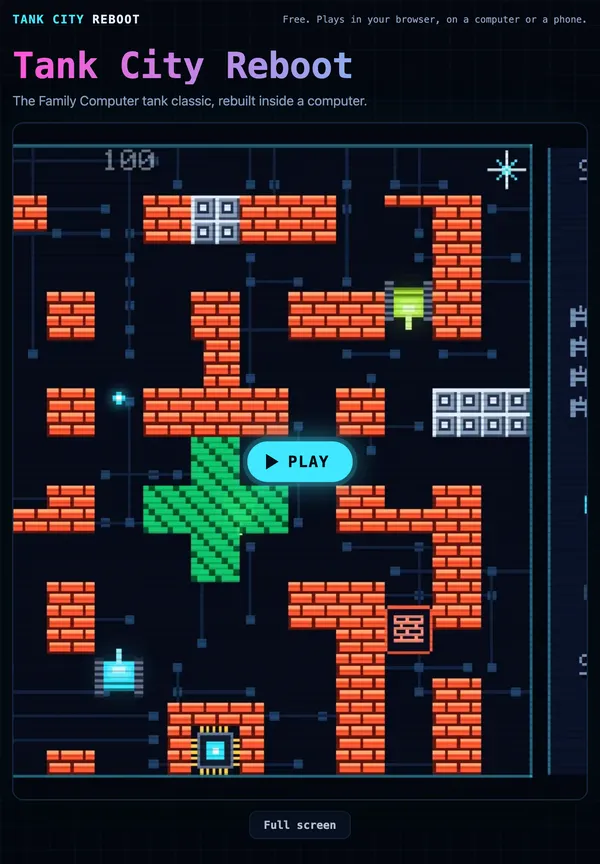
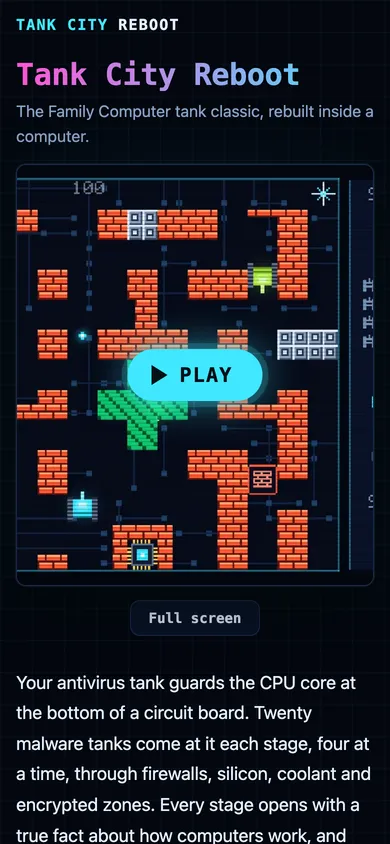
You can watch this happen in Tank City Reboot, a free pair of tank games that play in your browser on a computer or a phone, with no account: open it on a phone and a direction pad appears over the game, while a computer shows a keyboard hint instead.
Why a page needs to know touch from mouse
A mouse is precise. It can rest over a link without clicking, and its pointer is a few pixels wide. A finger is wide, it covers what it presses, and it cannot hover. So the same page often needs bigger buttons for fingers, different hints, and in a game, a whole set of on screen controls that a mouse user would never want.
Guess wrong and people feel it. Buttons are too small for a thumb. Controls float over a desktop page and hide the action. Or a phone player gets a line that says "use the arrow keys" when there are no arrow keys. The aim is not to label someone "mobile" or "desktop", but to fit the input they actually have.
The pointer media feature: coarse, fine or none
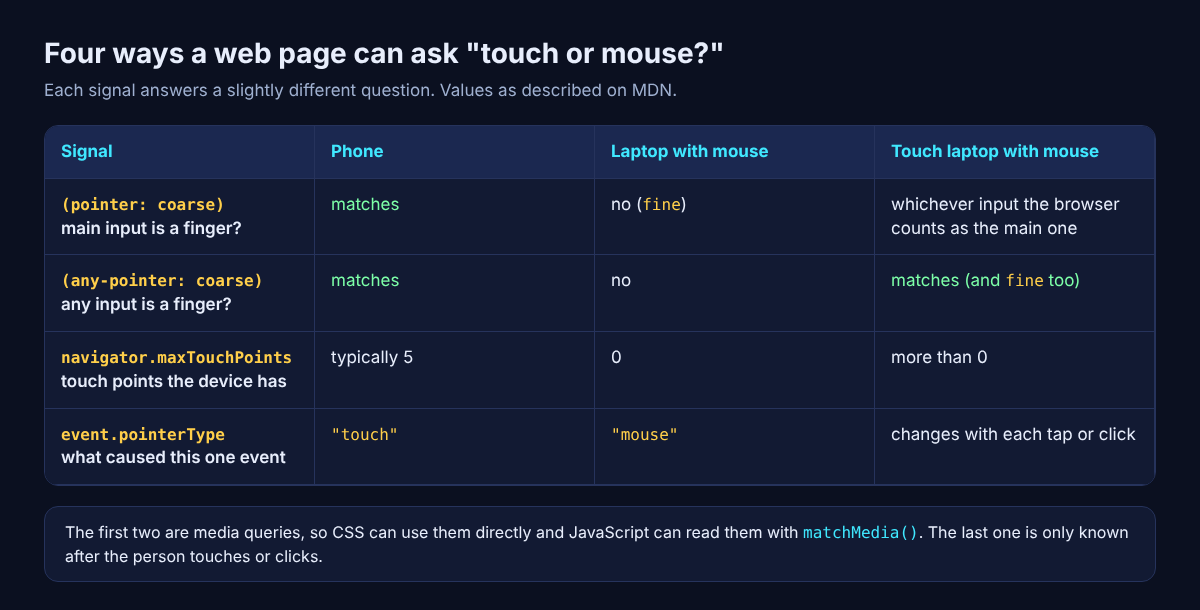
The first question is about the main input. CSS has a media feature called pointer, and MDN's pointer page lists its three values:
coarse: the primary input is a pointing device of limited accuracy, such as a finger on a touchscreen.fine: the primary input is an accurate pointing device, such as a mouse.none: the primary input is not a pointing device at all.
Because it is a media query, CSS can use it with no script: @media (pointer: coarse) { button { min-height: 48px; } }. And because it is about the device, it is known the moment the page loads, before anyone touches anything. That makes it the right tool for layout: sizes, hints and which controls to show.
JavaScript can ask the same question with matchMedia: window.matchMedia("(pointer: coarse)").matches is true or false.
any-pointer and maxTouchPoints: is touch possible at all?
The pointer feature only looks at the primary input. Its sibling, any-pointer, looks at every input. On a device with a mouse and a touch screen, (any-pointer: coarse) and (any-pointer: fine) can both match at once, which MDN says plainly: more than one value can match when the devices differ.
Script has a third signal. navigator.maxTouchPoints returns how many touch contacts the device can track at once. MDN gives the usual numbers: desktop computers without a touchscreen return 0, and smartphones typically return 5.
Both of these answer "could this person touch the screen?", not "are they touching it now?". A laptop with a touch screen and a mouse plugged in still reports touch points while its owner only uses the mouse. Use them as hints, not verdicts.
pointerType: what caused this one event
The fourth signal comes after the fact. Pointer events (pointerdown, pointermove, pointerup and pointercancel) replace separate mouse and touch events with one family, and each carries a pointerType: "mouse", "pen" or "touch", or an empty string when the browser cannot tell.
This is the most honest answer of the four, because it describes what just happened rather than what the hardware could do. A drawing app can give a finger a thicker brush on one stroke and a mouse a thin one on the next. The catch is timing: you learn it only after the first press, too late to choose the first layout.
A worked example: how one game decides to show its touch pad
Here is a real page you can open and read, step by step. Both games on the Tank City Reboot site use the same short check, which you can find in the page source of the first game and of Tank City Zero Day.
- Ask once, at load. The script runs
const touch = window.matchMedia("(pointer: coarse)").matches;. That is the primary input question from above. - Change the hint with CSS. A rule,
@media (pointer:coarse) { .hint { display: none } }, hides the line "Click the game, then play with the arrow keys and Space." on a touch screen, where it would not help. - Fit the box to the screen. A second coarse rule caps the game box's width at the screen's height times the game's shape, so the whole field fits on screen.
- Show the pad only when it can work. After the game has loaded, the script runs
if (touch) pad.hidden = false;. So the pad appears on a touch screen, and never over a desktop game. - Read the finger with pointer events. The round direction pad listens for
pointerdown,pointermove,pointerupandpointercancel, and captures the pointer, so that finger's moves keep going to the pad. The first game picks the nearest of four directions; Zero Day reads eight.
Notice what the page does not do. It never removes the keyboard or gamepad on a phone, and it never removes touch from the pad's buttons on a computer: every input keeps working, and the check only decides what to show. The layer between the touch buttons takes no touches, so a swipe there still scrolls the page, except in full screen. And when you switch away from the tab, every touch button is released, so a held direction does not stick.
Try it yourself: open the page source on a computer, search for pointer: coarse, then open the same page on a phone and watch the hint vanish and the pad appear once you press Play. If the controls themselves interest you, the post on portrait and landscape screens shows how the same pad sits in both shapes.
Common mistakes when telling touch screen or mouse apart
- Guessing from screen width. A narrow desktop window is not a phone, and a wide tablet is not a laptop. Width is a layout question, not an input question.
- Reading the browser's name. The user agent string describes the browser, not the hands using it, and it says nothing about a mouse plugged into a tablet.
- Treating "touch possible" as "touch in use".
maxTouchPointsabove 0 does not mean the person is using their finger right now. - Removing an input because a test said no. Show or hide hints by input, but keep every way of playing or clicking alive.
- Hover only menus. A finger cannot hover, so any menu that opens only on hover needs a tap to open it too.
Frequently asked questions
Can a website tell whether I use a touch screen or mouse?
It can ask the browser. The pointer media feature says whether your main input is coarse, like a finger, or fine, like a mouse, and each pointer event says whether a mouse, pen or touch caused it.
What is the difference between pointer: coarse and pointer: fine?
coarse means the primary input has limited accuracy, such as a finger on a touchscreen. fine means it is accurate, such as a mouse, so smaller targets are fine.
What does navigator.maxTouchPoints tell a page?
How many touch contacts the device can track at once. Desktops without a touchscreen return 0 and smartphones typically 5, but a number above 0 only means touch is possible.
Why does Tank City Reboot show a touch pad on my phone only?
Both game pages check (pointer: coarse) once and show the pad only when it matches and the game has loaded. On a computer you play with the keyboard or a gamepad instead.
Get started
Open the game on a computer and play with the arrow keys or WASD, then on a phone and watch the touch pad appear. In the first game you guard the CPU core from malware tanks; in Zero Day you dash through shots and pick upgrades between waves.
Play Tank City Reboot: it is free, plays in your browser on a computer or a phone, and needs no account.
The Family Computer tank classic, rebuilt inside a computer.
Visit tankcityreboot.vlvd.net↗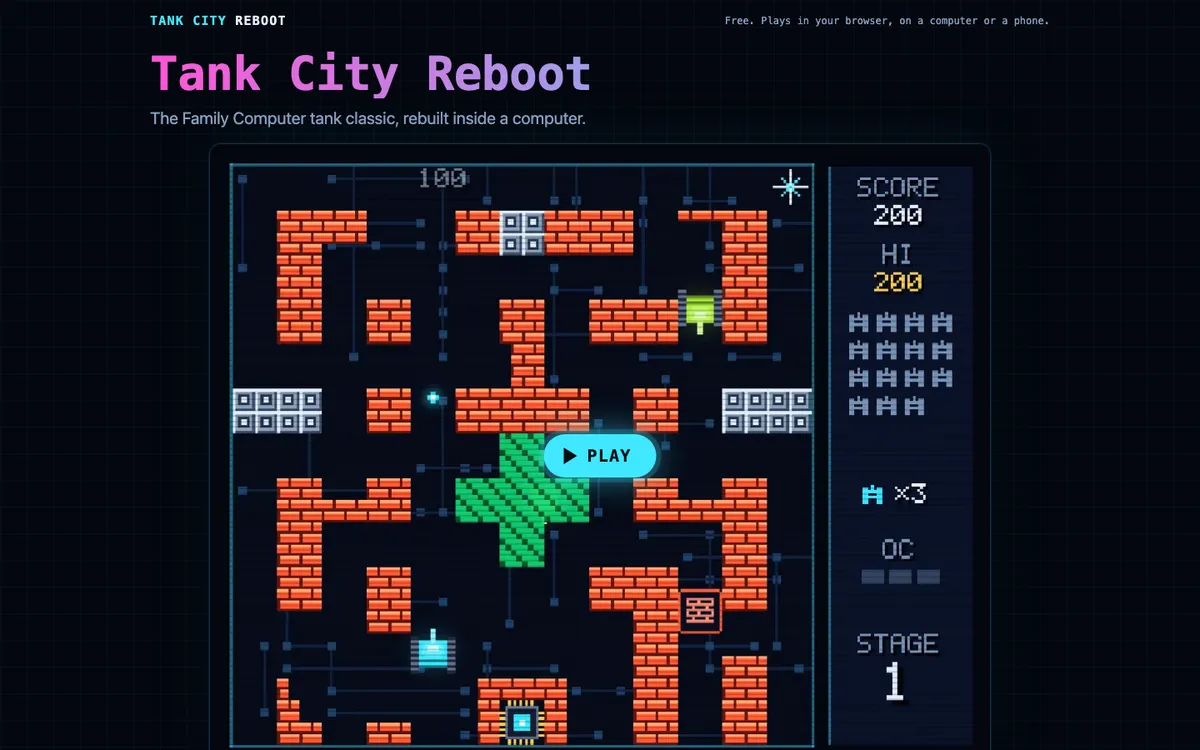
Comments
No comments yet.