Voice Memo to Text on PC: Record and Transcribe in Chrome
If you want a voice memo to text on PC without typing a word, record the memo in Google Chrome with a live transcript running, and you end up with an audio file and a plain-text file side by side in a folder you chose. Our post on recording a voice note with a transcript in Chrome walks through that route for anyone who wants a quick spoken note with words attached. The useful detail from it: the transcript is not trapped in an app. It sits next to the recording as a text file you can open anywhere. This post covers the PC side: setting it up, finding the files, cleaning the text and knowing when a phone is the better tool.
Cheap Recorder runs in Chrome on Windows, macOS and Linux. With the webcam off and no screen picked, it saves your voice as an M4A file on your own computer and writes the transcript as you talk, with nothing to install.
Why a voice memo to text on PC beats typing notes
You talk faster than you type. A two-minute ramble about a project idea takes ten minutes to write up by hand. Spoken, it takes two minutes, and the text is waiting when you stop.
Doing it on your PC has a second benefit. The text lands where you already work. You can paste it into a document, an email or a task list without moving files off a phone first. If you think out loud while you sort through a problem, the memo becomes a written record you can search later.
What you need before you start: Chrome, a microphone and a folder
You need three things:
- Google Chrome. The live transcript needs Chrome. In other browsers the option is greyed out and says so.
- A microphone. A laptop's built-in one works. A headset or desk microphone close to your mouth gives Chrome clearer sound to turn into text, especially in a noisy room.
- A folder. You pick where the files go. The recorder does not remember the folder between visits, so you choose it each time. Chrome's picker normally reopens where you were last.
You also need an internet connection. Your plan comes from the Cheap Recorder server, and the live transcript works by Chrome sending your microphone audio to Google. The free plan covers all of this: 12 hours of recording a month, the live transcript, one device and no card.
Record a sound-only voice memo in Chrome, step by step
Here is a worked example. Say you want to talk through notes after a client call and call the memo Client call notes.
- Open the recorder in Chrome and sign in. A free account is enough.
- When Chrome asks, allow the microphone. If you said no by mistake, press Allow microphone and camera in the Microphone box.
- In the Microphone tile, open Change or add microphones and tick the one you will speak into. Plugged one in just now? Press Rescan.
- Switch Record my webcam off. Do not pick anything under What to capture. With no camera and no screen, the recording is an M4A audio file instead of an MP4.
- Under Where to save, press Choose folder..., pick a folder and allow Chrome to edit files in it.
- Type
Client call notesinto Name this recording. Left empty, it is just called Recording. - Under Options, check that Live transcript is ticked (it is by default) and that the language menu shows the language you will speak.
- Press Start recording and talk. The level bar beside your microphone should move with your voice.
- Press Stop and finish. A Recording saved. message appears, and the file is already in your folder.
If Start recording stays greyed out, read the note next to it. It gives one reason at a time, such as choose a folder first. Fix that, then read it again, because the next reason may appear.
Before your first real memo, record a 30-second test and play it back. It catches the wrong microphone before you lose a good idea to it.
If someone else is speaking on the memo, tell them first. Recording people may need their agreement depending on where you are. Here is what to say when you ask to record.
Get the transcript: live text while you speak
The transcript is made while you talk, from what Chrome hears on your microphone. You do not wait for it after you stop.
Three things are worth knowing before you press Start:
- Pick the language first. There are 25 languages. Chrome listens for one language per recording, set when the recording begins. Switching halfway gives odd results.
- Check the menu every time. It goes back to its default each time the recorder page opens. Your last choice is not remembered.
- It cannot be added later. If Live transcript was off, that recording cannot get a transcript afterwards.
Long pauses are fine. If Chrome's speech recognition stops listening during a silence, the recorder starts it again as long as you are still recording. The live transcript and captions guide covers the details.
Where the M4A and the text file end up on your computer
Each recording gets its own folder, named with the name you typed plus the date and time it began on your clock. Our example would land in a folder like this:
Client call notes - 2026-10-27 09.15
Inside it you will find:
Client call notes.m4a, the audio, with AAC sound.Client call notes - transcript.txt, plain text with the time of each line, written if the transcript heard speech.
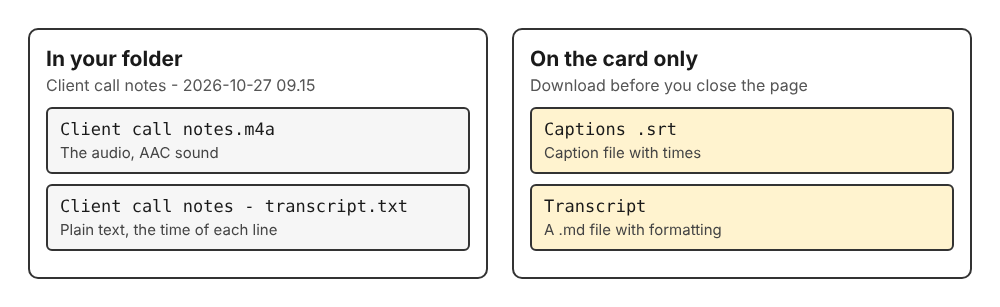
What lands in the folder, and what you download from the card before you close the page.
Two more downloads sit on the card under the player: Captions .srt and Transcript, which gives a formatted .md file. These are not saved in the folder, and the card only lasts while the recorder page is open. Download them before you close the tab if you want them.
The files are ordinary files. Move them, rename them, back them up. Just finish any downloads from the card first, because the card reads the file from where it was saved. The where recordings are saved guide explains folder names and what happens with duplicate names.
Clean up the text: fix names, cut filler words, copy it anywhere
Open the Transcript fold on the card. You can do three things there.
Rename the speaker. On plans that include speaker detection, each line is labelled with the sound source that was loudest while it was spoken, which for a memo is your microphone's name. Type your own name in the Speaker box, press Save captions, and lines start with it, like Priya: Call the supplier about the delay. To see whether your plan has it, open your name in the top right and look under What you can do on this plan.
Cut words. Click any word to cut it, then press Save captions. On plans that include cutting words from the transcript, a Remove filler words button marks ums, uhs, likes and similar words in red so you can drop them in one go. In a normal one-file recording, cuts change the transcript and captions, not the audio file itself. That is usually what you want from a memo: clean text, full audio kept. The filler words guide has more. Save before you reload or close the tab, because marks live on the page until you do.
Copy it anywhere. The .txt file opens in any text editor. Paste it into your notes app, an email or a ticket.
When a phone voice memo app is still the better choice
A phone is in your pocket. If the idea hits you on a walk, in the car or away from your desk, use your phone's recorder. Cheap Recorder runs in Chrome on a computer and needs a connection to start, so it suits memos you make at your desk.
The PC route makes sense when you are already sitting at your computer, want the text in a file next to the audio, and want it on the same machine where you will use it.
Frequently asked questions
Can I convert an old voice memo to text on PC?
Cheap Recorder makes the transcript live, from what Chrome hears on your microphone while you record. A recording made without the live transcript cannot have one added afterwards, so this works for new memos.
Is the transcript accurate with accents or background noise?
It depends on how clearly Chrome hears you. A headset or desk microphone close to your mouth beats a laptop's built-in one in a noisy room, and choosing the right language before you start matters. Read the text through before you rely on it.
Can I save the memo as MP3 instead of M4A?
Yes. Press Download MP3 on the card, or use Convert for M4A or WAV. These send the file to the Cheap Recorder server to be converted, it is deleted there when that finishes, and your original M4A is never changed. See the convert guide.
Does my audio leave my computer?
The recording is saved to your folder and not uploaded, except when you use Download MP3 or Convert. While the live transcript is on, Chrome sends your microphone audio to Google to turn it into text, so untick Live transcript if a memo must not leave your computer in any form. The privacy page has the full detail.
Get started
Open Chrome, switch the webcam off, pick a folder, check the language and talk for thirty seconds. Then open the folder and look at the M4A and the .txt side by side. For the short version of the route, read voice note with a transcript: record one in Chrome. The free plan needs no card: start recording with the Free plan, and your recordings stay on your own disk.
Screen recording that is cheap and easy.
Visit cheaprecorder.com↗
Comments
No comments yet.