Workshop follow-up email with recording: what to send attendees
A good workshop follow-up email with recording gives attendees four things: the video, a list of where each exercise starts, a transcript they can search, and one plain line about where the file lives and who can see it. Send it within a day, keep it short, and put the link near the top. Our post on how to record a virtual workshop in Chrome with a transcript for attendees covers the recording side. It helps facilitators and trainers record a session in short takes, mark the exercises as they happen, and hand out the video, transcript and captions. One thing worth knowing from it: decide how you will find each exercise later before you press record, because that choice shapes the email you write afterwards. This post starts where that one ends, with the email itself.
What attendees need from a workshop follow-up email with recording
People open a follow-up email for different reasons. Some missed the second half. Some want to redo one exercise. Some only want the slides. Write for all three, in this order:
- The recording link, in the first two lines.
- A short list of timestamps, one per exercise or section.
- The transcript and captions, so people can search, read or follow without sound.
- Any homework or next step, in one sentence.
- Where the files are stored and who can open them.
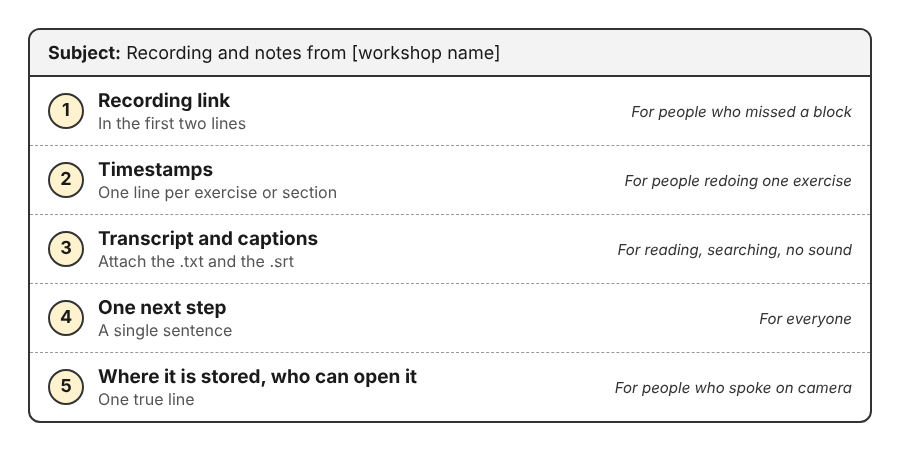
The order that answers each reader first.
If you have not recorded the session yet, Cheap Recorder records your screen, your voice, your webcam and the other side of a call in Chrome as one MP4 on your own computer, with a transcript. That gives you the video and the text for this email from one recording.
When to send it, and what to say if the recording is late
Send it the same day or the next morning. People still remember what they did, and the ones who missed it are still asking colleagues what happened.
If the recording needs work first, send a short note now and the full email later. Something like: "Thanks for coming today. The recording and transcript will be with you by Thursday. In the meantime, here are the slides." That is better than a week of silence followed by a long email nobody reads.
One practical point if you record with Cheap Recorder: the MP4 and the transcript text file land in your folder by themselves, but caption files are not saved there. Press Captions .srt on the recording's card right after Stop and finish, so the captions are ready when you write the email.
A workshop follow-up email template with the recording link
Copy this and change the parts in brackets. It is deliberately short.
Subject: Recording and notes from [workshop name] Hi everyone, Thanks for joining [workshop name] on [day]. Here is the recording: [link]. Where each part starts: 00:00:00 Welcome and goals 00:08:40 Exercise 1: [name] 00:31:15 Exercise 2: [name] 00:52:30 Questions I have attached the transcript (a text file with times and speaker names) and a captions file (.srt) if you want subtitles. Before next session, please [one task]. The recording is stored in [place], and only [who] can open it. If you would like a part removed, reply to this email. Thanks, [Your name]
Point to each exercise with a timestamp in the recording
Timestamps are the part attendees use most, and the part people usually skip because they are tedious to find. There are two easy ways to get them from a Cheap Recorder recording.
Use markers while you record
Press M or Add marker at the start of each exercise. A short note confirms the time. Here is the catch: markers are only written to files when Also save every source separately is ticked under Options before you start. With the default single MP4, the marker notes show while recording but are not saved. So if you record a single MP4, keep a scrap of paper next to you and jot down the time each time you press M. Markers are also not added while you are typing in a text box, so click out of the chat before you press it.
Read the times from the transcript
If you forgot to mark anything, open the transcript file in the recording's folder. It is named after the recording, for example Design sprint - transcript.txt, and every line has a time. Search for the phrase you say when an exercise starts, such as "OK, open the worksheet", and copy that time into your email.
Include the transcript and captions so everyone can follow along
A transcript helps people who cannot watch a long video at work, people who read faster than they listen, and anyone who wants to search for the one thing you said about pricing at minute forty. Captions help people watching without sound or in a second language.
In Cheap Recorder, Live transcript is ticked by default under Options and is on the Free plan. After you press Stop and finish, the card gives you Captions .srt and Transcript downloads. Before you send them, do two quick things:
- Rename the speakers. On plans that include speaker detection, each sound source has a Speaker box above the transcript. Type real names, for example your own name instead of your microphone's model name, then press Save captions. Lines then read like "Priya: Let's start with exercise one."
- Fix obvious mistakes. The
.srtfile is plain text. You can correct a wrong word in any text editor before anyone sees it. Keep the numbers and time lines as they are.
The captions are not drawn into the video, so tell attendees how to use the file: video sites that take caption files let you upload it next to the video. One limit to know: Chrome listens for one language per recording, chosen before you start. If the transcript was off, you cannot add one to that recording afterwards. Our live transcript and captions guide covers the details.
Say plainly where the recording is stored and who can see it
Attendees who spoke on camera have a fair question: where does this go? Answer it in one line, and make sure the answer is true.
Here is what you can honestly say about a Cheap Recorder recording. It is written to a folder you choose on your own computer, one folder per recording. It is not uploaded to Cheap Recorder, and Cheap Recorder keeps no copy. The exceptions are Convert and Download MP3, which send the file to the Cheap Recorder server to be converted and delete it there as soon as that finishes. While the live transcript is on, Chrome sends your microphone audio to Google to turn it into text. An AI button sends the transcript only if you press it. Our guide on where recordings are saved walks through the folder.
After that, where it goes is up to you. If you upload the MP4 to a shared drive or a video site, say which one and who has access. If a session must not leave your computer in any form, untick Live transcript before you start.
Consent comes before all of this. Recording may need everyone's agreement depending on where you and they are, so tell people at the start that you are recording and what you will share. If you are not sure how to phrase it, see how to ask to record a meeting: what to say and when.
Recording your next workshop so the follow-up is easier to write
Most of the effort in a follow-up email is fixing things the recording did not capture. A few choices before the session save that time:
- Record a 30-second test first and play it back. It catches a wrong microphone or a muted tab.
- Press
Mat every exercise, and either tick Also save every source separately or write the times down.
If you want something nicer than an MP4 and a text file, the publish page on Creator and up turns one recording into a single page with a player, a chapter for each marker, the transcript with times and speaker names, and a list of files to download. You tick Also save every source separately before recording, then send the whole recording folder, zipped, not just the page. It cannot be added later if the option was not ticked. The publish page guide shows it step by step. Creator is $12 a month billed monthly, or $4.99 a month billed yearly.
Frequently asked questions
Should I send the recording to people who registered but missed it?
Usually yes, because they are often the people who need it most. Send them the same email with one extra line at the top saying they can catch up with the recording and the timestamps.
Is it better to attach the video or share a link?
Share a link to the video, since workshop recordings are too large for most inboxes. Attach the small files instead: the transcript text file and the .srt captions.
Do I need to ask permission before sharing a workshop recording?
Tell everyone you are recording at the start, and say who will receive the recording. Rules differ depending on where you and your attendees are, so check what applies to you and offer to remove parts on request.
How long should a workshop follow-up email be?
Short enough to read without scrolling much: a thank you, the link, the timestamps, the attachments, one next step and one line on storage. Anything longer belongs in the transcript.
Get started: record your workshop in Chrome with Cheap Recorder
For the recording itself, read how to record a virtual workshop in Chrome with a transcript for attendees, then come back here for the email. The Free plan includes recording, the live transcript and captions, and 12 hours of recording a month, with no card needed. You can create a free account and run a short test before your next session.
Cheap Recorder runs in Chrome on macOS, Windows and Linux, and your recordings stay on your own disk.
Screen recording that is cheap and easy.
Visit cheaprecorder.com↗
Comments
No comments yet.