Add captions to a YouTube video with an SRT file
You want to add captions to a YouTube video you recorded, and you do not want to type them out by hand. If you recorded with Cheap Recorder and its live transcript was on, the captions already exist. They come out as one .srt file, the most widely accepted caption format, and you upload that file next to your video. This guide shows how to get the file, how to read it, how to fix it in a text editor, and the few things that make the times stop lining up.
How to add captions to a YouTube video with an .srt file
An .srt file is plain text. It holds every caption, each with a start time and an end time. The video player reads it and shows each line at the right moment. The words are not part of the picture, so you can fix a typo without exporting the video again.
Cheap Recorder makes this file from its live transcript. While you record, Chrome's own speech recognition writes down what it hears on your microphone. The words show as captions on the preview, but they are not drawn into the video. Your MP4 stays clean, and the captions travel as their own file.
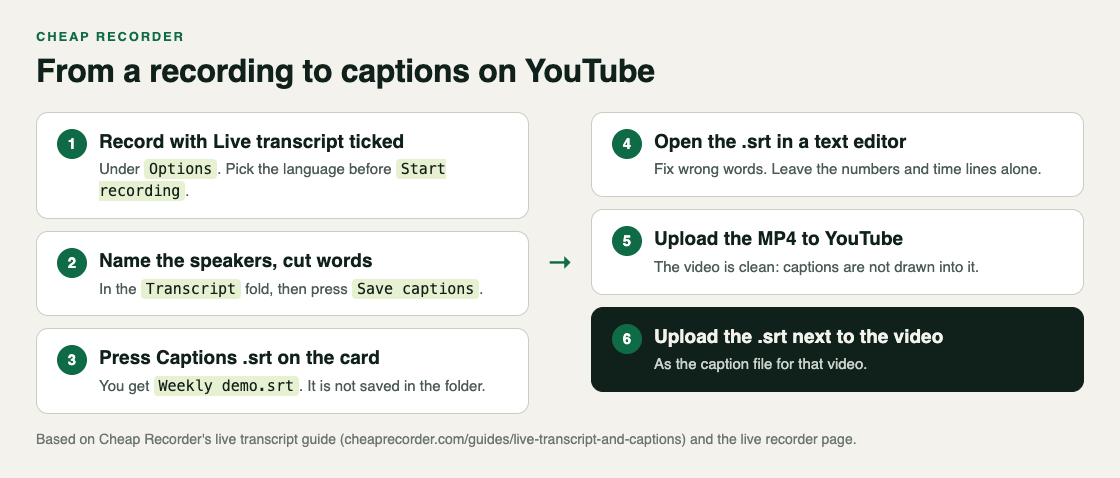
So the whole job has three parts: record with the transcript on, download the .srt, and upload it with the video.
Step 1: record with the live transcript on
The transcript is only made live, while you record. If it was off, there is no way to add one to that recording later. So check it before you press anything.
- Open the recorder in Google Chrome and sign in.
- Open Options and make sure Live transcript is ticked. It is ticked by default.
- In the menu beside it, choose the language you will speak. The menu goes back to its default each time the page opens, so check it every time.
- Pick your screen, window or tab, then press Start recording.
- Talk normally. Press Stop and finish when you are done.
You need to be online for this part. Chrome sends your microphone audio to Google to turn it into text. The live transcript and captions are on the Free plan and every plan above it, so you do not need a paid plan for any of this.
A closer microphone gives a better transcript. A headset or a desk microphone beats a laptop's built-in one in a noisy room, and fewer wrong words means less fixing later.
Step 2: download the .srt from the card
When the recording ends, a card for it opens on the page. The player on that card already has your captions switched on, so you can watch them back right away.
Press Captions .srt. You get one file named after the recording, for example Product tour.srt for a recording called Product tour.
Two things trip people up here.
- The .srt is not in your folder. Your recording's folder holds the MP4 and a plain text transcript,
Product tour - transcript.txt. The caption file only comes from the button on the card. See where screen recordings are saved for what each folder holds. - The card lasts only while the recorder page is open. Download the .srt before you close the tab.
If there is no Captions .srt button at all, the transcript caught no speech. The button only appears when it did.
What the .srt file looks like inside
Open the file in any text editor, such as TextEdit on a Mac (in plain text mode) or Notepad on Windows. You will see short blocks, one after another.
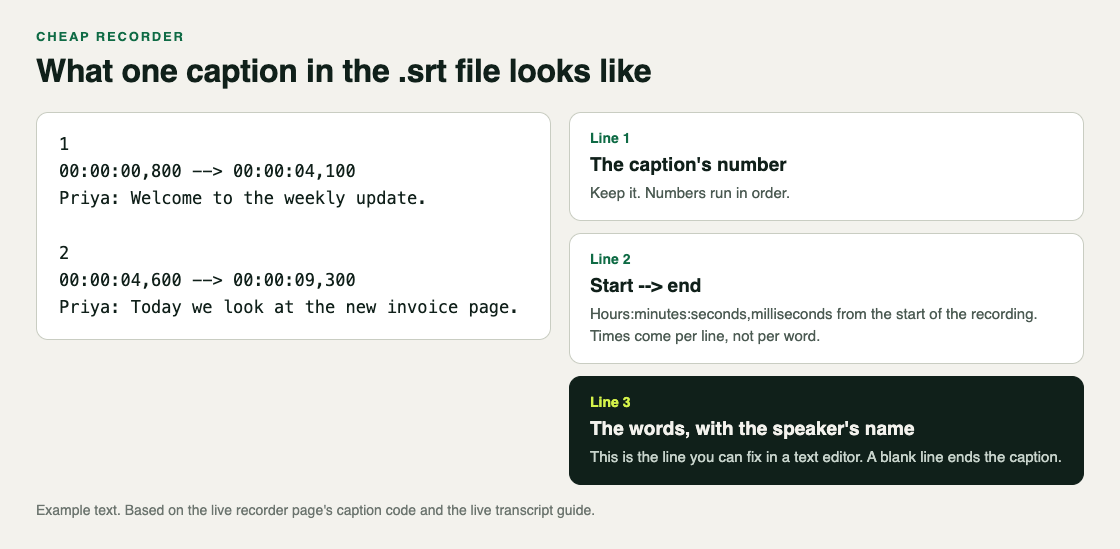
Each block has three lines and then a blank line:
- The number. Captions are numbered in order, starting at 1.
- The time line. A start and an end, written as hours, minutes, seconds and milliseconds, such as
00:00:04,600 --> 00:00:09,300. The clock starts at the start of the recording. - The words. One finished line of the transcript. When the line has a speaker label, it comes first, such as
Priya: Welcome to the weekly update.
Each caption is one line the transcript settled on when you paused. A long run of talk with no pause becomes one long caption, so short sentences make easier captions to read.
Fix the words before you upload
Because the captions are not part of the video, you can fix any of them before anyone sees them. There are two places to do it.
On the card, before you download. Open the Transcript fold. There is one Speaker box per label; type a real name, such as Priya, instead of a microphone's model name. Words you cut in the fold are left out of the captions. Press Save captions, then press Captions .srt again, so the file you download has the change. Labels follow sound sources, not voices, and labelling is on plans that include speaker detection; the speaker names post explains how they work.
In the text editor, after you download. Change only the words line. Keep the numbers, the time lines and the blank lines exactly as they are, or the player cannot read the file. Save it as plain text, with the .srt ending.
Good things to fix by hand:
- Product names and people's names the speech recognition spelled wrong.
- A speaker label on every line of a solo video. If only you talk, you may prefer no name at all. Use your editor's find and replace to remove
Priya:from every line.
Make sure the times line up
Every time in the file counts from the first second of the recording. So the .srt matches the MP4 in your folder as it was recorded.
- Upload the MP4 as it came out. If you trim the start in another editor, every caption shifts by the same amount and shows too early or too late.
- Cuts in the transcript do not shorten the MP4. In a normal one-file recording, cutting words changes the transcript and captions, not the video. The cut words just drop out of the caption text, and the timing stays right.
- Times are close, not exact. Chrome gives a time for each line, not each word, so a caption can start a moment early or late. That is fine for captions. If you need frame-accurate subtitles, check the times in your editor.
A worked example: captions for a six-minute product tour
Say you record a six-minute tour of a new invoice page, just you talking over the screen.
- Before recording, you open Options, see Live transcript ticked and English (US) in the menu, type
Invoice tourinto Name this recording, pick the browser tab, and press Start recording. - You speak in short sentences and pause between steps. The captions settle into lines on the preview as you go.
- After Stop and finish, you open the Transcript fold. The label shows your headset's model name, so you type
Saminto the Speaker box and press Save captions. - You press Captions .srt and get
Invoice tour.srt. You open it in a text editor. - The product is called Ledgerly, and the transcript wrote "ledger lee" three times. You fix all three. Since only you talk, you remove
Sam:from every line with find and replace. - You upload
Invoice tour.mp4from your folder to YouTube, then uploadInvoice tour.srtnext to it as its caption file. - You play the first minute with captions on and check that the lines appear as you speak.
The same .srt works on Vimeo, and most video editors can import it too.
Frequently asked questions
Does Cheap Recorder burn the captions into the video?
No. The captions on the preview are not drawn into the video, so the MP4 stays clean and the captions come as a separate .srt file you upload next to it.
Why is the .srt file not in my recording's folder?
Caption files are not saved there; only the plain text transcript is. Press Captions .srt on the recording's card to download the file, before you close the recorder page.
Can I get an .srt for a recording I made with the transcript off?
No. The transcript is only made live while you record, so it cannot be added afterwards. Tick Live transcript before your next recording.
Do I need a paid plan for captions?
No. The live transcript and captions are on the Free plan and every plan above it. Naming speakers depends on whether your plan includes speaker detection.
Can I make captions in another language?
Yes, if you speak that language. Choose it in the menu beside Live transcript before you start; the language post covers the 25 choices.
Get started
Open the recorder in Chrome, check that Live transcript is ticked, and record a one-minute test. Press Captions .srt and open the file, so you know what it looks like before your real video. The live transcript guide has every setting in one place.
The free plan needs no card. Try Cheap Recorder in Chrome, and your recordings stay on your own disk.
Comments
No comments yet.
Sign in or make an account to comment.