Branch protection rules: stop unreviewed code reaching main
Branch protection rules are GitHub settings that decide what has to happen before code lands on a branch like main: an approved review, passing checks, signed commits, or a short list of people allowed to push. Out of the box a rule only blocks force pushes and deletion, and it does not apply to admins at all. This post shows which settings actually stop unreviewed code, the traps in each one, and a fifteen-minute setup for your main branch.
If you want a second look at how code reaches production, whitehatstoic tests web apps and AI systems for weak spots and writes up what it finds with fixes, scoped after a short call.
What branch protection rules do
GitHub's page About protected branches describes a rule as a way to control whether collaborators can delete or force push to a branch, and to set requirements for any push to it, such as passing status checks. A rule can target one branch, all branches, or any branch matching a pattern, so *release* covers every branch with "release" in its name.
Protected branches are available in public repositories on GitHub Free, and in public and private repositories on GitHub Pro, Team, Enterprise Cloud and Enterprise Server. If your private repository is on a free personal plan, check your plan before you rely on any of this.
Two defaults matter more than any setting:
- Force pushes and deletion are blocked. A new rule does this on its own. Leave it that way.
- Admins are not covered. By default the restrictions do not apply to people with admin rights, or to custom roles with the "bypass branch protections" permission. The setting "Do not allow bypassing the above settings" changes that.
Require reviews that cannot go stale
Turning on required pull request reviews means changes reach the branch only through a pull request approved by the number of reviewers you choose, with write access. On its own, that leaves a gap: someone gets an approval, then pushes more commits. Is the new code reviewed? Not unless you close the gap.
GitHub gives you two ways:
- Dismiss stale pull request approvals when new commits are pushed. GitHub records the diff a reviewer approved. If the diff changes, the approval is dismissed and someone must approve again.
- Require approval of the most recent reviewable push. Someone other than the person who pushed last must approve. Old approvals stay, so busy pull requests are not reset every time.
GitHub's own advice: if you worry about pull requests being "hijacked", with unapproved content added after approval, dismissing stale reviews is the safer choice. You can also require reviews from code owners, so any change to code with an owner needs that owner's approval. For what a reviewer should look for, see our guide to secure code review.
Require status checks you can trust
Required status checks must report success, skipped or neutral before a change can merge. That is how you make tests, linters and security scans mandatory instead of optional.
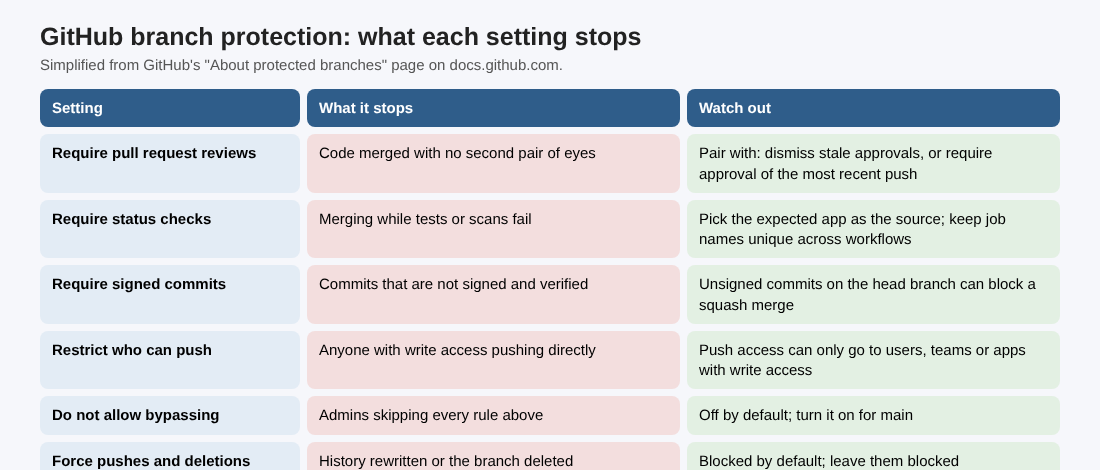
Simplified from GitHub's "About protected branches".
Three details decide whether the check means anything:
- Who may set it. Anyone or any integration with write access can set the state of a status check. When you add a required check, you can select the GitHub App that should be its expected source; if anyone else sets the status, merging is blocked. Choose the app instead of "any source".
- Strict or loose. Strict, the default, requires the branch to be up to date with the base before merging. Loose saves builds, but checks may fail after the merge if changes clash.
- Unique job names. GitHub warns that the same job name in several workflows can give ambiguous results and block merges. Name each job clearly.
A required check is only as safe as the workflow behind it. Our post on GitHub Actions security covers the triggers and tokens that can let an attacker change what a check does.
Signed commits, linear history and who can push
The rest of the settings narrow who and what can reach the branch:
- Require signed commits. Only signed and verified commits can be pushed. Unsigned commits on a pull request's head branch can block a squash merge, even though GitHub would sign the final commit, so contributors need signing set up first.
- Require linear history. No merge commits; pull requests merge by squash or rebase. GitHub notes this can make changes easier to revert.
- Restrict who can push. Only the users, teams or apps you name can push. They still need a pull request when reviews are required, and still cannot merge when required checks fail. This setting is for organization repositories on the plans GitHub lists.
- Require deployments to succeed. Changes must deploy to an environment you name, such as staging, before they merge.
- Lock branch. The branch becomes read-only.
Worked example: protect main in fifteen minutes
Say your team has one repository with a CI workflow that runs tests and a dependency scan. Open the repository's branch settings and add a rule for main:
- Require pull request reviews before merging, with 1 approval. Tick "Dismiss stale pull request approvals when new commits are pushed".
- Require reviews from code owners, if you keep a CODEOWNERS file for sensitive paths such as sign-in and payments.
- Require status checks to pass. Add the test and scan jobs by name, and set your CI app as the expected source of each.
- Require branches to be up to date before merging. Leave it on, the strict default.
- Require conversation resolution before merging, so review comments cannot be ignored.
- Do not allow bypassing the above settings. Turn it on, so admins follow the same path.
- Leave "Allow force pushes" and "Allow deletions" off.
Then test it. Try to push a commit straight to main: it should be refused. Open a pull request, get it approved, push one more commit, and confirm the approval is dismissed. Open a pull request with a failing test and confirm it cannot merge. Write down who can still change the rule itself: repository admins and roles with the "edit repository rules" permission.
When one rule is not enough
Only one branch protection rule applies to a branch at a time, so overlapping patterns can make it hard to know which one is in force. GitHub notes that this limit does not apply to rulesets, and that you can convert branch protection rules to rulesets. If you protect many branches with layered patterns, look at rulesets before adding more rules. For the rest of the pipeline, from builds to releases, see our post on CI/CD security.
Frequently asked questions
Do branch protection rules apply to repository admins?
Not by default. Turn on "Do not allow bypassing the above settings" to apply the restrictions to admins and to roles with the bypass permission.
What is the difference between dismissing stale approvals and requiring approval of the latest push?
Dismissing stale approvals removes every approval when the approved diff changes. Requiring approval of the most recent push keeps old approvals but needs someone other than the last pusher to approve.
Why is my pull request blocked by a status check that passed?
Common causes are a branch that is not up to date with the base under strict checks, two workflows with the same job name, or a status set by a source other than the expected app.
Are branch protection rules available on private repositories?
Yes on GitHub Pro, Team, Enterprise Cloud and Enterprise Server. On GitHub Free they are available for public repositories.
Get started
Branch protection is one layer. whitehatstoic builds web and mobile apps that are tested, monitored and documented, and runs security tests on web apps and AI systems with a written report, fixes and a retest after fixes. Every engagement is scoped and priced after a short call.
Building something that has to be safe? Book a meeting with whitehatstoic: tell us the product, the deadline and your biggest worry, and we reply with a plan and a price.
Build it right. Test it thoroughly. Keep it safe.
Visit whitehatstoic.com↗

Comments
No comments yet.