How to transcribe a sermon: clean, timed text every Sunday
If you are looking up how to transcribe a sermon, the quickest method is to make the transcript while the sermon is recorded, not afterwards. Record the message in Google Chrome with a live transcript switched on, and when the last amen is said you already have an audio file and a timed text file side by side, ready to check. The cheaprecorder.com post on how to record a church sermon as audio with a transcript shows a church volunteer how to set up a sound-only Sunday; one detail worth knowing from it is that a sound-only recording is saved as an M4A audio file, not an MP4. This post picks up where that one stops: how to get text you can actually use, every week.
For a church media team, Cheap Recorder records the pulpit microphone in Chrome and writes the audio and a timed transcript into a folder on the church laptop, with nothing to install and no card needed on the free plan.
Why churches transcribe sermons
A transcript lets people who are deaf or hard of hearing follow the message. It lets members who missed Sunday catch up in a few minutes of reading. It also makes the archive searchable: one word typed into a folder search finds the week it was preached.
Text is also easy to reuse: sermon notes, captions for the video, a newsletter quote. You do one job on Sunday and use it all week.
Start with clean sound: the microphone decides the transcript
The live transcript is made from what Chrome hears on your microphone. A muddy recording gives a muddy transcript, so get the sound right first.
- Put the microphone close to the preacher. A wired or USB microphone near the pulpit beats a laptop's built-in microphone at the back of a large room.
- Do not use a Bluetooth headset as the microphone. On a Mac it switches into a low-quality mode and the voice sounds thin, like an old phone line.
- Tick the right microphone. In the Microphone tile, open Change or add microphones and tick the pulpit microphone. If you just plugged it in, press Rescan. When someone speaks, its level bar should move.
- Leave the processing on in a busy room. Record the microphone untouched, under Options, turns off echo, noise and volume correction. It suits a studio microphone in a quiet room; leave it unticked for a laptop microphone or a room full of people.
- Check the language every Sunday. The menu beside Live transcript lists 25 languages and goes back to its default each time the recorder page opens. Chrome listens for one language per recording.
Before the service, record 30 seconds of someone speaking at the pulpit and play it back. That catches the wrong microphone while there is still time to fix it.
How to transcribe a sermon while you record it in Chrome
Because the transcript comes from the microphone, record in the room where the sermon is preached:
- Open the recorder in Chrome and sign in. The free plan includes the live transcript.
- Under Where to save, press Choose folder... and pick a folder such as
Sermons. Chrome asks whether the page may edit files there; allow it. - Type a name in Name this recording, for example
Sermon Romans 8. - Switch off Record my webcam and do not pick a screen, so the recording is sound only.
- Under Options, check that Live transcript is ticked (it is by default) and that the language is right.
- Press Start recording as the preacher walks up, and Stop and finish after the closing words.
In Chrome the recorder writes the recording to your folder about once a second, so a 40-minute sermon does not fill up the laptop's memory. The live transcript needs an internet connection, because Chrome sends the microphone's sound to Google to turn it into text. If the transcript was off during the recording, you cannot add one to that recording later, so check the box before every service.
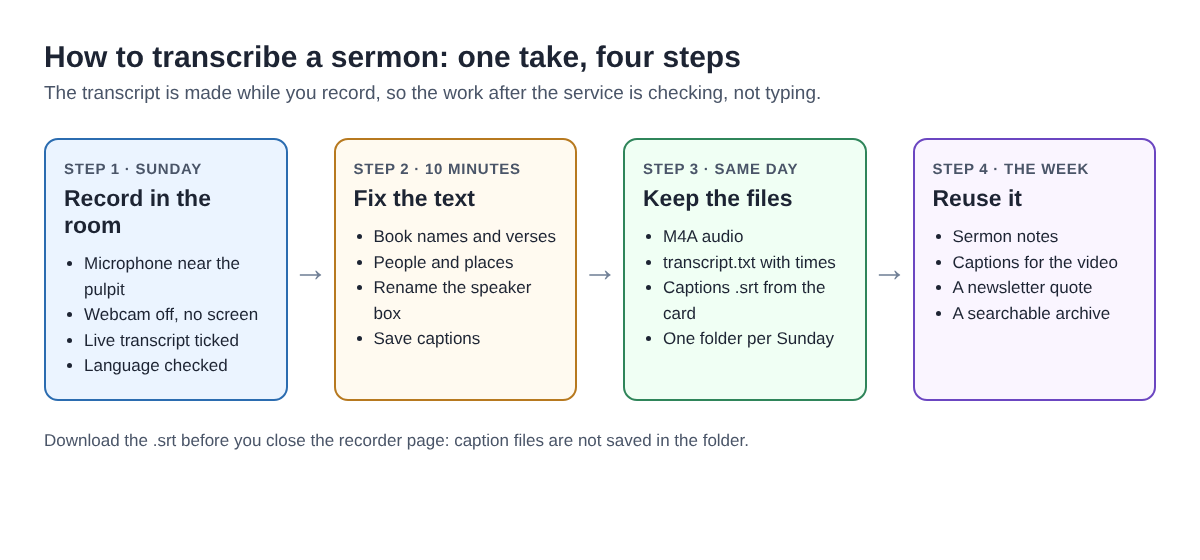
One take on Sunday, ten minutes of checking, then the text works all week.
Fix the transcript: names, verses and the speaker
After Stop and finish, the recording appears on the page with the Transcript fold underneath it. This is where you clean the text up, and ten minutes is usually enough.
Scripture and names first. Speech recognition gets everyday words right and struggles with names, and sermons are full of them: books of the Bible, verse numbers, places and people from the reading. Read the text once and fix only those. The saved transcript is plain text, so you can also fix a wrong word later in any text editor.
The speaker. On plans that include speaker detection, each line is labelled with the sound source that was loudest while it was spoken, which in a sound-only recording is your microphone's name. Above the transcript there is a Speaker box for each label. Type a real name such as Pastor Daniel and press Save captions, and every line starts with that name. To see whether your plan labels speakers, open your name in the top right.
Stray words. Click any word to cut it, then press Save captions. Cutting a whole false start reads better than chasing every single um. In a normal one-file recording, cuts change the transcript and captions only; the audio file stays complete.
Times. Chrome gives a time for each line, not each word, so a time takes you near a moment, such as the start of the reading, rather than onto one exact word.
Save before you close the tab. The recording card, with its edits and download buttons, lasts only while the recorder page is open. The live transcript and captions guide has the full detail on both.
A worked example: from Sunday's file to Monday's notes
Say your volunteer records a sermon on Romans 8 under the name Sermon Romans 8. The recorder makes a folder named with that name, then the date and time the recording began, for example Sermon Romans 8 - 2026-11-01 10.30. Inside are the M4A file and Sermon Romans 8 - transcript.txt, plain text with a time on each line.
- Sunday, after the service: fix the book names and verse numbers, rename the speaker box if your plan has one, and press Save captions.
- Still on the card: press Captions .srt. The caption file is made in the page and is not saved in the folder, so download it now if the sermon video goes online. Our post on adding captions to a YouTube video with an SRT file covers the upload.
- Monday: open the transcript file, paste it into a notes document, delete the times and break the text into paragraphs at each new point the pastor makes. Pick one short quote for the newsletter.
Want section headings for those notes? While recording, press M at the reading, each main point and the closing prayer. In a default single-file recording the marker notes are not saved, so jot the times on paper as you go.
If the sermon also goes into a podcast feed, Download MP3 on the card gives you an MP3. Download MP3 and Convert send the file to the Cheap Recorder server, which deletes its copy when it finishes; the original in your folder never changes. The convert guide lists every format.
Keep a weekly routine: names, folders and minutes
- Name it the same way every week. Sort by name to group a series, or by date to see everything in order.
- Watch the colon. The characters / \ : * ? " < > | are left out of names, so
John 3:16becomesJohn 316. WriteJohn 3 16instead. Names are cut at 60 characters. - Choose the folder each visit. The recorder does not remember the folder between visits, though Chrome's picker normally reopens where you were last time. See where recordings are saved for the full folder layout.
- Check your minutes. The Free plan gives 12 hours of recording a month on one device, enough for a sermon every Sunday. Creator is $12 a month, or $4.99 a month billed yearly, with 80 hours. If the minutes run out mid-recording, the recording stops, so open your name in the top right to see what is left.
- Know what leaves the laptop. The recording stays in your folder. The live transcript sends the microphone's sound to Google, the recorder's activity log keeps the folder and file names you chose and your microphones' names, and the AI button sends the transcript with speaker names to Anthropic only when you press it.
Tell the congregation the sermon is recorded, for example in the notices, and ask your pastor before a transcript goes online. If prayers or announcements from members could be on the file, our post on how to ask to record a meeting has wording you can adapt.
Frequently asked questions
How long does it take to transcribe a 40-minute sermon?
With the live transcript on, the text is ready when you press Stop and finish. The work left is correcting names and scripture references, which usually takes about ten minutes.
Can I transcribe a sermon without recording video?
Yes. Switch off Record my webcam and do not pick a screen. You get an M4A audio file plus a timed transcript in the same folder.
Can I add a transcript to a sermon I already recorded?
Not in Cheap Recorder. The transcript is made live from the microphone, so if it was off during the recording, one cannot be added later.
Do I need permission to publish a sermon transcript?
Recording may need everyone's agreement depending on where you are, so always tell people you are recording. Ask your pastor or church leadership before you publish the text.
Get started
For the recording side, the cheaprecorder.com post on how to record a church sermon as audio with a transcript walks through a sound-only Sunday. Then use this post to clean the text and reuse it all week.
The free plan needs no card. Try Cheap Recorder in Chrome, and your recordings stay on your own disk.
Screen recording that is cheap and easy.
Visit cheaprecorder.com↗
Comments
No comments yet.