No camera found in Chrome? Get your webcam recording again
You open the recorder, and the Webcam box says no camera found. In Chrome that message means one thing: Chrome tried to open a camera for the page and could not. The camera itself is usually fine. Something else is holding it, or Chrome was not allowed to use it. This guide shows what Cheap Recorder does when it sees no camera found in Chrome, the four checks that bring the camera back, and how to keep recording your screen and voice while you sort it out.
What the recorder does when it cannot open a camera
When the recorder page opens, it asks Chrome for your microphone and your camera together, and turns both on by itself. Most days that is the end of it. Your face shows in the Preview and the Webcam switch, labelled Record my webcam, is on.
If Chrome cannot open the camera, three things happen:
- The switch turns off. Record my webcam goes to off, and the Webcam box says no camera found.
- The microphone is asked for on its own. A camera problem does not take your voice with it, so the microphone usually still works.
- The Background buttons grey out. Blur and the background pictures need a camera, so they wait until the webcam is on.
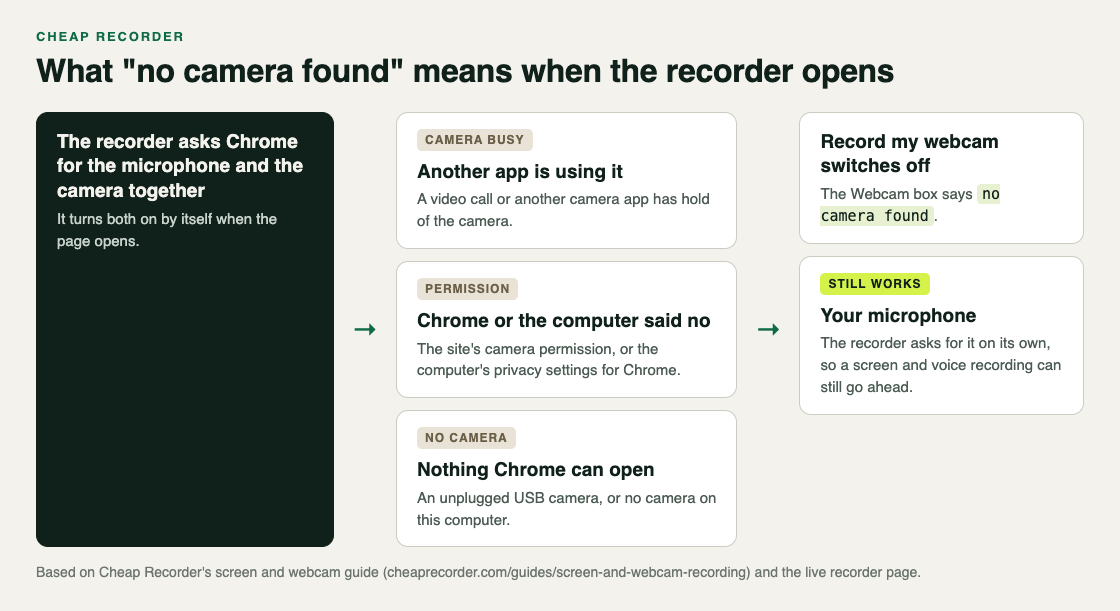
The recorder has no camera menu of its own. It uses the camera Chrome hands it. So every fix below happens in one of three places: the other apps on your computer, Chrome's permission for the page, and your computer's privacy settings.
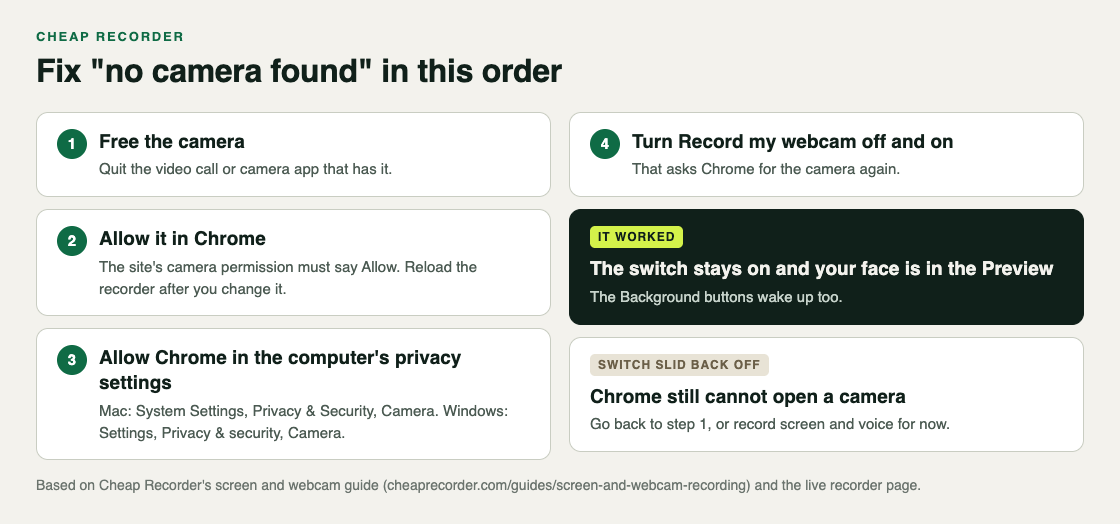
Fix no camera found in Chrome, in this order
Work from the most common cause to the least. Each check takes a minute or less, and the last step tells you whether it worked.
1. Free the camera from another app
If a video call, a meeting app or another camera tool has hold of the camera, Chrome may not get it. This is the cause the guide names first, and the most common one before a meeting.
Quit the call or the app, not just its window. If you are in a call in a Chrome tab, leave the call in that tab too.
2. Allow the camera in Chrome
The first time you use the recorder, Chrome asks whether the page may use your microphone and camera. If you pressed Block, or blocked only the camera, the page cannot open it.
Open Chrome's permission for the page from the icon at the left of the address bar, and set Camera to Allow. Reload the recorder page after you change it. If you said no to both by mistake, the Microphone box also shows an Allow microphone and camera button, which asks again.
3. Allow Chrome in your computer's privacy settings
Your computer has its own camera switch for each app, separate from Chrome's. If Chrome is turned off there, no website can use the camera.
- Mac: System Settings, then Privacy and Security, then Camera. Turn Google Chrome on. macOS may ask you to quit and reopen Chrome.
- Windows: Settings, then Privacy and security, then Camera. Camera access must be on, and desktop apps must be allowed to use it.
4. Turn Record my webcam off and on
Turning the switch on asks Chrome for the camera again. If it works, the switch stays on and your face appears in the Preview. If Chrome still cannot open a camera, the switch slides back off. That is your signal to go back to step 1, not to keep pressing it.
When the camera is not the problem
Two things can look like a missing camera but are not.
The camera is on but not in the Preview. The Webcam box shows your camera's name, yet the Preview has no face. Check the Layout menu in the Preview heading. If it is set to Screen only, the camera is left out on purpose. The post on picture in picture covers placing and sizing the camera once it is back.
Chrome picked a different camera. If you have a laptop camera and a USB camera, Chrome hands the page one of them. Because the recorder has no camera menu, you choose the camera in Chrome's own settings: Settings, then Privacy and security, then Site settings, then Camera, has a menu of the cameras Chrome can see. Reload the recorder after you change it.
Whether the webcam was on or off is remembered in this browser. If you switched it off on purpose last time, it starts off. That is not an error, and the box does not say no camera found.
Record your screen and voice while you fix it
If a meeting starts in five minutes and the camera will not come back, you can still record. With Record my webcam off, pick a screen, window or tab under What to capture, and the recorder records the screen and your microphone as one MP4.
Once the camera works again, you can record a short camera-only clip separately. Webcam only, beside the screen choices, records just your camera and microphone with no screen shared. The post on recording your webcam without sharing your screen walks through it.
A worked example: a weekly update five minutes before the meeting
Say you record a three-minute update every Monday, with your screen and your face in the corner. Today the Webcam box says no camera found. You had a video call open from the last meeting.
- Free the camera. You quit the call app completely. Back on the recorder, nothing has changed yet, which is expected.
- Ask again. You turn Record my webcam on. The switch slides back off. So something else is in the way.
- Check Chrome. You open the icon at the left of the address bar. Camera says Block, left over from a click weeks ago. You set it to Allow and reload the page.
- Check the switch. The recorder asks for both again, and this time the switch stays on. Your face is in the Preview, and Blur under Background is no longer greyed out.
- Test. You record a 30-second test, say one sentence, stop and play it back. Picture and sound are both there.
- Record. You record the real update. It lands in the folder you picked, as one MP4.
Had the switch still slid back off, you would have checked the computer's privacy settings next, and recorded the update as screen and voice in the meantime.
The screen and webcam guide lists the same checks, and the post on picking the right microphone covers the Microphone box messages if your voice is missing too.
Frequently asked questions
Why does Chrome say no camera found when my webcam works in other apps?
Usually because another app is using the camera right now, or Chrome is not allowed to use it. Quit the other app, allow the camera for the page and in your computer's privacy settings, then turn Record my webcam off and on.
Can I still record if the camera will not start?
Yes. The recorder asks for the microphone on its own, so you can record your screen and voice with the webcam off.
How do I choose which camera Cheap Recorder uses?
The recorder uses the camera Chrome hands it and has no camera menu of its own. Pick the camera in Chrome's settings under Site settings, then Camera, and reload the recorder.
How do I know the fix worked?
Turn Record my webcam on. If it stays on and your face shows in the Preview, the camera is back; if it slides off, Chrome still cannot open one.
Get started
The free plan needs no card. Try Cheap Recorder in Chrome on Mac, Windows or Linux, and your recordings stay on your own disk.
Comments
No comments yet.
Sign in or make an account to comment.