Record a Webinar You Attend in Chrome, With a Transcript
You can record a webinar you attend in Chrome, with a transcript, by sharing the webinar's browser tab with its sound and keeping the live transcript on. We wrote a step-by-step version in our post on recording a webinar you attend in Chrome with a transcript. It helps anyone who sits through hour-long sessions and wants to search the text later instead of scrubbing a video. This article adds the thinking around it: what to check first, what to test, and how to find what you need afterwards.
Cheap Recorder runs in Chrome, records the tab you pick with its sound, and saves one MP4 on your own computer with a transcript beside it.
Why record a webinar you attend
Webinars move fast. A speaker mentions a setting, a date, a link, a number. You are typing a note about the last point and miss the next two.
A recording fixes that, and a transcript fixes the second problem: nobody wants to replay 60 minutes to find one sentence. With text you search for a word and jump to the time.
It also helps when you could not take notes at all, for example when you were asking a question in the chat, or when a colleague could not attend and needs the content.
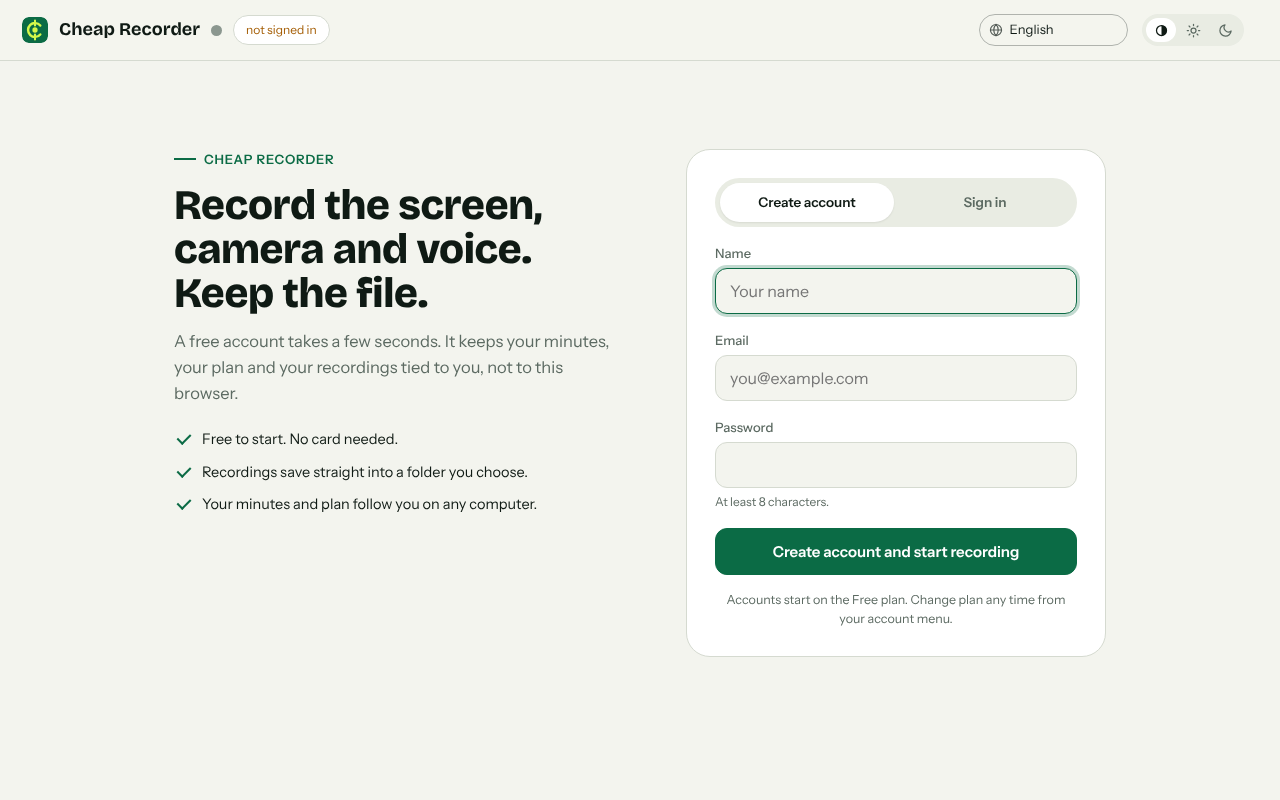
The recorder page at cheaprecorder.com/app: a free account takes a few seconds and needs no card.
Check you are allowed to record first
Do this before anything technical. Some hosts say recording is not allowed. Others record the session themselves and send you a link later. Depending on where you and the other attendees are, recording may also need everyone's agreement.
Read the invitation and the registration page. If it is unclear, ask the organiser. If you are recording a session where you speak, tell people you are recording.
The live transcript has one more point worth knowing. While it is on, Chrome sends your microphone audio to Google to turn it into text. If a recording must not leave your computer in any form, untick Live transcript before you start.
Share the webinar tab with its sound in Chrome
The call or webinar has to be open in a Chrome tab. Join from the browser so Chrome can hand over the tab's sound.
- Open the recorder. On first use, press Choose folder... and pick where recordings should go. Chrome asks whether the page may edit files in that folder. Allow it. The recorder does not remember the folder between visits, so you pick it each time.
- Under What to capture, choose A browser tab.
- In Chrome's sharing box, pick the webinar tab, tick the tab-audio option (some Chrome versions word it as Also share tab audio), and press Share.
- Type a name in Name this recording, such as
Pricing webinar. The name is used for the file and its folder.
One rule matters here. If you share a window instead of a tab, Chrome does not pass on its sound. On a Mac, a whole-screen share has no sound either. Sound from other programs on your computer cannot be recorded this way. A tab is the right choice for a webinar.
Sharing one tab also keeps your other tabs, apps and private things out of the file. Anything on the shared screen ends up in the recording, so silence notifications anyway.
Test for 30 seconds before the session starts
This step is the one people skip, and it is the one that saves the recording. Record 30 seconds while the waiting room music or the host's intro plays. Press Stop and finish, play it back, and check three things:
- You can hear the webinar sound.
- You do not hear it twice. If you film the tab with its tab audio ticked and also pick the same tab in the Call audio tile, the voices go in twice. Tick tab audio in one place only.
- The transcript caught words. The card shows No transcript when nothing was heard. A transcript cannot be added to a recording afterwards, so find out now.
The transcript is made from what Chrome hears on your microphone. A headset or a close desk microphone beats a laptop's built-in one in a noisy room. If your test shows the text is thin, try again with headphones on so the webinar does not echo back into the microphone. Our no sound in a screen recording guide covers the common causes.
For a longer rehearsal of the whole routine, this practice run post shows how to record a webinar practice run and watch it back.
Record a webinar you attend in Chrome, with a transcript: leave the tab alone
When the session starts, press Start recording. If the button is greyed out, read the words next to it. They give one reason at a time, for example choose a folder first. Fix that, then read the note again, because fixing one reason can bring up the next.
Then leave things alone:
- Keep the webinar tab open. If it closes, Chrome stops sharing its sound.
- Do not press Chrome's own Stop sharing bar. That finishes the recording. Use Stop and finish instead.
- Keep the language set. The language menu beside Live transcript lists 25 languages. Chrome listens for one language per recording, and the menu goes back to its default every time the recorder page opens. Check it before you start.
- Watch the counter. The number beside the timer shows how many MB have been written to your folder, about once a second.
Each plan has a number of recorded minutes a month. The Free plan gives 12 hours, with no card needed. Open your name at the top right to see how many are left. If they run out mid-recording, the recording stops, so check before a long session.
Mark the moments that matter
Press M (or Add marker) when a new topic starts. A short note confirms the time. One catch: markers are only written to files when Also save every source separately is ticked under Options before you record. With the default single MP4, the notes show on screen but are not saved, so jot down times you need. Do not press M while typing in a text box.
Get the transcript and search it for what you need
After Stop and finish, the recording appears on the page with a player. It is already saved in your folder. Inside you will find the MP4 and, if the transcript heard speech, a plain text file such as Pricing webinar - transcript.txt with the time of each line.
That text file opens in any editor. Here is a worked example. You remember the speaker mentioned a renewal deadline.
- Open
Pricing webinar - transcript.txt. - Search for
deadline. Say you land on a line stamped around00:41:12. - Open
Pricing webinar.mp4, jump to about 41 minutes, and watch that part to confirm the exact words.
Speech recognition makes mistakes, so treat the text as a finder, not a quote. Confirm anything important in the video.
The card also offers Captions .srt and Transcript downloads. Captions are not written to the folder, so download them while the recorder page is open.
On plans that include speaker detection, each line is labelled with the loudest source while it was spoken. Sound from the tab you filmed is labelled Screen. You can type real names into the Speaker boxes and press Save captions. See the live transcript and captions guide for more, and check What you can do on this plan in the menu under your name to see what yours includes.
If you want to turn what you learned into a how-to, this post on turning a screen recording into steps covers that.
Fixes when the webinar has no sound or the text is off
The video has no sound
Check that you shared a tab, not a window or whole screen, and that the tab-audio box was ticked in Chrome's sharing box. Also check the tab is not muted. Then rerun the 30-second test.
The voices are doubled
Tab audio is ticked in two places. Pick one. Wear headphones too, so the speakers do not feed back into your microphone.
No captions appeared while recording
Check that Chrome may use your microphone, that you are online, and that the right language is chosen. There is no offline mode: your plan comes from the Cheap Recorder server, so Start recording stays greyed out until the recorder can reach it, and it checks in about every 15 seconds.
The recording stopped early
Either the month's minutes ran out, or Chrome's Stop sharing bar was pressed. The first is visible under your name. The second is easy to hit by accident.
A wrong word in the text
Open the Transcript fold on the card, check the words that matter to you, and press Save captions after any change. In a normal one-file recording, cuts change the transcript and captions, not the MP4.
Frequently asked questions
Do I need to install anything to record a webinar in Chrome?
No. Cheap Recorder runs in Google Chrome on macOS, Windows and Linux. You open it, choose a folder, and share the webinar tab.
Is the recording uploaded anywhere?
No. Recordings are written to a folder on your own computer. The exceptions are Convert and Download MP3, which send the file to the server to be converted and delete it when done.
Can I add a transcript after the webinar is over?
No. If Live transcript was off during the recording, a transcript cannot be added afterwards. It is ticked by default under Options, so check it stayed on.
Does the free plan cover webinar recording?
Yes. The Free plan includes recording, the live transcript and captions, and 12 hours of recording a month, with no card needed.
Get started
Do your 30-second test first, then record the real session. For the full walkthrough, read record a webinar you attend in Chrome with a transcript.
The free plan needs no card. Try Cheap Recorder in Chrome, and your recordings stay on your own disk.
Comments
No comments yet.
Sign in or make an account to comment.