Transcript to instructions: turn a screen recording into steps
Transcript to instructions is a short job: you narrate a task once while you do it, and the words you spoke become the first draft of the steps. Cheap Recorder's own blog has a walkthrough of the method, Turn a screen recording transcript into step-by-step instructions. This post says what it shows, who it helps and one thing worth knowing, then adds a made-up example of the five passes in our own words.
It helps anyone who explains the same task twice: a support agent, a team lead, a teacher, an ops person with a monthly routine. If you can do the task on screen, you can write the steps without starting from a blank page.
What the blog post shows
The blog post follows one task, exporting a monthly report, through five passes: record while you talk, clean the text, split it into single actions, rewrite each action as a short step, then follow your own steps to test them. The report and its menus are made up, so the method carries over to any task you can do in Chrome.
The idea behind it is simple. A recording keeps the order of what you did, including the small clicks memory drops. A transcript keeps what you said while you did it, and your spoken reasons become the expected results in each step.
Transcript to instructions starts with a recording
Cheap Recorder runs in Google Chrome on macOS, Windows and Linux. The Free plan includes recording, the live transcript and captions, 12 hours of recording a month and no card, so this needs no paid plan.
- Folder. Press Choose folder... first. Until you do, Start recording stays greyed out.
- What to capture. Pick A window or A browser tab, so your other tabs stay out of the file.
- Live transcript. It sits under Options and is ticked by default. Pick the language in the menu beside it before you start. Chrome listens for one language per recording, and the menu goes back to its default each time the page opens, so check it every time.
- Microphone. The transcript is made from what Chrome hears. A headset or a desk microphone close to your mouth gives better text than a laptop microphone in a noisy room.
If other people are on the recording, tell them they are being recorded. When you finish, press Stop and finish, not Chrome's own Stop sharing bar.
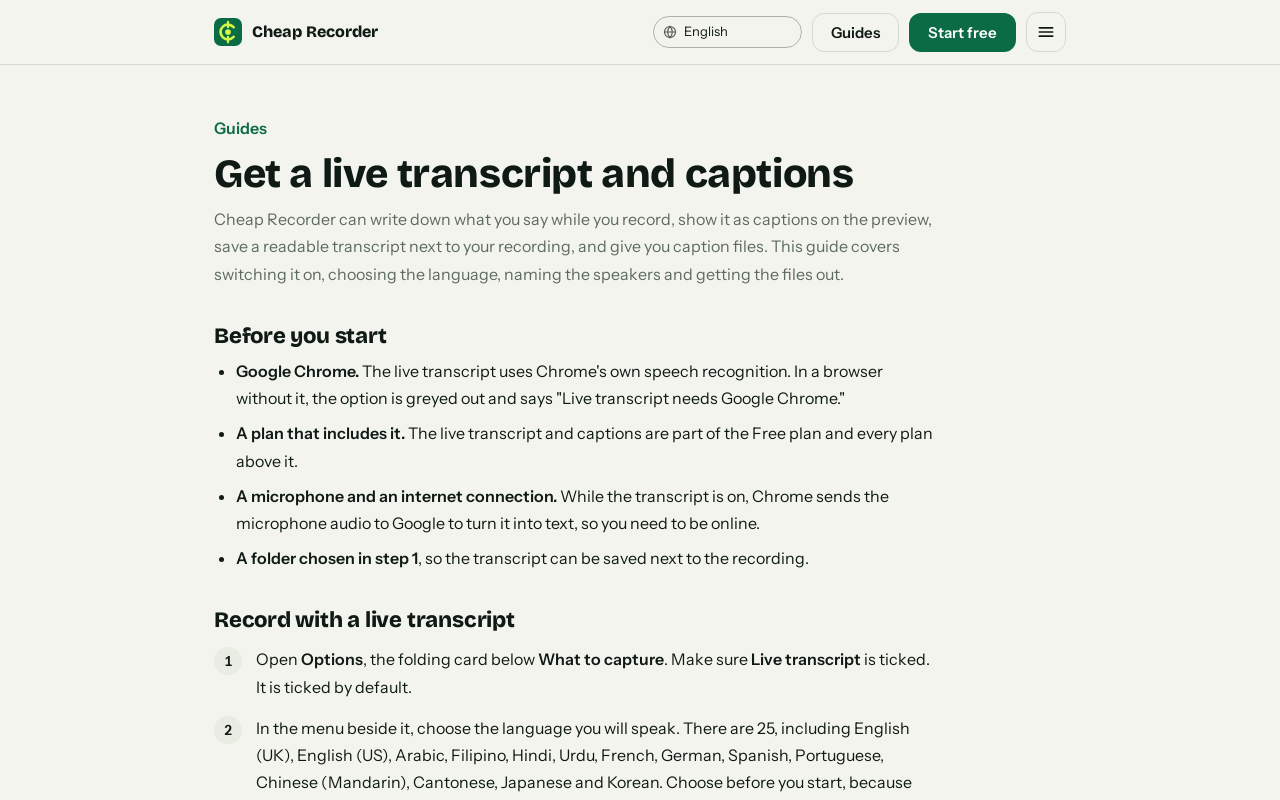
The live transcript guide on cheaprecorder.com covers the language menu and the files.
Narrate actions and results, not only clicks
Say each action as you do it, and say what you expect to see. Here is a made-up passage for a monthly report export:
"I open the Reports menu. I click Monthly summary. The table loads with this month's rows. Now I click Export and choose CSV. A file called summary appears in my downloads."
That one breath holds four actions and two results. Press M or Add marker at the start of each new section; a short note confirms the time. Markers are saved to files only when Also save every source separately is ticked, so with the default single MP4 write down any times you need.
Clean the transcript before you split it
The finished card lets you download the transcript. It is also a plain text file beside your recording, named after it, with times and speaker names, and it opens in any text editor. Paste it into a document and make three quick passes.
- Delete filler. Remove the ums and false starts. On plans that include cutting words from the transcript, Remove filler words marks um, uh, erm, hmm, like, you know, basically, sort of and kind of in red. On other plans the button does not appear, and a find-and-delete in your document does the same job.
- Fix names. Speech recognition can misspell product names and menu labels. Check each against the screen.
- Name the speakers. If two people talk, type their names in the Speaker boxes and press Save captions. Lines then start with the name.
One limit to know: in a normal one-file recording, cuts change the transcript and captions, not the MP4. For instructions that does not matter, because you are working from the text.
Split it into one action per line
A good rule is one step, one thing the reader does. If a sentence has "and", check whether it is really two steps. The cleaned passage above becomes:
- Open the Reports menu.
- Click Monthly summary.
- Click Export.
- Choose CSV.
"The table loads" and "a file appears" are not actions, so set them aside. They come back in the next pass as results. Use the transcript's times to find where each action sits in the video. If you used markers, each one gives you a heading for a group of steps.
Rewrite each step with a result
Start each step with a verb, use the exact label on screen and put the result after it in the present tense. Switch from "I" to "you": your narration said "I click", the instructions say "Click". The same example, rewritten:
- Open the Reports menu. A list of report types appears.
- Click Monthly summary. A table loads with this month's rows.
- Click Export. A format list opens.
- Choose CSV. A file named summary appears in your downloads.
Turn anything you said as a warning, such as "be careful, this overwrites the old file", into a short note above the step it belongs to. Add a picture only where a reader might hesitate, and put the video time beside each group, for example "Export the file (02:10)".
Test the steps by following them
This is the pass people skip. Close the recording and follow your written steps exactly, as if you had never seen the task. Three things go wrong most often: a missing step, a label that does not match the screen, and a result that differs from what the step promises. Fix each one, then ask a colleague to try. A new reader finds gaps faster than you can.
If you want to send the video, transcript and chapters together, tick Also save every source separately before you record. On Creator and up, the recording's Separate sources folder then holds a publish page. The option cannot be added afterwards. Our post on a client demo page with chapters and a transcript shows it in use, and the same habit of marking sections is in pressing M as you record.
Frequently asked questions
Can I add a transcript to a recording after I made it?
No. The transcript is made while you record, so Live transcript must be ticked under Options before you press Start recording.
Is the transcript good enough to use as it is?
Treat it as a draft. Names and menu labels can be wrong, so compare each one with the screen. Our post on speaker labels in a transcript explains why two people on one microphone share a label.
Does the transcript leave my computer?
The recording stays in your folder, but while the live transcript is on, Chrome sends your microphone audio to Google to turn it into text. Untick Live transcript if the audio must not leave your computer.
How do I get captions as a file?
Press Captions .srt on the card after you stop. The file is made in the page and is not saved in the recording's folder, so download it while the recorder page is open.
Get started
Pick one task you explain often, narrate it once and use the transcript as your first draft. The blog post has the full walkthrough, and the live transcript guide covers the settings. Then start a free recording.
Comments
No comments yet.
Sign in or make an account to comment.