Screen recording without internet? What works and what does not
Looking for screen recording without internet? Here is the plain answer for Cheap Recorder: it has no offline mode. You need a connection to sign in and to start a recording. But your recordings never live on a server, and a recording that is already running does not stop if your Wi-Fi drops. This guide sorts out exactly what needs the internet and what does not, so you can plan a recording on a shaky connection.
Screen recording without internet: the short answer
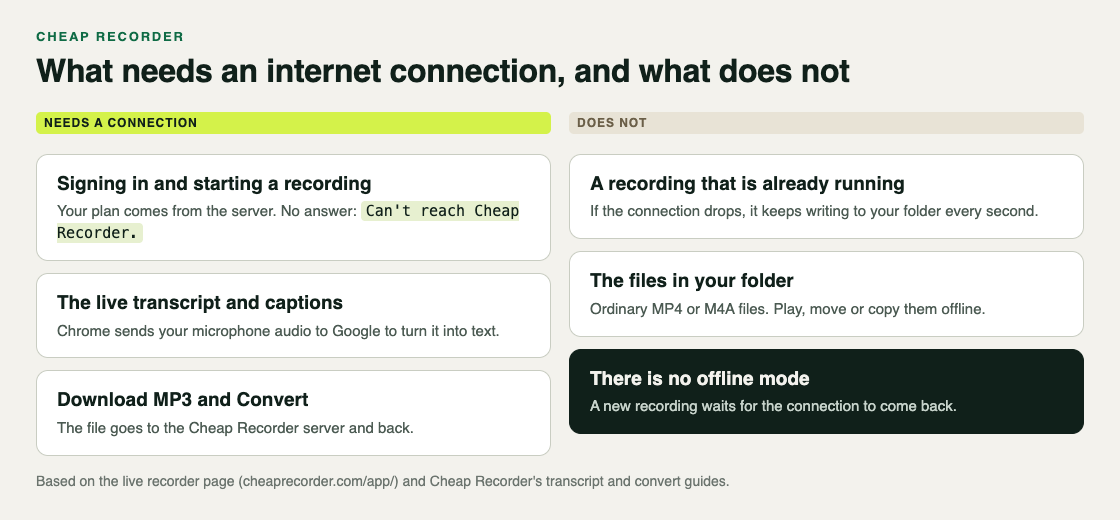
Cheap Recorder runs in Google Chrome and saves each recording to a folder on your own computer. That part is local. What is not local is your plan. The recorder asks the Cheap Recorder server what your plan allows, such as how many hours you have left this month, and it will not start until the server has answered.
So:
- No connection at all: you cannot start a recording.
- A connection that drops halfway: the recording keeps going and keeps saving.
- Back home with no connection: your finished files still play, because they are ordinary files on your disk.
Why you need a connection to start
When you open the recorder, it checks in with the server to load your plan. Until it has an answer, Start recording stays greyed out, and the note beside it reads:
Can't reach Cheap Recorder. Check your internet connection. The recorder tries again by itself.
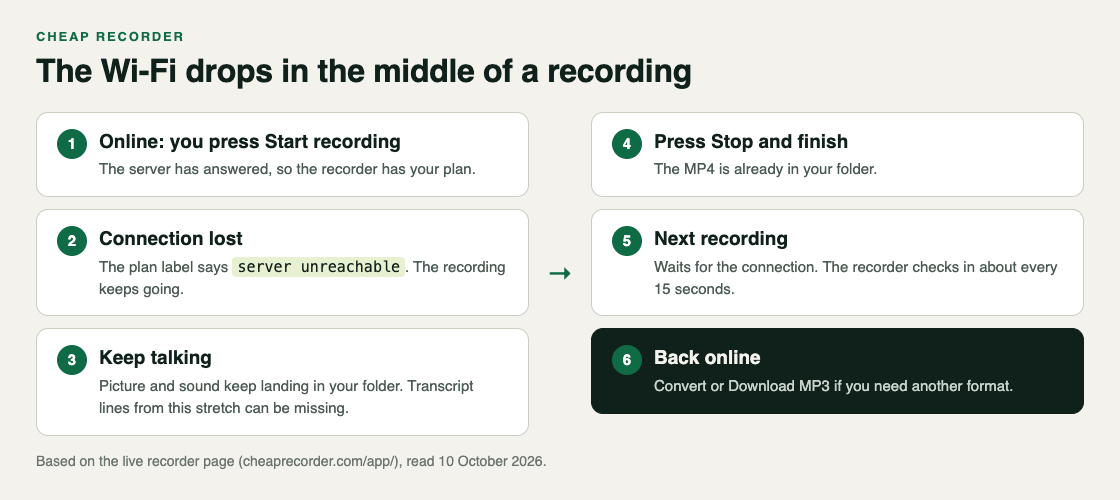
You do not need to reload the page. The recorder checks in again about every 15 seconds, and the button comes back once the server answers. If the note changes to Create a free account or sign in to record., you are online but signed out, and signing in also needs the connection.
That note is the first of several the recorder can show beside the button. The Start recording greyed out post lists all of them, in the order they appear.
What happens if the Wi-Fi drops mid-recording
This is the case most people worry about, and it is the good news. Once a recording has started, losing the connection does not end it.
- The recorder keeps the plan it already had.
- The label for your plan at the top of the page adds server unreachable.
- Your picture and sound keep going into your folder. The recorder writes the file every second while you record, so nothing waits on an upload.
- You press Stop and finish as usual, and the file is already in your folder.
One thing does suffer: the live transcript. Chrome turns your speech into text by sending your microphone audio to Google, so it needs to be online. Expect the transcript, and so the captions, to have gaps for the stretch when you were offline. The recording itself has no gap.
The things that do end a recording early are different: the month's minutes running out, or pressing Chrome's own Stop sharing bar. The stopped-by-itself post covers those.
What needs a connection after you stop
When you press Stop and finish, the card for your recording opens with a player. Some of its buttons work on their own, and some do not.
- The file itself: no connection needed. It is already in your folder, an MP4 that plays almost anywhere, or an M4A if you recorded sound only.
- Download MP3 and Convert: these need a connection. The file goes to the Cheap Recorder server, is converted, and comes back; the server deletes its copy when it finishes. If the connection drops during a conversion, check it and press the button again.
- Captions .srt and Transcript: these are made from the transcript, so they only hold what Chrome managed to write down while you were online.
Keep one more rule in mind. The card, and so its Convert button, lasts only while the recorder page is open. If you want an MP3 or a MOV and you are offline, leave the recorder tab open until you are back online, then convert. If you close it, the original MP4 is still in your folder; the convert post explains the formats.
No internet is not the same as nothing uploaded
Some people search for screen recording without internet because they want nothing to leave their computer. Cheap Recorder gets you most of the way there while online.
- Recordings are saved to the folder you pick and are not uploaded, except when you use Convert or Download MP3.
- Cheap Recorder keeps no copy of your recordings.
- The live transcript is the one part that sends sound away while you record, to Google, to turn it into text.
If a recording must not leave your computer in any form, untick Live transcript under Options before you press Start recording, and do not use Convert. The guide to where recordings are saved lists every file that lands in the folder.
A worked example: recording at a venue with weak Wi-Fi
Say you are giving a demo in a meeting room where the Wi-Fi comes and goes, and you want a recording of it.
- Open the recorder while the connection is good. Arrive early, open it in Chrome, and sign in.
- Choose your folder. The recorder does not remember it between visits, so press Choose folder... each time.
- Wait for ready to record. The note beside Start recording should say it. If it says Can't reach Cheap Recorder, move closer to the router or wait for the next check-in.
- Record a 30-second test and play it back. This catches a wrong microphone or a muted tab before the real thing.
- Start the real recording. If the Wi-Fi drops halfway, keep going. The plan label says server unreachable, and the file keeps saving.
- Stop and finish. The MP4 is in your folder. Copy it to a USB stick or play it straight away; neither needs a connection.
- Convert later, if you need to. Keep the recorder tab open until you are back online, then use Convert or Download MP3.
If the Wi-Fi was down for part of the talk, read the transcript before you share captions. The lines from that stretch may be missing.
Frequently asked questions
Does Cheap Recorder work offline?
No. There is no offline mode: the recorder needs to reach the Cheap Recorder server to load your plan before a recording can start.
Will my recording stop if the internet goes down?
No. A recording that is already running keeps going and keeps writing to your folder every second. Only a new recording waits for the connection to come back.
Can I watch my recordings without internet?
Yes. They are ordinary MP4 or M4A files in a folder on your own computer, so any player can open them offline.
Does the live transcript work without internet?
No. Chrome sends your microphone audio to Google to turn it into text, so the transcript needs a connection, and lines spoken while offline may be missing.
Get started
Open the recorder while you are online, choose a folder, and check that the note beside Start recording says ready to record. Then record a short test, so you know your setup before the day the Wi-Fi lets you down.
The free plan needs no card. Try Cheap Recorder in Chrome, and your recordings stay on your own disk.
Comments
No comments yet.
Sign in or make an account to comment.