Side by side screen recording with your webcam on the right
Side by side screen recording puts your screen on one side of the video and your face on the other, so nothing covers anything. In Cheap Recorder it is one choice in the Layout menu: your screen on the left, your webcam on the right, in one MP4 saved to your own computer. This guide shows what the layout does to the picture, how to set it up in Chrome, and how to keep a smaller screen easy to read.
How side by side screen recording works
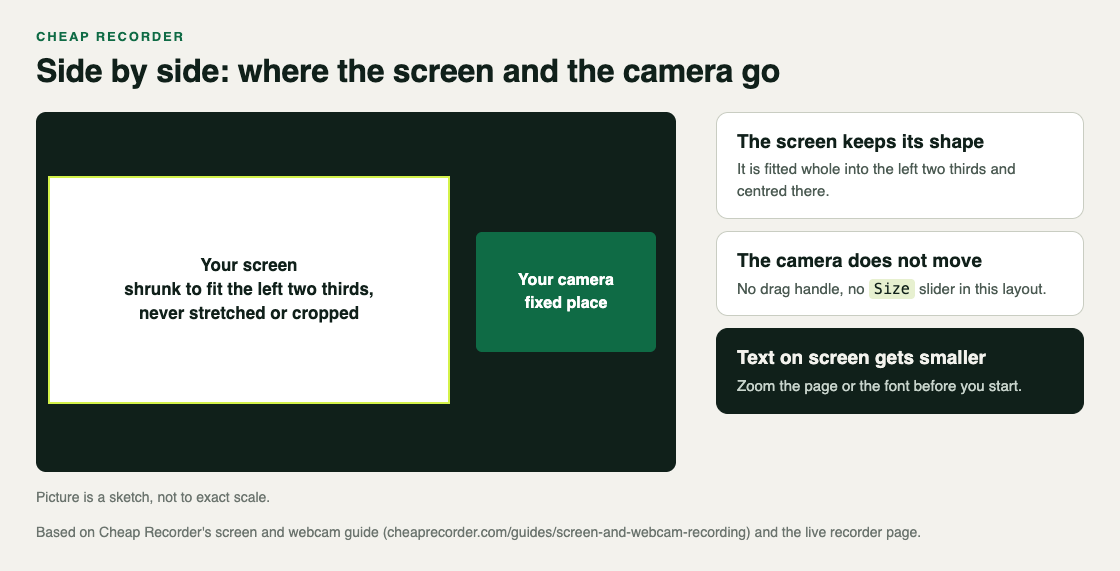
With Side by side chosen, the recorder builds each frame of the video from two pictures.
- Your screen is shrunk to fit the left two thirds of the picture. It is kept whole and in its own shape, never stretched or cropped, and centred in that space.
- Your camera has a fixed place on the right. If the camera's shape does not match its box, it is trimmed evenly from both sides, so a face in the middle stays in the middle.
Because the camera's place is fixed, there is no drag handle and no Size slider in this layout. That is the main difference from picture in picture, where you can move the camera anywhere.
The preview is the recording. What you see in the Preview box is exactly what the file will hold, so you can check the whole look before you press anything.
Set it up step by step
- Open the recorder in Google Chrome and sign in. When Chrome asks, allow the microphone and the camera.
- Under Where to save, press Choose folder... and pick a folder.
- Under What to capture, choose Whole screen, A window or A browser tab. Pick it in Chrome's sharing box and press Share.
- Check that Record my webcam is on.
- In the Preview heading, open the Layout menu and choose Side by side.
- If you want, set a Background in the Webcam box now. It applies to the camera in this layout too.
- Type a name into Name this recording and press Start recording.
When you press Stop and finish, the file is already in your folder. The screen and webcam guide walks through the same steps for every layout.
When the layout shows up in the file
Side by side needs two pictures. If one is missing, you get the other one alone.
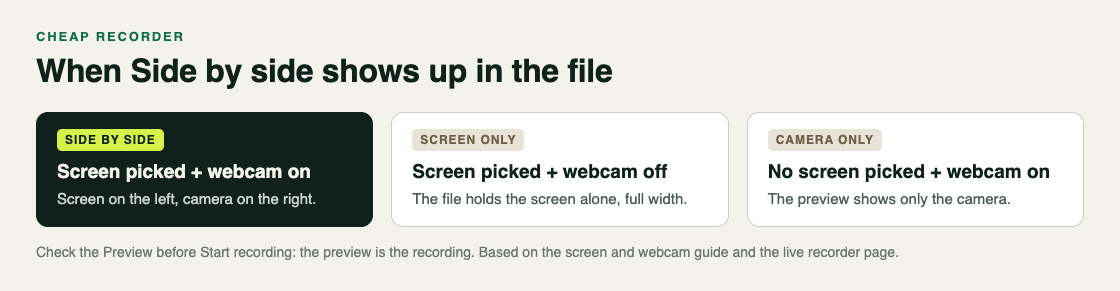
- A screen picked and the webcam on: Side by side, as above.
- The webcam off: the file holds the screen alone, at full width.
- No screen picked yet: the preview shows only the camera.
So if your recording came out as just a screen, check the Record my webcam switch first. If the webcam box says no camera found, Chrome could not open a camera; the no camera found post covers the fixes.
Side by side or picture in picture?
Both layouts put your face and your screen in one video. They suit different jobs.
- Picture in picture keeps the screen at full size and puts a small camera over it. You drag the camera to any spot and size it from 12% to 50% of the picture's width. It suits screens full of small text, where every pixel counts.
- Side by side never covers any part of the screen, and your face gets its own space. The cost is a smaller screen. It suits talks, reviews and lessons where you matter as much as what is on screen.
Switching is one menu choice. Picking a different layout starts the camera from that layout's own place again, so a picture in picture position you set earlier is not used here. The picture in picture post covers placing and sizing the camera in the other layout.
Keep a smaller screen easy to read
In Side by side, your screen fills two thirds of the width, so everything on it is smaller in the video than it is on your monitor. A few habits help.
- Share one window or one browser tab. It keeps other tabs, apps and private things out of the recording, and a single window has less clutter to shrink.
- Make the text bigger before you start. Zoom the page in Chrome, or raise the font size in the app you are showing. Then look at the Preview, which is exactly what the file will hold.
- Clear the screen. Close tabs and apps you do not need, and silence notifications.
- Light your face from the front. Your face has its own space in this layout, and a window behind you makes it dark.
A worked example: a weekly update over slides
Say you record a ten-minute weekly update for your team, talking through a few slides in a browser tab.
- You open the slides in their own Chrome tab and zoom the page so the smallest text is easy to read.
- In the recorder, you choose a folder, pick A browser tab, and share the slides tab.
- Record my webcam is on. You choose Side by side in the Layout menu. The slides sit on the left, you on the right.
- Your desk is messy, so you press Blur under Background and wait for it to say on.
- You name the recording
Weekly update 14and record a 30-second test. Playing it back, the slide titles read well and your face is not dark. - You record the real update. Nothing on the slides is hidden behind your camera, so you never have to move it.
- After Stop and finish,
Weekly update 14.mp4is in your folder, ready to share.
Which plans have Side by side
Layouts depend on your plan. Open your name in the top right and look under What you can do on this plan for Screen and camera layouts. On the pricing page, the Creator card lists green screen and layouts; Creator is $12 a month billed monthly, or $4.99 a month billed yearly, with a 7-day free trial.
Blur works in Side by side on every plan, since None and Blur are always there. Background pictures need a plan with green screen; the blur post explains the choices.
Frequently asked questions
Can I move or resize the camera in Side by side?
No. The camera has a fixed place on the right, so the drag handle and the Size slider are hidden. To place and size the camera yourself, choose Picture in picture instead.
Will my screen be stretched to fill the space?
No. The screen is fitted whole into the left two thirds of the picture, in its own shape, and centred there; it is never stretched or cropped.
Why did my side by side recording come out as only my screen?
The webcam was off. Side by side only applies when a screen, window or tab is picked and Record my webcam is on.
Can I blur my background in Side by side?
Yes. The webcam Background applies to the camera in this layout too, and Blur is on every plan.
Get started
Open the recorder, pick a tab, turn your webcam on and choose Side by side in the Layout menu. Look at the Preview, zoom your page until the text reads well, and record a short test.
The free plan needs no card. Try Cheap Recorder in Chrome, and your recordings stay on your own disk.
Comments
No comments yet.
Sign in or make an account to comment.