WebView hardening: lock down in-app web pages on Android and iOS
WebView hardening means configuring the in-app browser views of your Android or iOS app so that a web page cannot reach your app's data, files or native features. It matters because a WebView runs with your app's privileges, so a bad page inside it can do more harm than the same page in a normal browser. This post walks through the OWASP checks for WebViews and a worked review you can run on your own app.
If your app depends on web content and an API, whitehatstoic builds web and mobile apps with Expo and React Native and tests web apps and APIs for weak spots, so both sides of the WebView can be checked.
Why WebView hardening matters
OWASP's mobile standard has one control just for WebViews: MASVS-PLATFORM-2, "The app uses WebViews securely." Its point is to stop sensitive data leaking and to stop sensitive functions being exposed, for example through JavaScript bridges to native code.
The reason is spelled out in OWASP's weakness list. WebViews run with app-specific privileges, and they often use bridges to reach contacts, local files, location or the camera. Loading untrusted content into a WebView is therefore more dangerous than opening it in an external browser. One bad URL from a deep link can lead to cross-site scripting that steals cookies and tokens, shows phishing pages inside your own app, or calls your native code.
If you have not mapped your app against the standard yet, our post on testing a mobile app against OWASP MASVS covers the whole picture. This post goes deep on one control.
The four weaknesses behind the control
OWASP's Mobile Application Security Weakness Enumeration (MASWE) ties four weaknesses to MASVS-PLATFORM-2. Each one is a separate thing to check.
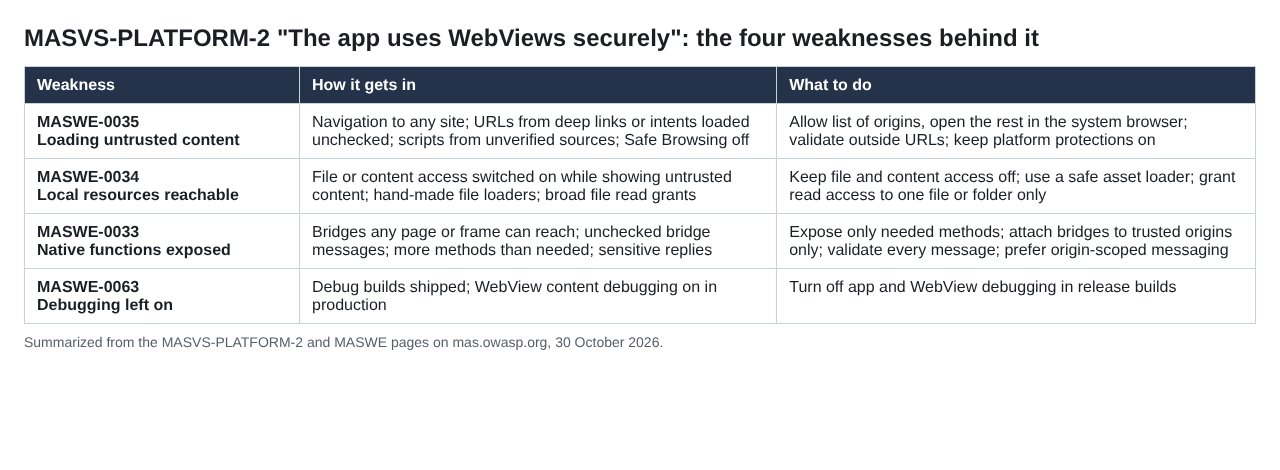
Summarized from the MASVS-PLATFORM-2 and MASWE pages on mas.owasp.org.
Control what the WebView loads
The weakness MASWE-0035, WebViews loading untrusted content, is the door the others open through. OWASP lists the ways it gets in: letting the WebView navigate anywhere, loading URLs that arrive through deep links or intents without checking them, pulling JavaScript from unverified sources, turning Safe Browsing off, and using deprecated WebView components.
- Allow list navigation. Keep the WebView on a short list of trusted origins and open everything else in the system browser.
- Treat outside URLs as input. A URL from a deep link or intent is untrusted until it matches your allow list. Check the scheme and host before you load it.
- Load scripts only from trusted sources. Never inject JavaScript fetched from somewhere you do not control.
- Keep protections on. Leave Safe Browsing enabled, and on iOS move from the old UIWebView to WKWebView.
Sometimes the best WebView is no WebView. OWASP's best practice suggests Custom Tabs on Android when you only need to show outside web content, and notes that Android recommends them for sign-in because the host app cannot inspect the content.
Keep JavaScript and local files off unless needed
OWASP is careful here: enabling JavaScript is not a vulnerability by itself, and hybrid screens, payment flows and frameworks built on WebViews need it. The serious cases come when JavaScript is combined with untrusted content, exposed bridges, broad file access or unsafe URL loading.
JavaScript is off by default in Android WebViews. Leave it off for static content such as help pages, legal text and release notes, and turn it on only where the WebView runs trusted web app logic.
Local file access is the second switch. MASWE-0034 warns that settings such as setAllowFileAccess, setAllowFileAccessFromFileURLs, setAllowUniversalAccessFromFileURLs and setAllowContentAccess on Android, or broad file read grants on iOS, let page scripts read app-private files such as databases and cached tokens. The fixes:
- Keep file, file-URL and content access off unless strictly required, and never combine them with untrusted content.
- Serve local assets through
WebViewAssetLoaderover https:// URLs, not file:// URLs or a hand-made loader. - When you must load a local file, grant read access only to that file or folder.
Shrink the JavaScript bridge
Bridges let web content send messages to native code. MASWE-0033 describes what goes wrong: bridges any page or frame can reach, messages accepted without checks, more methods than the page needs, sensitive data returned where any script can read it, and app-owned bridge scripts running in the same JavaScript world as page content.
- Expose only what is needed, and strip the bridge from WebViews that do not use it.
- Attach bridges only to trusted origins. On Android, prefer
WebViewCompat.addWebMessageListener, which is scoped by origin, over the legacyaddJavascriptInterface, which is exposed across the whole WebView. - Validate every message as untrusted input: its name, types, values and whether the user is allowed to do that right now.
- Isolate your own scripts. Run them in a named world (
JavaScriptExecutionWorldon Android,WKContentWorldon iOS) where supported. OWASP adds that this isolation does not replace origin checks.
Turn off debugging and keep secrets out of the page
MASWE-0063 covers debug settings that slip into production. For WebViews, that means never calling setWebContentsDebuggingEnabled(true) in a release build on Android, and keeping WKWebView.isInspectable false on iOS. A build or CI mistake is the usual cause, so check the shipped build, not the source.
Password fields deserve one more step. OWASP points out that any script on the page, including an injected one, can read the value of an HTML password field. Its best practice for iOS is to show a native secure text field over the web field, so the typed value never enters the page.
A worked example: two WebViews, two settings
Say your app has two WebViews: a help center showing your own static articles, and an account portal where users manage billing, built as a web app you control. Run this WebView hardening review on each.
- List every WebView and what it loads. Help center: your help site. Portal: your web app's domain.
- Help center: JavaScript off, file and content access off, no bridge. Links leaving your help site open in the system browser.
- Portal: JavaScript on, with an allow list of your own domain. Any deep link that opens the portal is checked against that list before loading.
- Portal bridge: one origin-scoped listener with two messages, "close" and "payment done". Each message is validated, and nothing sensitive is sent back into the page.
- Sign-in: moved out of the WebView to Custom Tabs on Android, or kept in native fields.
- Release build check: WebView debugging off, Safe Browsing on, no UIWebView left.
- Server check: the portal's API enforces every permission itself, so a tampered page still cannot reach another user's data.
Write down each setting and why. That record is your evidence for MASVS-PLATFORM-2 and the list your pre-release mobile security check starts from next time.
Frequently asked questions
Is enabling JavaScript in a WebView a vulnerability?
Not by itself. OWASP says the serious cases come when JavaScript is combined with untrusted content, exposed bridges, broad file access or unsafe URL loading.
Should sign-in pages run inside a WebView?
OWASP's best practice suggests Custom Tabs for sign-in on Android, which Android recommends because the host app cannot inspect the content. On iOS, keep sensitive text entry in native fields.
Does WebView hardening cover React Native and Capacitor apps?
Yes. OWASP names react-native-webview, Ionic and Capacitor as WebView-based, so the same checks on loading, JavaScript, bridges and debugging apply.
Is there an OWASP test for every WebView weakness?
Not yet. The MASTG lists tests for local file access and untrusted content, but its page for exposed native functions says it has no tests for that weakness yet.
Get started
WebView hardening is a set of small settings that are easy to miss in a busy release. whitehatstoic builds web and mobile apps with Expo and React Native, and tests web apps and APIs with a written report, fixes and a retest after you have fixed them. Every engagement is scoped after a short call.
Building something that has to be safe? Book a meeting with whitehatstoic: tell us the product, the deadline and your biggest worry, and we reply with a plan.
Build it right. Test it thoroughly. Keep it safe.
Visit whitehatstoic.com↗


Comments
No comments yet.