What Is the Safe Area on a Phone Screen? Notches and Web Pages
What is the safe area on a phone screen? It is the part of the display that no notch, camera hole or rounded corner can cover, the rectangle where anything you place is fully visible. Web pages need to know about it, because a phone browser can let a page draw right behind those cut outs. If a button lands there, people cannot see it or tap it. This guide explains the safe area on a phone screen, the four numbers a browser gives a page, and how a real game page uses them.
The real page is Tank City Reboot, two free tank games that play in your phone's browser with a touch pad over the game, and its full screen mode keeps every control clear of the notch and the corners.
The safe area on a phone screen, in plain words
Picture your phone's screen as a rectangle. Now take away the parts you cannot fully use: the notch or camera hole, and the slices that the curved corners cut off. The biggest plain rectangle left inside is the safe area.
It is not one fixed size. It changes from phone to phone, and it changes when you turn the phone. Held upright, a notch eats into the top edge. Turned on its side, the same notch is on the left or the right.
For a web page, the safe area answers one question: where can I put things people must see or tap? Backgrounds can run to the very edge. Text, buttons and scores should stay inside.
Why notches and rounded corners cut into the screen
Phones try to fill the whole front with screen. The front camera and its sensors still need a place, so the screen wraps around them, leaving a notch, a pill shaped cut out or a small hole. The corners follow the curve of the phone's body. A square button pushed tight into a corner loses a slice to that curve.
Apps built for the phone have always had to handle this. Web pages met the problem when browsers began letting pages fill the whole screen. MDN, the reference most web developers use, notes that the safe area values were first provided by the iOS browser for exactly this, so content is not hidden by notches or rounded corners.
The four safe area insets a browser reports
A browser describes the safe area with four distances, one from each edge of the page's viewport:
env(safe-area-inset-top)env(safe-area-inset-right)env(safe-area-inset-bottom)env(safe-area-inset-left)
MDN defines each one as the safe distance from that edge, inside which content will not be cut off by the shape of a screen that is not a plain rectangle. Together the four form a rectangle "inside which all content is visible".
On a plain rectangular screen with nothing in the way, all four are 0. Otherwise each is a number of pixels above 0. Turn the phone and the numbers move with the notch, and any CSS that reads them updates on its own.
env() also takes a fallback, used when a browser does not know the name: env(safe-area-inset-right, 1em) means "the right inset, or 1em if there is none".
What viewport-fit=cover changes
The insets matter once a page asks to fill the whole display. That request goes in the viewport meta tag, through viewport-fit. MDN lists three values:
- auto: the default. It does not change the layout, and the whole page is viewable.
- contain: the page is scaled to fit the largest rectangle inside the display.
- cover: the page is scaled to fill the whole display, cut outs and all.
With cover, parts of the page can sit under the notch or in a corner, which is why MDN highly recommends using the safe area insets alongside it. Choose cover and forget the insets, and you have made the very problem the safe area exists to solve.
A worked example: a game page's full screen CSS
You can read this example yourself: open the Tank City Reboot page, view its source, and search for safe-area. Its viewport tag is:
width=device-width, initial-scale=1, viewport-fit=cover
So the page asks to fill the display. But it uses the insets in one place only: its full screen rules, the ones that apply when the player box covers the whole screen. Those are the rules where the game, the touch pad and the buttons are pressed against the screen's edges, so that is where the insets go. Here is what each rule does:
- The player box is padded by all four insets. Its black background still runs edge to edge, but the game inside it starts where the safe area starts.
- The direction pad sits at the bottom left, 16 pixels plus the left inset from the left edge and 16 pixels plus the bottom inset from the bottom.
- The Fire buttons mirror it at the bottom right: 16 pixels plus the right inset, and 16 pixels plus the bottom inset.
- The round leave full screen button, 40 pixels wide, sits 10 pixels plus the top inset from the top and 10 pixels plus the right inset from the right. Pause sits beside it, 60 pixels plus the right inset from the right edge.
- The game field is pushed down 48 pixels plus the top inset, so the top buttons never cover it.
Each rule is the same shape: calc(16px + env(safe-area-inset-left)). The fixed part keeps a gap for your thumb on every phone. The inset part adds exactly the notch or corner on this one. On a phone with no cut outs the inset is 0 and only the 16 pixels remain.
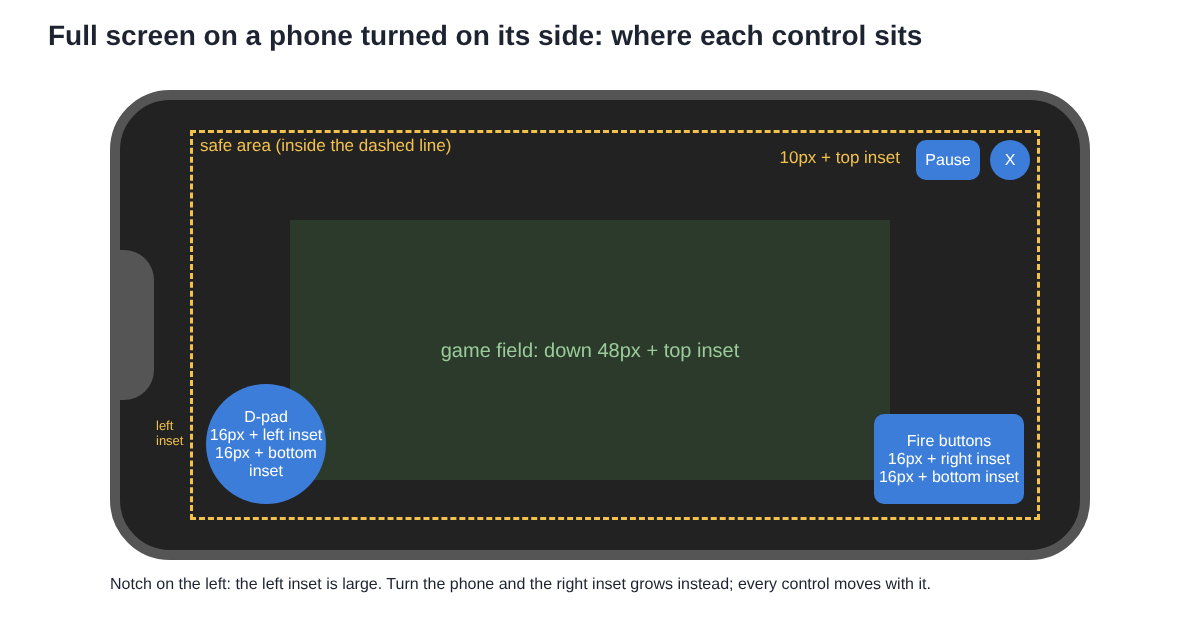
Now turn the phone the other way. The notch moves from the left edge to the right. The left inset drops toward 0, the right one grows, and the direction pad and the Fire buttons each move by the right amount, with no extra code.
Habits worth copying, and how to test
- Pad the container, place the controls. The box gets the insets as padding; each control adds its own inset to its own position.
- Let the background bleed. Colour the outer box and pad inside it, so the edges look filled, not cut off.
- Add a fixed gap. Use
calc()with a few pixels plus the inset, so controls never sit flat against an edge where the inset is 0. - Only use cover when you handle the insets. If you are not ready, leave
viewport-fitout and the default keeps the whole page viewable.
To test, put a bright outline on the padded box while you work, so you can see where the browser thinks the safe area starts. Then load the page on a real phone, turn it both ways, and press every control near an edge with your thumb. Try full screen and the normal page, since they can use different rules, as the game page does. If the game box also changes shape when you turn the phone, our post on how mobile games handle portrait and landscape screens covers that half, and how full screen works in browser games covers the button itself.
Frequently asked questions
Does every phone have a safe area?
Every screen has one. On a plain rectangular screen with nothing in the way, the four insets are 0, so the safe area is the whole viewport.
Why is my web page hidden behind the notch?
Most often the page sets viewport-fit=cover but does not use the env(safe-area-inset-*) values. Pad your containers with them, or remove cover so the default keeps the page viewable.
Do the safe area insets change when I turn the phone?
Yes. The notch moves to another edge, so a different inset grows. CSS that uses env() follows the change without any script.
Do I need safe area CSS for a browser game?
If the game fills the screen and puts controls near the edges, yes. Pad the box that holds the game and add the insets to each control's position, as the game page above does.
Get started
The quickest way to feel the safe area is to hold a phone and play something with controls in the corners. Open the page on your phone, press Play, then Full screen, and turn the phone both ways. Steer with the direction pad, fire with your other thumb, and watch the controls keep their distance from the notch. For eight-way moves, dashes and a boss every fifth wave, try Tank City Zero Day too. Both need a current browser with WebGL 2.
Play Tank City Reboot: it plays in your browser on a computer or a phone, and needs no account.
The Family Computer tank classic, rebuilt inside a computer.
Visit tankcityreboot.vlvd.net↗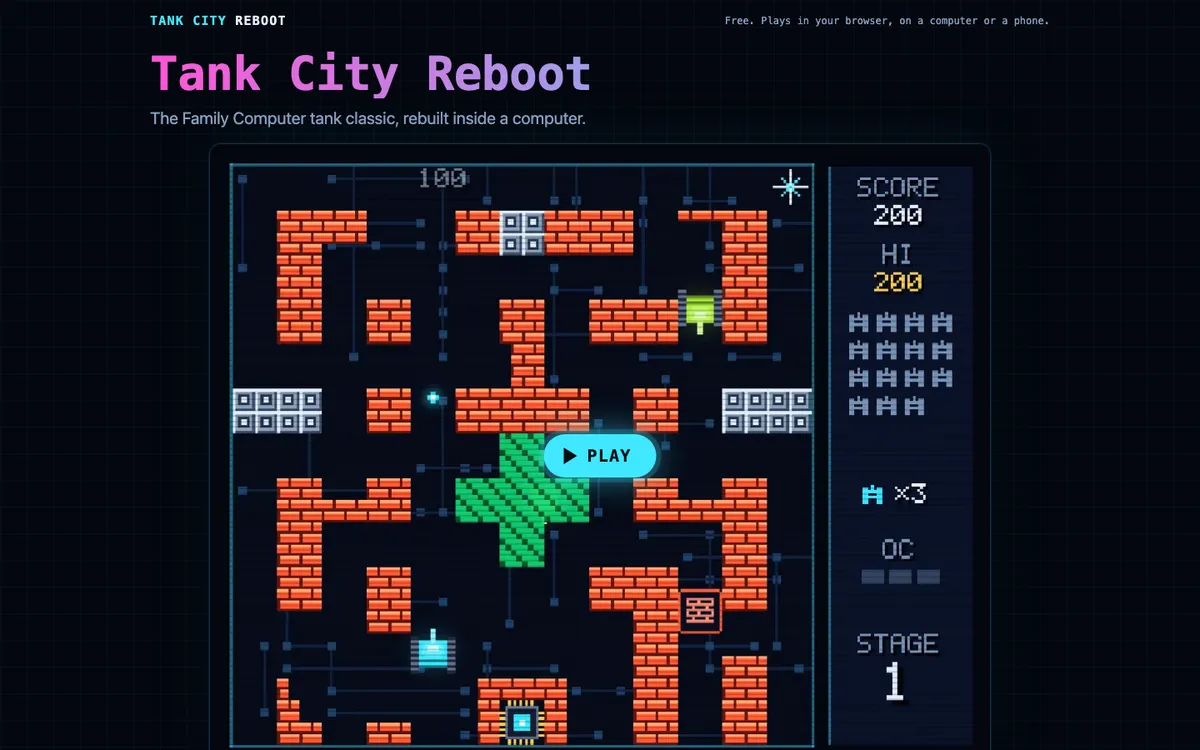
Comments
No comments yet.