Meeting Room Booking Problems: One List for the Office
Most meeting room booking problems are not hard to fix. They are hard to see. One person gets bumped from Room B, mentions it in chat, and the message scrolls away. This post shows how to handle meeting room booking problems: one list for the office, with each problem written once and each fix recorded with what happened.
For the list itself, Problem Graph lets you write each problem in one line, attach the fixes you try, mark them worked, partly or failed, and share the problem with a private network of colleagues.
The most common meeting room booking problems
Most offices run into the same handful of issues. You will probably recognize these:
- Double bookings. Two teams arrive for the same room at the same time.
- Ghost reservations. A room is booked all morning, but nobody ever shows up.
- No-shows and late releases. The meeting ends early or is cancelled, and the room stays blocked.
- Wrong-size rooms. Two people hold a call in a ten-seat room while a workshop of eight has nowhere to go.
- Missing equipment. The screen cable is gone, the video call setup does not work, or the whiteboard pens are dry.
- Squatting. Someone settles into a room without booking it and nobody wants to ask them to leave.
- Unclear rules. Nobody knows how far ahead you can book, or whether recurring bookings are allowed.
Each of these is small. Together they cost real time every week, and they keep coming back because nobody owns them.
Why complaints in chat never get fixed
Chat is good for saying "Room B was double booked again." It is bad for everything that comes after. The message sits between lunch plans and a meme. Nobody counts how often it happens. Nobody remembers what was tried last month.
Three things go wrong:
- The problem has no single home. The same complaint appears in three channels, worded three ways.
- Fixes are not tied to problems. Someone suggests a booking rule, everyone agrees, and a month later no one knows if it helped.
- Failed attempts vanish. The next office manager tries the same idea again.
A list fixes the first issue. A list that records outcomes fixes the other two. The same pattern works for other shared spaces, as in our post on shared office kitchen problems.
Meeting room booking problems: one list for the office
The idea is simple. Every room problem goes in one place that the whole team can see. Here is how that looks in Problem Graph.
- Write the problem as one line. One line is enough. Put it in the Work lane.
- Mark it as a main node. Only a main node can be shared. When you share it, its solutions, their outcomes and the requirements they need go along with it.
- Create a private network. Give the invite code to the people who book rooms: your team, the office manager, whoever handles facilities. The app says anyone with the invite code can join, so send the code only to people you trust.
- Share the main node into the network. Members see it. Nobody else does.
Teammates need an account with a username and a password to add a problem or recommend a solution. Browsing the public part of the app needs no account, but your office list should stay private.
One thing to know: a problem you only link to a main node stays on your own graph. If you want a colleague's problem to appear for everyone, that problem should be a main node too. A simple habit is to make each real room problem its own main node and share it.
What to write for each problem: room, time, cost and who it affects
A good line says where, when, how bad and who. You only get one line to start with, so pack in the facts that help someone decide.
Compare these two entries:
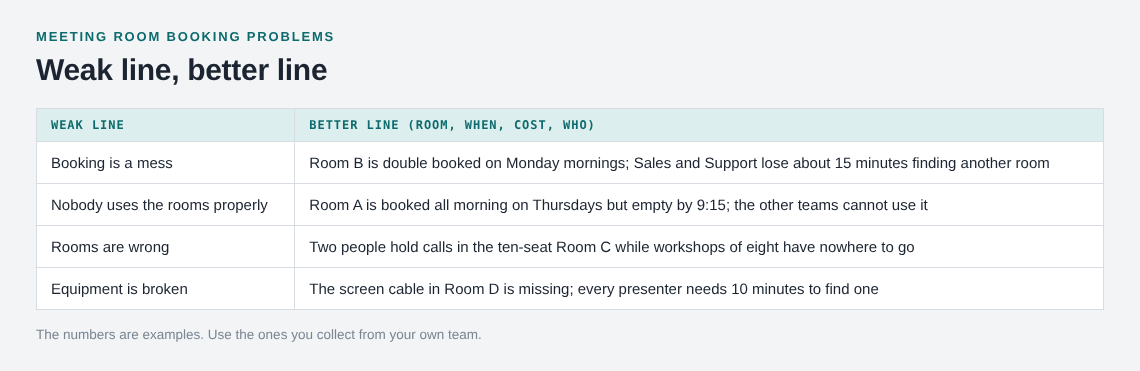
- Weak: "Booking is a mess."
- Better: "Room B is double booked on Monday mornings. Sales and Support both lose about 15 minutes finding another room."
The second one tells you the room, the time, the cost and who is affected. It also tells you what to measure afterwards. The 15 minutes in that example is a number you would collect from your own team, not a general figure.
A template you can copy for each line:
[Room or rooms] + [what goes wrong] + [when it happens] + [what it costs] + [who it affects]
Keep extra details in the solutions you attach, not in the problem line. If a fix needs something specific, such as a screen cable or a sign for the door, that is a requirement of the solution. Problem Graph shows requirements as their own kind of node, next to problems and solutions.
Quick fixes for double bookings, ghost reservations and no-shows
These are ideas to try, not sure answers. Add them as solutions under the matching problem and mark the ones you are trying.
Double bookings
- Pick one place to book rooms and retire every other method, such as a paper sheet or a shared spreadsheet.
- Ask people to check the room's schedule before sending a meeting invite that includes it.
- Put a small sign on the door that says who has the room next.
Ghost reservations
- Agree on a rule: if nobody has arrived ten minutes after the start, the room is free for others.
- Once a month, ask people to delete old recurring bookings they no longer use.
No-shows and late releases
- Ask organizers to cancel the room when they cancel the meeting.
- Keep a short list of rules in one place, including how far ahead people can book.
Now record what happens. When you try the ten-minute rule, mark it as being tried. After a few weeks, set the outcome: worked, partly, or failed. The page puts it this way:
The graph is honest. A solution that failed three times stays on the map as a failed solution, and that is exactly what the next person needs to know.
That is the part chat cannot do. A failed idea stays visible, so nobody has to propose it again.
Sort the list so the biggest problems get fixed first
Once you have ten or fifteen problems, you need to choose. Problem Graph gives you a List view beside the map, plus filters for lane (Personal, Work, Expert, Scientific) and for Mine, Network and All shared. Use the Work lane and the Network filter to see only what your team has shared.
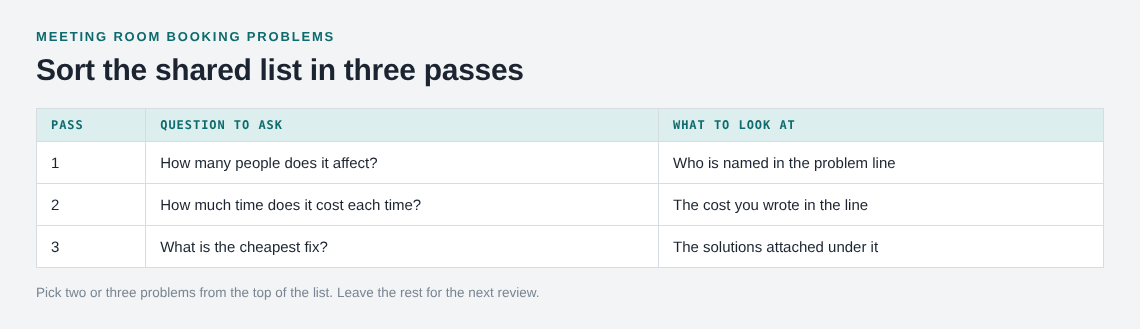
There is no built-in priority score, so use the facts you wrote into each line. A short way to sort by hand:
- Start with the problems that affect the most people.
- Next, look at the ones that cost the most time each time they happen.
- Then pick the ones with the cheapest fix.
Link related problems on the map, even when they sit in different lanes. A double booking in Room B and a "nobody knows the booking rules" problem may be one cause. When you see them linked, you may fix one rule instead of two problems. Linking is how patterns show up on the map that never show up in a list.
Do not try to fix everything at once. Pick two or three problems and work only on those. Our post on personal kanban for problems explains why a small limit helps.
Review the list with the team and track what worked
Set a regular time to look at the list together, such as ten minutes at the end of a monthly team meeting. Open the List view and go through it in this order:
- Which solutions were we trying? What happened? Set each outcome to worked, partly, or failed.
- Which new problems did people add?
- Which problem gets the next fix?
You can also ask the AI for suggestions. It proposes new solutions based on what worked for others on similar problems. Treat these as ideas to consider, not answers. The public network may not have much in it yet, so do not expect a long list of ready-made fixes. When other people do share solutions that worked, you can borrow one into your graph with one tap, and it keeps a link back to where it came from.
The same approach works well for other office routines. Our post on new team member onboarding problems uses a shared fixes list the same way.
Frequently asked questions
Who should be in the private network for room problems?
Include the people who book rooms and the person who looks after the office. Keep it small at first, and remember that anyone with the invite code can join.
Can people outside my team see our room problems?
Not unless you put a main node out to the public. Private is the default, and a private network is visible only to its members.
Do I need an account to try this?
You can look around the public network without one. To add a problem, recommend a solution or borrow one, you create an account with a username and a password.
Does Problem Graph book the rooms for me?
No. It is a journal and a map for problems and fixes. You keep using your own booking method and record what goes wrong and what you try.
How do I know a fix worked?
You set the outcome yourself: worked, partly, or failed. Compare it to the cost you wrote in the problem line, such as time lost finding another room.
Get started with Problem Graph
Start with one problem: the room issue that annoyed people most this month. Write it as a line with the room, the time, the cost and who it affects, then attach the first fix you will try.
Try Problem Graph: it is free, and you can look around the public network without an account. Write one problem down in a line and attach the first thing you will try.
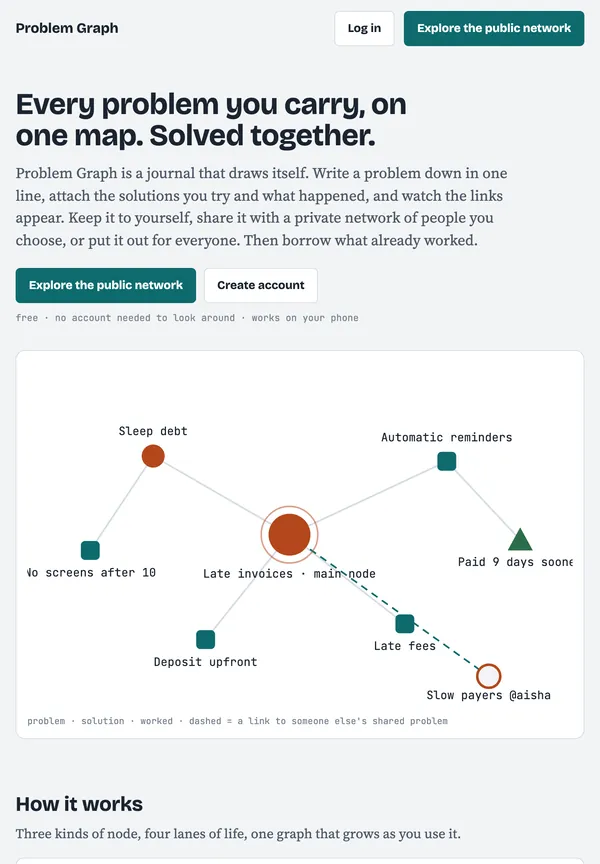
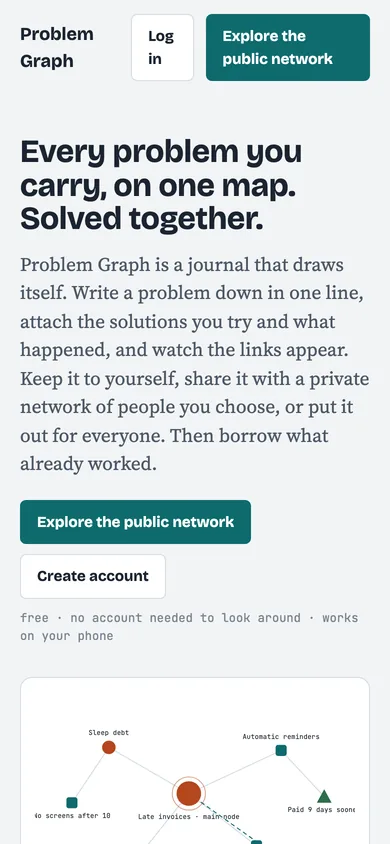
Every problem you carry, on one map. Solved together.
Visit problemgraph.vlvd.net↗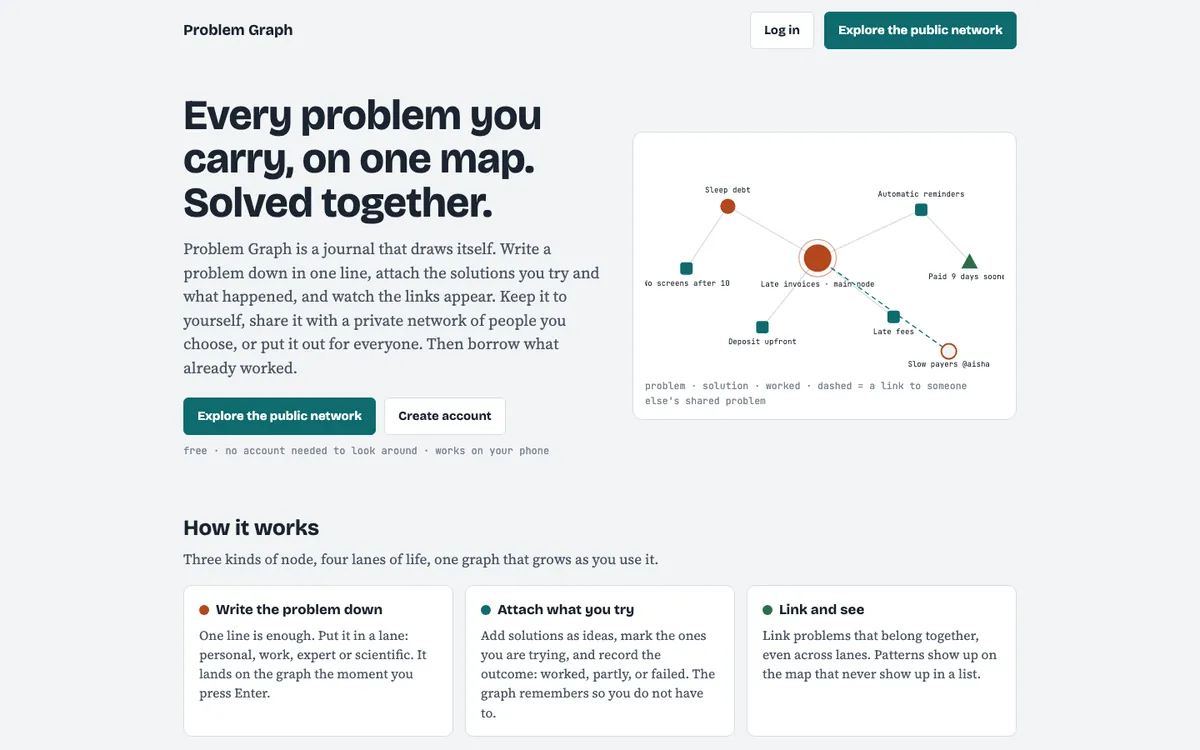
Comments
No comments yet.
Sign in or make an account to comment.