npm package security: protect installs and publishing
npm package security has two sides: what you install into your app, and what you publish for others to install. The OWASP NPM Security Cheat Sheet covers both, from install scripts and fake package names to tokens and trusted publishing. This checklist follows the sheet, groups its advice by side, and ends with a review you can run on one project in about an hour.
Want someone outside the team to check your app and its dependencies? Book a meeting with whitehatstoic: it tests web apps and APIs for weak spots, writes up what it finds with fixes, and retests after you fix them.
npm package security: the two sides to protect
Most teams only think about the install side. Every npm install pulls in code from strangers, and some of that code can run on your machine or your build server the moment it lands. If you also publish packages, you have a second job: making sure the tarball you push holds only what you meant to ship, and that nobody else can push in your name.
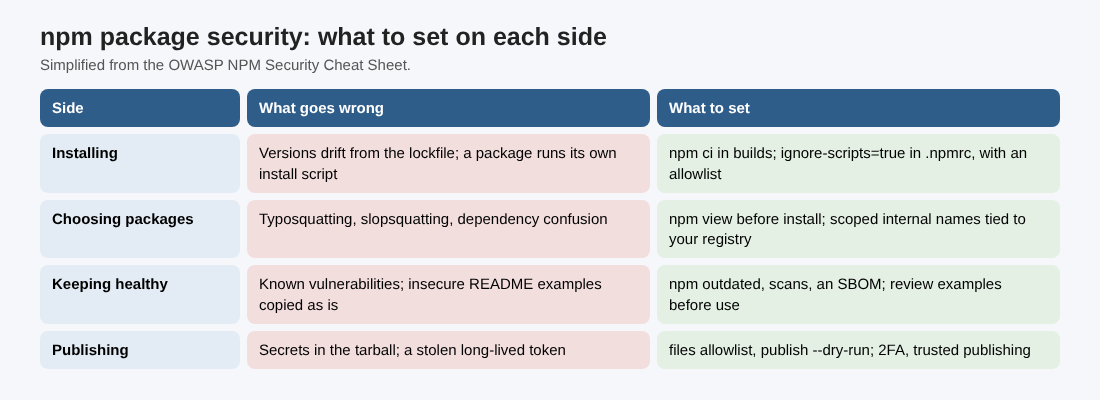
Simplified from the OWASP NPM Security Cheat Sheet.
The sections below take each row in turn. None of it needs a new tool to start; most of it is a setting or a habit.
Installs: enforce the lockfile and stop install scripts
A lockfile only helps if your builds obey it. The sheet points out that when package.json and the lockfile disagree, both npm and Yarn install what package.json asks for, not what the lockfile recorded. One forgotten lockfile commit and your build quietly pulls versions nobody reviewed.
Use the commands that refuse to guess:
npm cifor npm.yarn install --frozen-lockfilefor Yarn.
Both stop the install on any mismatch, which is what you want in CI and production builds.
The second install risk is lifecycle scripts. A package can declare a postinstall script that runs any command when it is installed, and the sheet notes that attackers have used exactly this to steal npm tokens. Its advice:
- Install with
--ignore-scripts, or setignore-scripts=truein your project's.npmrc. - If a package truly needs its script (the sheet's example is the image library
sharp), allowlist it with a plugin such as@lavamoat/allow-scriptsinstead of turning scripts back on for everything. - Wait a while before taking a brand new version, and read its changelog and release notes first.
Spot fake packages before you install them
Three attacks rely on you installing the wrong name.
Typosquatting publishes a look-alike of a popular package and waits for a typo. The sheet stresses why that matters: any package can read your environment variables through process.env, so credentials are a common target.
Slopsquatting is the newer version. AI coding assistants sometimes suggest packages that do not exist, and attackers register those names. The sheet's example is an assistant suggesting node-fetch-promise instead of the real node-fetch. Before installing a package an assistant suggested:
- Run
npm view <package-name>to confirm it exists and see its details. - Check its download count, its repository with real commits and contributors, and its release history.
- Be wary of anything published very recently with no history.
- In a team, add an
npm viewcheck in CI for new dependencies an assistant suggested.
Dependency confusion targets your private packages. An attacker publishes a public package with the same name as an internal one and a higher version number, and npm install may pick the public one. Internal names leak through public package.json files, job posts and error messages. The fixes from the sheet: give internal packages a scope such as @yourorg/package-name, point that scope at your private registry with @yourorg:registry= in .npmrc, and reserve your internal names on the public registry with an empty placeholder.
Keep dependencies healthy and audited
Upgrading blindly is risky, and so is never upgrading. npm outdated lists which packages are behind and the latest version of each, so you can plan upgrades and read release notes first. npm doctor checks your setup: that the registry is reachable, Git is present, your npm and Node.js versions, folder permissions, and the checksums in your local cache.
For known vulnerabilities, the sheet asks for two things: scan your third-party packages, and keep watching your manifests so a new CVE reaches you after release, with OWASP Dependency-Track as one example. Our guide to dependency updates covers how to patch what the scans find.
It also suggests producing an SBOM for each build, in CycloneDX or SPDX format, so you can trace exactly what went into a release. The sheet's example uses the @cyclonedx/cyclonedx-npm package. A private registry or vetted mirror, such as Verdaccio with an upstream cache, gives you one place to control and keep what your builds pull.
One more habit: check README examples before you copy them. The sheet describes libraries whose own code is safe but whose examples show weaker patterns, such as an unanchored regex that matches malicious-example.com, or Math.random() for file names where the library itself uses crypto.randomBytes(). Audit tools will not flag these, because the library is fine. Only your copy is not.
Publishing: keep secrets out of the tarball
When you publish, the npm CLI packs your project folder into a tarball. The sheet explains a trap: if you have both a .gitignore and a .npmignore, only .npmignore counts. A .env file you carefully kept out of Git can still ship to the public registry because nobody updated .npmignore.
Two settings close the gap:
- Use the
filesproperty inpackage.jsonas an allowlist of what ships. It takes precedence over an ignore file. - Run
npm publish --dry-runfirst and read the list of files it would pack.
If a secret has already gone out, revoke it. Our guide to secrets management covers keeping keys out of code and logs in the first place.
Lock down your npm account, tokens and publishing
Whoever holds your publish rights can ship code to everyone who installs your package. The sheet's steps:
- Turn on 2FA for writes. npm has two modes, authorization only and authorization plus writes.
npm profile enable-2fa auth-and-writesturns on the stronger one. - Prefer trusted publishing. The sheet notes that classic npm tokens have been revoked. Trusted publishing with OpenID Connect lets a named CI workflow publish with short-lived credentials made for that run, so there is no long-lived publish token to steal. It also generates provenance attestations automatically. The same idea for cloud keys is in our post on workload identity federation.
- When you still need a token, use a granular one with only the packages and permissions needed, read-only for installs, the shortest practical expiry, and IP ranges where they are stable. Keep it in your CI secret store.
- Review tokens regularly with
npm token list, and remove any you do not need withnpm token revoke. - Work logged out of npm day to day, so your own session is not the weak spot.
Write down what you will do if a package or token is compromised: revoke tokens, deprecate the bad versions, publish a fix and tell the people who use it. Our checklist for software supply chain attacks covers the build and deploy steps around this.
A one-hour npm review for your project
Pick one repository and work through this list. Note each gap as a ticket.
- Builds (10 minutes). Search your CI files for
npm install. Replace it withnpm ciin every build that ships. - Scripts (10 minutes). Add
ignore-scripts=trueto.npmrc, run a clean install and the tests, and allowlist only the packages that break. - Names (10 minutes). List your internal packages. Any without a scope tied to your private registry goes on the ticket list.
- Health (10 minutes). Run
npm outdatedand your vulnerability scan. Pick the three most urgent upgrades and read their release notes. - Tarball (10 minutes). If you publish, run
npm publish --dry-runand look for anything that is not code: env files, keys, test data. - Access (10 minutes). Check that every maintainer has 2FA on writes, run
npm token list, revoke what is unused, and note whether trusted publishing could replace the rest.
Run it again whenever you add a maintainer or change your CI.
Frequently asked questions
Is npm ci safer than npm install?
For builds, yes. npm ci installs exactly what the lockfile records and stops if package.json disagrees, while npm install follows package.json and can pull versions nobody reviewed.
Should I disable npm install scripts?
The OWASP sheet calls ignore-scripts=true the safest default. Packages that genuinely need their scripts can be allowlisted one by one with a plugin such as @lavamoat/allow-scripts.
What is slopsquatting?
An attack where someone registers a package name that AI coding assistants invent. Check any suggested package with npm view, its downloads and its repository before installing it.
How do I stop secrets ending up in an npm package?
List what ships with the files property in package.json, and run npm publish --dry-run to read the file list before every publish.
Get started
Run the one-hour review on one repository this week. whitehatstoic tests web apps and APIs for weak spots, with a written report and a retest after fixes, and gives independent codebase and vendor reviews. Book a meeting with whitehatstoic and tell us about your product, your deadline and your biggest worry; work is scoped after a short call.
Build it right. Test it thoroughly. Keep it safe.
Visit whitehatstoic.com↗

Comments
No comments yet.