Sales call review template: score every call in 10 minutes
A sales call review template turns a 40 minute call into a short, repeatable check: what did the buyer say, where did you lose them, and what do you change next time. This post gives you the template and a 10 minute routine to fill it in. If you want the recording side first, the post on recording a sales call you take in Chrome and reviewing it afterwards shows how to capture your voice and the buyer's, mark objections with one key, and read the timed transcript on your own computer. This post picks up where that one stops.
Cheap Recorder runs in Google Chrome and saves your voice and the other side of a call as one MP4 on your own computer, with a transcript. That transcript, with a time on every line, is what makes a 10 minute review possible.
After a call you remember the feeling. It went well, or it went flat. You rarely remember the exact words the buyer used for their problem, the moment their tone changed, or how long you talked before asking a question.
Memory also edits in your favour. You recall the strong answer you gave, not the objection you talked over. A recording and a transcript remove that edit. You read what was said, in order, with times.
What a sales call review template should cover
A good sales call review template is short enough that you will fill it in after every call. If it takes 30 minutes, you will skip it by Thursday. Keep it to five parts:
- Call facts: who, when, which stage, and the recording's name.
- Scorecard: four scored areas, covered in the next section.
- Buyer's own words: two or three short quotes about their problem, copied from the transcript.
- One fix: a single change for the next call.
- Next step: what was agreed, by whom, and by when.
The quotes matter more than they seem. When you follow up, using the buyer's exact phrasing shows you listened. It also keeps your notes honest, because you can only quote what was actually said.
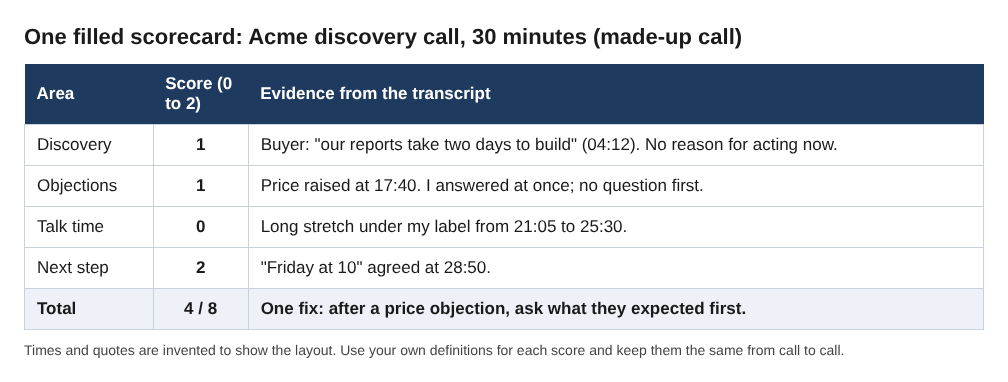
The scorecard: discovery, objections, talk time and next step
Score each area 0, 1 or 2. Zero means it did not happen, one means partly, two means clearly. The numbers are for you, so keep your own definitions and stay consistent.
Discovery
Did you learn why the buyer is looking now, what it costs them to leave it as it is, and who else decides? Two points if you can write the problem in the buyer's words. One point if you have the topic but not the reason.
Objections
For each objection, note what was said, how you answered, and whether the buyer accepted the answer. Two points if you asked a question before answering. Zero if you answered at once and moved on.
Talk time
You do not need an exact figure. Skim the transcript and see who holds the long stretches. If your lines run long and the buyer's are short, you pitched more than you listened. Each transcript line is labelled with the sound source that was loudest at that moment, so you show up under your microphone's name and the other side of a call shows up as Meeting. The transcript is made from what Chrome hears on your microphone, so run your 30 second test first and see how much of the buyer's side it caught in your setup. If the buyer's lines are patchy, treat talk time as a guess, not a count. Timings come per line, not per word, and everyone on the far end shares the one Meeting label.
Next step
Two points if a dated next step was agreed before the call ended. One point if the buyer said "send me something". Zero if the call just stopped.
How to review a call in 10 minutes using a timed transcript
The plain text transcript is saved in the recording's folder next to the MP4, for example Acme discovery call - transcript.txt. It has a time on each line and the speaker names. It opens in any text editor, so you can keep it beside your template.
Here is a 10 minute split that works:
- Minutes 0 to 2: Open the transcript. Read only the first two minutes and the last two minutes. Did you set an agenda? Did you close with a next step?
- Minutes 2 to 5: Go to the transcript lines at the times you marked objections (more on that below). Read each one and the answer that followed. Fill in the objections score.
- Minutes 5 to 7: Find the discovery section. Copy two or three of the buyer's own sentences into the template.
- Minutes 7 to 8: Skim for long stretches under your own label. Score talk time.
- Minutes 8 to 10: Score the next step and write your one fix.
Only play the video where the words are not enough. Tone is the usual reason. Use the time on the transcript line to find the spot in the MP4 and listen to those ten seconds.
One thing to check before you rely on this: the transcript is made from what Chrome hears on your microphone, and the live transcript must be ticked under Options before you start. It is ticked by default. If it was off, a transcript cannot be added to that recording afterwards. The language is chosen before each recording and goes back to its default every time the recorder page opens, so check it.
Mark objections while you talk so you can jump back to them
During the call, press M (or the Add marker button) when the buyer raises an objection. A short note confirms the time. Markers are not added while you are typing in a text box, so keep your cursor out of the notes field when you want to mark.
There is one detail worth knowing. With the default single MP4, the marker notes show while you record but are not saved. If you want the markers written to files, tick Also save every source separately under Options before you start. Then the recording's Separate sources folder gets a markers list, and the other side of the call is saved as its own file next to your microphone's file, which helps when you want to hear the buyer alone. Those separate files take more room than a single MP4, so pick a folder with space.
If you leave the option off, jot down the time yourself on paper when you mark. A call with four objections gives you four times to check, and that is enough to start the review.
Turn the review into one fix for your next call
The scorecard shows several weak spots. Pick one. A review that produces five changes produces none.
Write the fix as an action you can do in the first five minutes of the next call, not a vague goal. Compare:
- Vague: "Listen more."
- Usable: "After any price objection, ask what they were expecting before I answer."
Then, before the next call, read that one line. After the call, check the transcript for that moment and score whether you did it. If you also give feedback on a teammate's call, this design review notes template uses the same shape: what you saw, why it matters, what to try.
Share the notes and follow up with the prospect
Your review notes are for you and maybe your manager. The follow up is for the buyer. Keep them apart, but let one feed the other. The post on recapping a sales call with a short video covers the buyer's side.
For a manager or teammate, send the filled template and the transcript file. If you renamed the Speaker boxes before saving, each line starts with a real name, such as Priya: ..., so nobody has to guess who is speaking. Type the names into the Speaker boxes above the transcript, then press Save captions. Speaker labelling is on plans that include speaker detection, so check What you can do on this plan if you do not see it.
For the buyer, write the follow up from your "buyer's own words" section. Open with their problem in their phrasing, restate the agreed next step with its date, and keep it short. Do not send the recording or transcript to the buyer unless you have agreed that with them.
Consent and privacy before you record
Recording calls may need everyone's agreement, depending on where you and the buyer are. Tell people at the start that you are recording and why. Most buyers do not mind when you say it will help you take better notes.
Know where the data goes. Your recording is saved to a folder you pick on your own computer, and Cheap Recorder keeps no copy. Its activity log does note things like the folder and file names you chose and your microphones' names. The live transcript is different: while it is on, Chrome sends your microphone audio to Google to turn it into text. If a call must not leave your computer in any form, untick Live transcript before you press Start recording, and use your own notes instead. The consent and setup steps for recording a lesson in Chrome cover the same conversation for a different kind of call.
Frequently asked questions
How long should a sales call review take?
Ten minutes is a workable target for a normal call. Read the start and end, check the objections you marked, copy two buyer quotes, score the four areas and write one fix.
What should a sales call review template include?
Call facts, a scorecard for discovery, objections, talk time and next step, the buyer's own words, one fix, and the agreed next step with a date. Keep it to one page so you actually use it.
Do I need the video, or is the transcript enough?
The transcript is enough for most of the review. Play the video or audio only where tone matters, using the time on the transcript line to find the spot.
Are my markers saved?
Only if you tick Also save every source separately before recording. With the default single MP4 the marker notes show while you record but are not saved, so write down the times you need.
Which calls can I capture?
A call open in a Chrome tab, such as Google Meet or Microsoft Teams. Use Pick the call tab... in the Call audio tile and tick Share tab audio. See the guides for Google Meet and Microsoft Teams.
Get started
Before your next call, do three things. Name the recording after the account, tick Live transcript and, if you want markers saved, Also save every source separately. Then record a 30 second test and play it back so you catch a muted tab or the wrong microphone. Wear headphones, so the buyer's voice does not come back through your speakers.
The free plan needs no card and includes recording, live transcript and captions, with 12 hours of recording a month. Try Cheap Recorder in Chrome, and your recordings stay on your own disk. For the recording steps, read how to record a sales call you take in Chrome and review it afterwards, then come back here to score it.
Screen recording that is cheap and easy.
Visit cheaprecorder.com↗
Comments
No comments yet.
Sign in or make an account to comment.