Test your microphone before a long screen recording
To test your microphone before a long screen recording, record about thirty seconds in the same setup as the real take, then play the file back and listen. That is the whole idea of the Cheap Recorder blog post on how to test your microphone before a long screen recording in Chrome, and this post adds what that test does and does not prove, and what to listen for.
Cheap Recorder shows a level bar for each microphone you tick and saves the finished recording on your own computer, so a test clip is a normal recording you can play straight away.
Why you should test your microphone before a long recording
Microphone problems rarely announce themselves. The timer runs, the picture looks right and the file still has no voice, or the wrong voice, or a thin one. You find out when you play it back, and on a two-hour take that is two hours too late.
A test costs about two minutes. It is cheap because the only thing it has to answer is one question: if I record like this for the next hour, will the file hold my voice, clear and at a sensible volume?
The blog post lists four checks in order: permission, the right device, the level, and a short clip you play back. The sections below follow that order, with the reasons behind each.
What the level bar proves and what it does not
While you record, each ticked microphone has a level bar that moves with its sound. If the bar jumps when you speak and falls when you stop, that microphone is alive and Chrome is hearing it.
That is all it says. A moving bar does not tell you:
- That it is the right microphone. A webcam, a monitor and a headset can each have their own entry, so the one that moves may not be the one on your desk.
- That your voice sounds good. A thin, tinny voice moves the bar just as well as a clear one.
- That the sound you wanted from the screen is there. The bar only watches microphones, not the page you are sharing.
A bar that stays still tells you more: check the microphone's own mute switch and the computer's sound settings. The no sound in a screen recording guide goes through the rest.
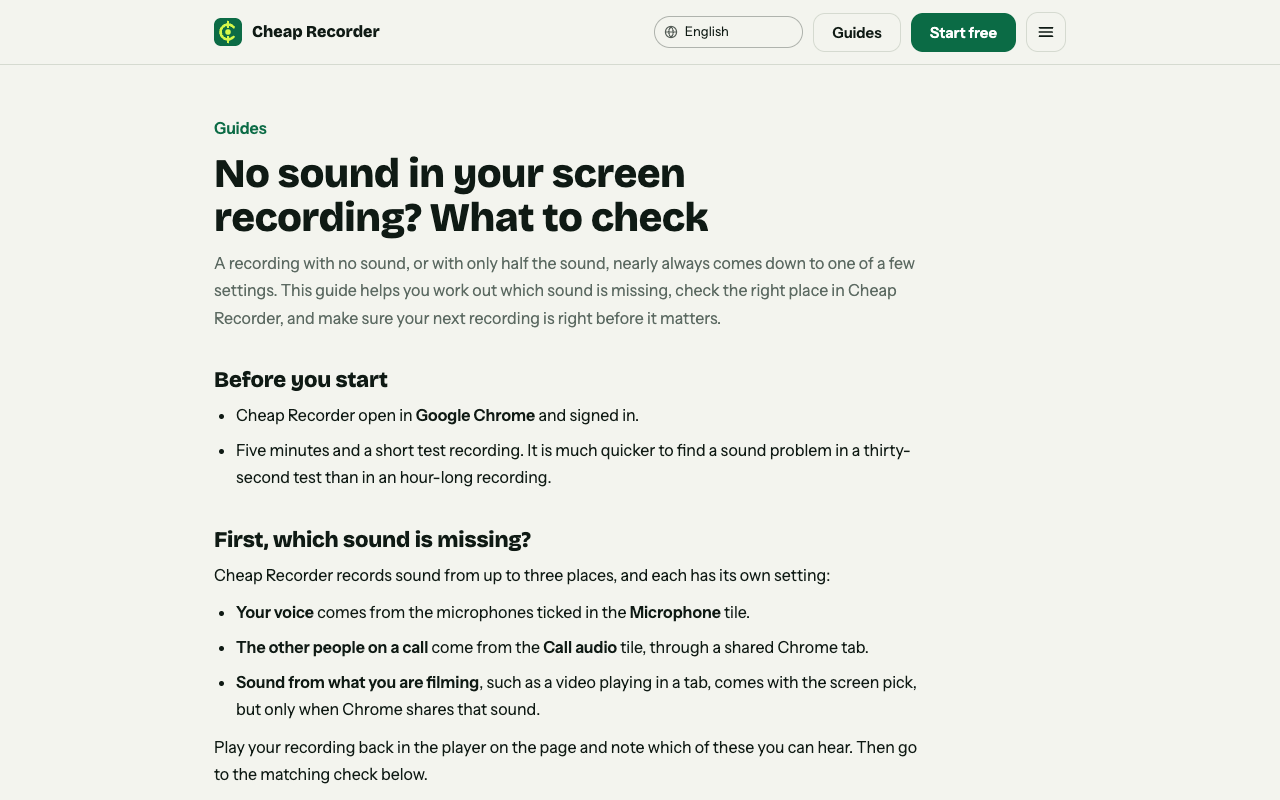
The no sound guide on cheaprecorder.com lists the usual causes when a take comes out silent.
Set up the test the way the real take will be
A test only counts if it matches the real thing. Do it in this order.
- Open the recorder in Chrome. When Chrome asks, allow the microphone and the camera. If you said no by mistake, press Allow microphone and camera in the Microphone box, or allow it again in Chrome's site settings for the page and reload.
- Read the Microphone tile. It says allow the microphone to record your voice when Chrome has no access, no microphone found when Chrome cannot see one (plug it in and press Rescan), and none selected when every box is unticked.
- Open Change or add microphones and tick the one you speak into. Each entry shows wired or bluetooth beside its name.
- Press Choose folder... under Where to save and type a name such as
Mic testin Name this recording. - Pick what to capture and switch on Live transcript under Options, with the right language beside it. The language menu goes back to its default every time the page opens, so check it now.
- Read the note beside Start recording. If the button is greyed out, the note gives one reason at a time, such as choose a folder first. Fix it, read the note again, and press Start recording.
Talk for thirty seconds at the volume and distance you will use all session, including a few long sentences. Then press Stop and finish.
If you only want to check the voice, switch Record my webcam off and pick no screen. The recorder saves an M4A audio file instead of an MP4, which is the quickest way to test the microphone on its own.
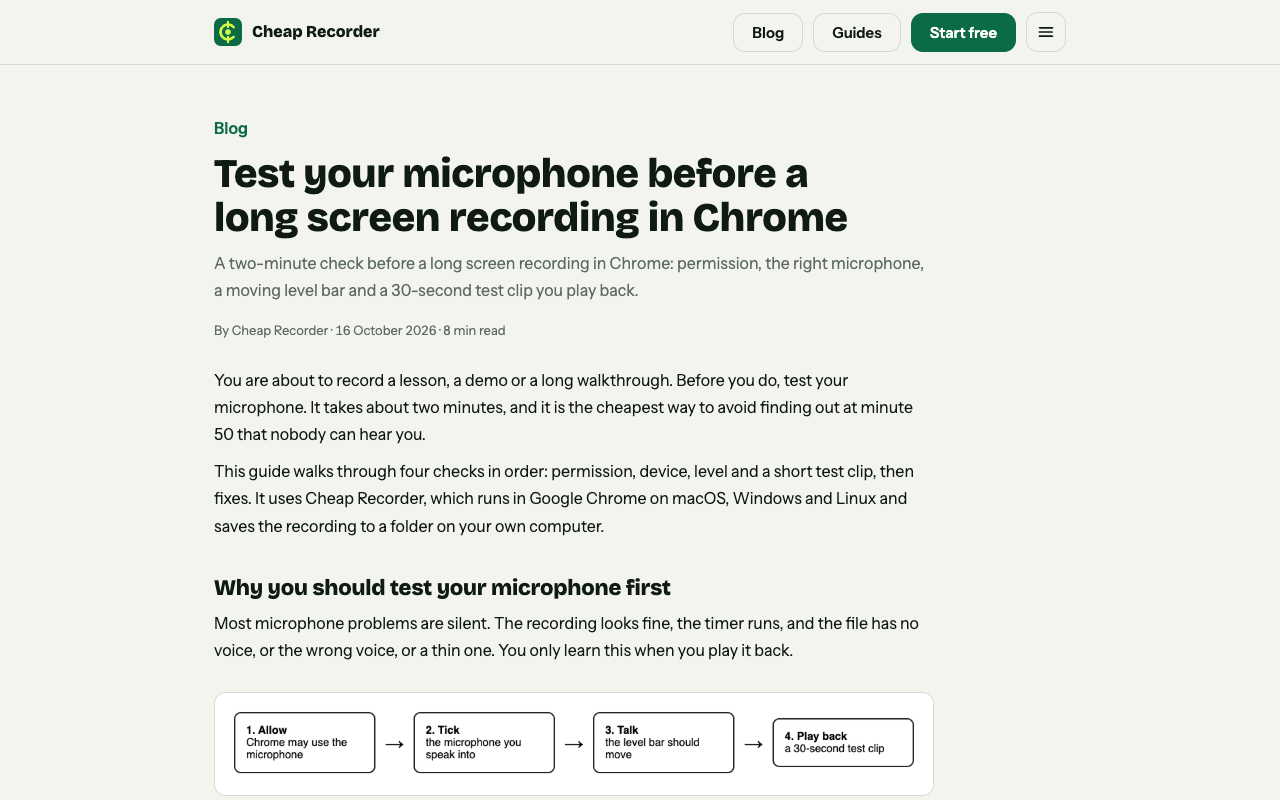
The Cheap Recorder blog post this one speaks of, with the four checks in order.
Play it back and listen for four things
Play the clip from its card, or open the recording's folder and play the file. Each recording sits in its own folder, named with the date, the time and the name you typed. Listen for:
- Your voice, and only the voice you meant. If it sounds like an old phone line, the wrong microphone is ticked, often a Bluetooth headset.
- The volume. You should not need to turn the player up, and nothing should crackle on loud words.
- Echo or a doubled voice. Either one points to speakers feeding the microphone, or a call's sound ticked in two places.
- Any other sound you wanted. A shared window gives no sound and neither does a whole-screen share on a Mac. A browser tab gives the page's sound only when its tab-audio box is ticked in Chrome's sharing window.
Then use the transcript as a second check. If the card shows words, Chrome heard you. If it says No transcript, Chrome heard no speech: check that Chrome may use the microphone, that you are online and that the language menu matches how you speak.
Fix what the test found
- Thin or tinny voice. Look for the warning Bluetooth microphone selected. It is a warning, not a fault. A Bluetooth headset used as a microphone can sound thin, so use it to listen and use a wired or USB microphone for your voice. The post on a Bluetooth headset on a Mac has the detail.
- Very quiet, or pumping up and down. Record the microphone untouched, under Options, turns off echo, noise and volume correction. Tick it for a studio microphone in a quiet room. Leave it unticked for a laptop microphone, a noisy room or a call. The post on when to turn off clean-up explains the trade.
- Echo. Wear headphones so other voices do not come out of the speakers and back into the microphone.
- No transcript. Check the three things above, fix the one that is wrong, and record another thirty seconds. Do not trust a fix you have not played back.
- Not the right microphone. Untick the others in Change or add microphones, then run the test again.
Choosing the device is a topic of its own, covered in picking the right microphone for screen recording.
A worked example: a two-hour training session
This is a made-up case. Marcus is about to record a two-hour training for new support staff from a desk with a USB microphone and a Bluetooth headset he wears to listen.
- He opens the recorder in Chrome, allows the microphone and the camera, and chooses a folder.
- In Change or add microphones he sees two ticked entries: the USB microphone, marked wired, and the headset, marked bluetooth, with the warning Bluetooth microphone selected. He unticks the headset.
- He names the recording
Mic test, picks the browser tab with his slides, checks the transcript language and presses Start recording. The USB microphone's bar moves when he talks. - He reads two paragraphs of his opening aloud, presses Stop and finish and plays the clip. His voice is clear. The card has a transcript, so Chrome heard him too.
- One thing is off: the chat sound from a second tab was not in the file, because he shared only the slides tab. That is the right result for this session, so he leaves it.
The test took three minutes. He renames the recording Training 2h and records the real thing.
Three checks that matter only on a long take
A short clip cannot show these, so look at them before you press Start on a long recording.
- Recorded minutes. The Free plan allows 12 hours of recording a month, Creator 80 and Business 250. A two-hour take is one sixth of the Free allowance. If the month's minutes are used up, the note beside Start recording says Recording time for the month is spent, and a take that runs out of minutes stops early.
- A connection to start. There is no offline mode, so Start recording waits for the server. If the connection drops while you record, the recording keeps going and keeps writing to your folder, and the plan label at the top says server unreachable.
- Chrome's own Stop sharing bar. Pressing it finishes the recording. Use Stop and finish instead, and tell anyone helping you.
If a USB or Bluetooth microphone disconnects mid-take, its name in the Microphone tile is followed by dropped out and its sound ends there. The post on a microphone that dropped out shows how to find the gap. If anyone else is on the recording, tell them you are recording.
Frequently asked questions
How long should a microphone test be?
About thirty seconds is enough. Say a few long sentences at your normal volume and distance, stop, and play the file back.
Does a moving level bar mean my microphone is fine?
No. It means the microphone is alive and Chrome is hearing it. Only playing the clip back tells you whether the voice is clear, loud enough and the right one.
Can I test only the microphone, without a screen?
Yes. Switch Record my webcam off and pick no screen. The recorder saves an M4A audio file you can play back.
Do I need to pick my microphone every time?
The recorder remembers your microphone choice in this browser. The transcript language goes back to its default each time the page opens, so check it before every recording.
Get started
Run one thirty-second test, play it back, fix the one thing it shows, and then record the long take. The Free plan needs no card, and your recordings stay on your own disk. Open Cheap Recorder in Chrome to try it.
Comments
No comments yet.
Sign in or make an account to comment.